Dropbox Online-Only on Mac: Offload Files, Free Space
Use Dropbox online-only on a Mac to free space: sync, verify, Make online-only, plus what Dropbox skips, undo windows and 2026 prices.
 By Clearbay TeamGuides from the people building Clearbay

To free up space on a Mac with Dropbox, put the files in your Dropbox folder, let Dropbox finish syncing them, then Control-click them in Finder and choose Make online-only. The files stay in Dropbox and in the same place in Finder, but their data leaves your Mac's disk and downloads again when you open them. Dropbox online-only on Mac is reliable once you know three things the help pages spread across different articles: how to confirm an upload really finished, which files Dropbox quietly won't sync, and how long you can undo a deletion on your plan. All of it is below, with limits and prices checked on November 14, 2026.
The short version
- Install Dropbox and sign in. On current Macs the folder is
~/Library/CloudStorage/Dropbox, listed under Locations in Finder. - Move or copy your large files into a folder inside Dropbox.
- Wait until every file has synced, then check it (see "How to know a file really uploaded").
- Control-click the folder and choose Make online-only.
- Check the space came back with
du -sh, because Finder still shows the full file size.
How Dropbox online-only works on macOS
Dropbox for macOS now runs on Apple's File Provider system. Dropbox calls this "Dropbox on File Provider" and it needs macOS 12.5 or later. Three things changed with it, and they explain most of the confusion in forum threads:
- The folder moved to
~/Library/CloudStorage/Dropbox, and Dropbox says changing its location isn't supported (external drives are being rolled out to some users only). - macOS handles placeholders. An online-only file is a "dataless" placeholder. It has its name, size and icon, but its data isn't on your disk.
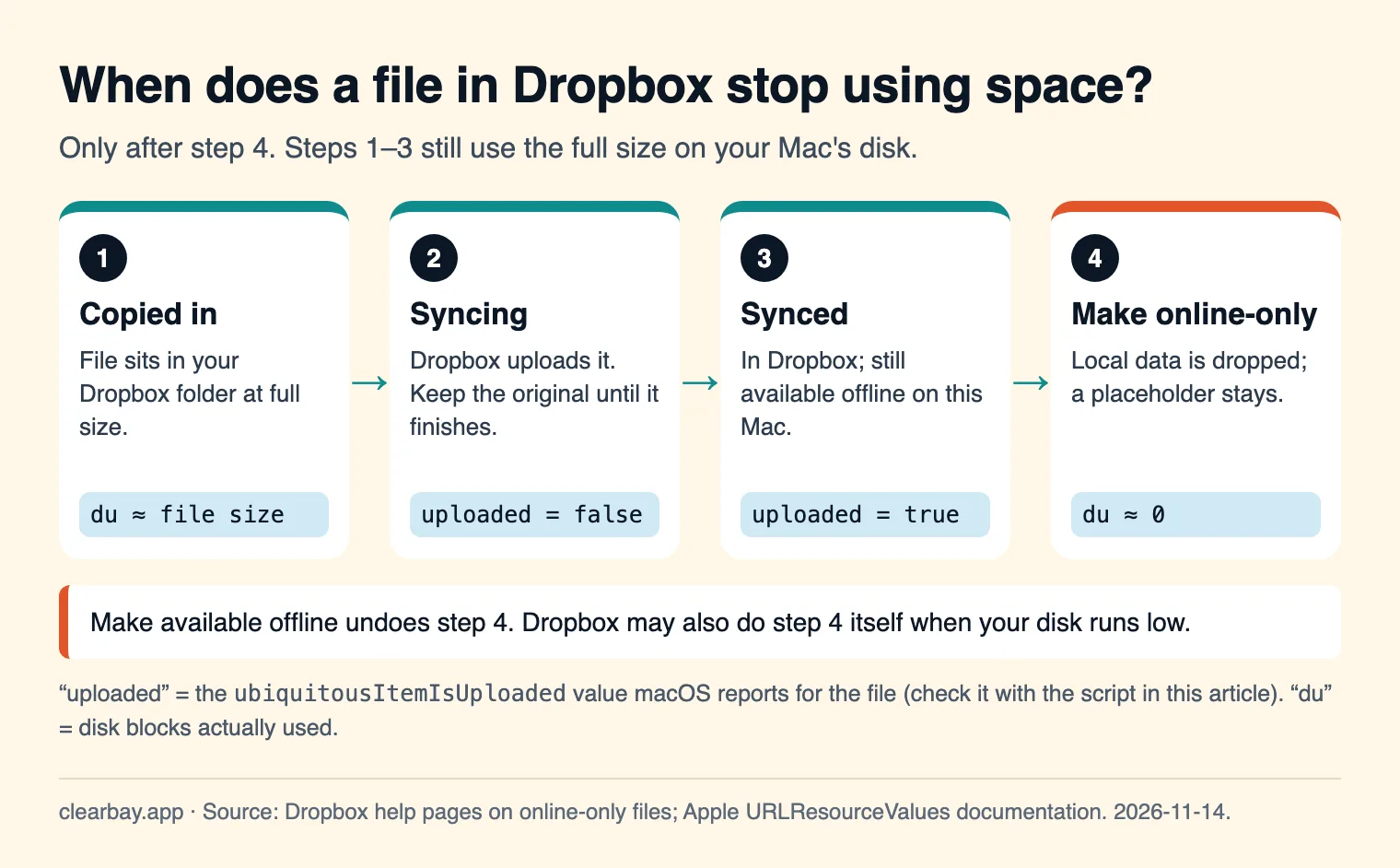
- Dropbox can free space for you. Dropbox says files not set to Make available offline may be made online-only automatically when your disk is low.
Each file is in one of two states. Online-only files use almost no space and need the internet to open. Available offline files use their full size and open anywhere. Opening an online-only file downloads it and makes it available offline again, so you need room for it first.
Dropbox online-only on Mac, step by step
1. Install and finish the File Provider move
- Install the Dropbox desktop app from dropbox.com and sign in.
- If Dropbox asks to move your folder to its new location, let it finish. Afterwards, Dropbox appears under Locations in the Finder sidebar. If it's missing, turn on Finder → Settings → Sidebar → Cloud Storage.
- Check your space at dropbox.com. Dropbox Basic is 2 GB and works on up to three devices. Dropbox says that if you go over your storage limit, it stops syncing.
2. Set new files to online-only (optional but recommended)
Click the Dropbox icon in the menu bar, click your avatar, open Preferences → Sync, and set Default sync preference to Online-only. Dropbox says this applies only to new items added directly to the root of your Dropbox folder, not to existing files or items in subfolders. It's still useful as a default, but don't rely on it to free space you've already used.
3. Move the large files in and let them sync
Create a folder such as Archive inside Dropbox. Option-drag copies instead of moving, which is the cautious choice: the original stays until you've confirmed the upload. How long it takes depends on your upload speed:
| Upload speed | 100 GB | 500 GB |
|---|---|---|
| 10 Mbps | 22.2 h | 111 h (4.6 days) |
| 20 Mbps | 11.1 h | 55.6 h (2.3 days) |
| 50 Mbps | 4.4 h | 22.2 h |
| 100 Mbps | 2.2 h | 11.1 h |
| 1 Gbps | 13 min | 1.1 h |
That's the theoretical best case (bytes × 8 ÷ line speed). Real uploads are slower. Dropbox also says sync can slow down to save battery when your Mac is unplugged, low on battery or running hot, so leave a big upload running on power.
4. Make online-only
- Control-click the folder or file in Finder.
- Choose Make online-only.
- To get a file back for offline use, choose Make available offline.
5. Check the real disk usage
du -sh ~/Library/CloudStorage/Dropbox/ArchiveOnline-only folders report close to zero. Dropbox notes the opposite quirk too: on File Provider, some downloaded files don't show up as using disk space in macOS's storage figures. Marking them Make available offline fixes the display. When the numbers look odd, trust du.
How to know a file really uploaded
Online-only is safe only for files Dropbox actually has. Before you delete an original, or before you rely on a folder as your only copy, check in one of three ways:
- Finder icons. A file still syncing shows a sync indicator. A synced file doesn't. This is quick for a few files and slow to read for a whole folder.
- dropbox.com. Open the folder in a browser and compare the item count and sizes. It's the provider's own view, so it's authoritative.
- The uploaded flag. File Provider apps report
ubiquitousItemIsUploadedfor every file. This script prints it. It needs Apple's Command Line Tools (xcode-select --install).
cat > ~/uploaded.swift <<'EOF'
import Foundation
for path in CommandLine.arguments.dropFirst() {
    let keys: Set<URLResourceKey> = [.ubiquitousItemIsUploadedKey, .ubiquitousItemIsUploadingKey]
    let v = try? URL(fileURLWithPath: path).resourceValues(forKeys: keys)
    print(path, "uploaded:", v?.ubiquitousItemIsUploaded ?? false,
          "uploading:", v?.ubiquitousItemIsUploading ?? false)
}
EOF
swift ~/uploaded.swift ~/Library/CloudStorage/Dropbox/Archive/*
We tested the script on macOS 26.5 (measured 2026-11-14). It finishes in under a second. Files outside a cloud folder print uploaded: false, so read false as "not confirmed", and check the files inside folders rather than the folder itself. This is the same signal Clearbay waits for, file by file, before it deletes an original.
What Dropbox won't sync
These files stay on your Mac and never reach Dropbox. If you then delete "the original folder" thinking it's all in Dropbox, these are what you lose. From Dropbox's help center:
- Ignored by name:
desktop.ini,thumbs.db,.ds_store,icon\r(custom folder icons),.dropbox,.dropbox.attr. - Temporary files: Office temp files that start with
~$or.~. - Not synced as files: symbolic links, aliases and shortcuts, resource forks, and most extended attributes (Dropbox lists a few types that do sync).
- Not supported in the Dropbox folder on File Provider: Final Cut Pro libraries (they can't be saved or opened there), the Photos library, and Adobe InDesign lock files (
.idlk). - macOS packages (bundles such as some app documents) show up as regular files and can only be opened on devices running Dropbox on File Provider.
- Names: Dropbox says some special characters such as
*and/aren't compatible with all devices, and recommends no name ending in a space and paths under 260 characters. - File size: up to 2 TB per file. Uploads over 375 GB in a web browser may time out, so use the desktop app for those.
For a project folder full of symlinks and hidden files, compress it first (Control-click → Compress) and park the .zip. One archive keeps every file and attribute intact and avoids every rule above.
Your undo window by plan
| Dropbox plan | Version history and deleted-file recovery |
|---|---|
| Basic, Plus, Family | 30 days |
| Professional, Essentials, Business, Standard | 180 days |
| Business Plus, Advanced, Enterprise | 365 days |
This window is your safety net. Dropbox warns that deleting an online-only file deletes it everywhere you use Dropbox, and once the window passes, a permanently deleted file can't be restored. If you park something in Dropbox and later tidy up the folder, you have 30 days on Plus to change your mind. For a copy that doesn't depend on that window, see offloading to an external drive.
What Dropbox storage costs (November 2026)
| Plan | Storage | US price (billed yearly) | Cost per TB per year if full |
|---|---|---|---|
| Basic | 2 GB, 3 devices | Free | – |
| Plus | 2 TB, 1 person | $9.99/month ($119.88/year) | $59.94 |
| Standard | Starts at 3 TB for the team, 1+ people | $15/user/month | $60.00 (1 user) |
| Advanced | Starts at 15 TB, 3+ people | $24/user/month | $57.60 (3 users) |
The last column is our own calculation (yearly price ÷ TB included). Per terabyte, Dropbox's plans all land at about $60 a year when you fill them. The difference between Plus and Standard is mostly the 180-day undo window and team features, not price per GB. Billing month to month costs more than the yearly prices shown.
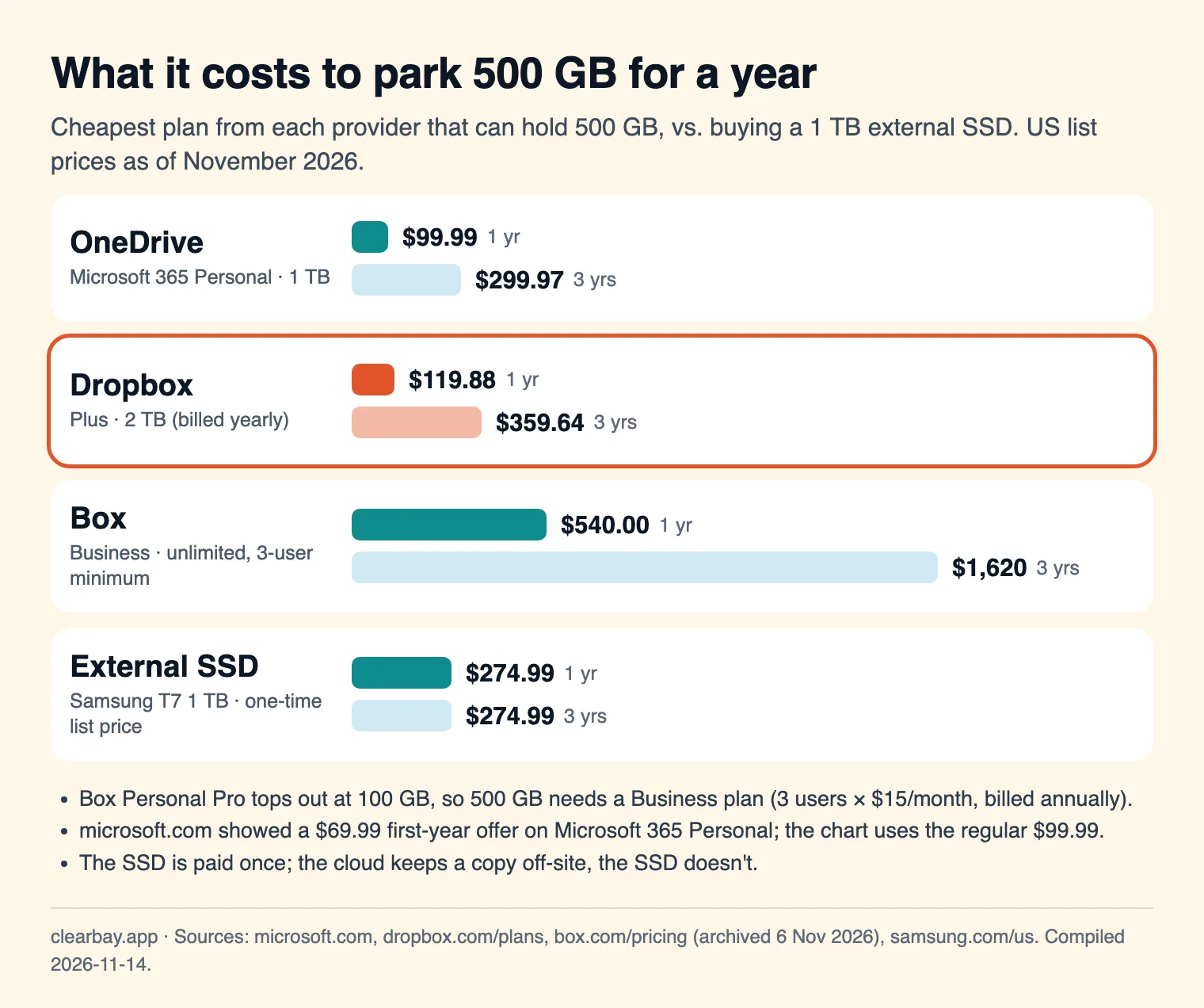
For only 500 GB, Dropbox Plus costs $20 a year more than OneDrive through Microsoft 365 Personal. Plus gives you 2 TB, though, so it's cheaper per GB once you go past 1 TB. A 1 TB portable SSD at Samsung's $274.99 list price beats Dropbox Plus partway through year three, but only the cloud copy survives a house fire or a lost bag.
Dropbox vs OneDrive vs Box
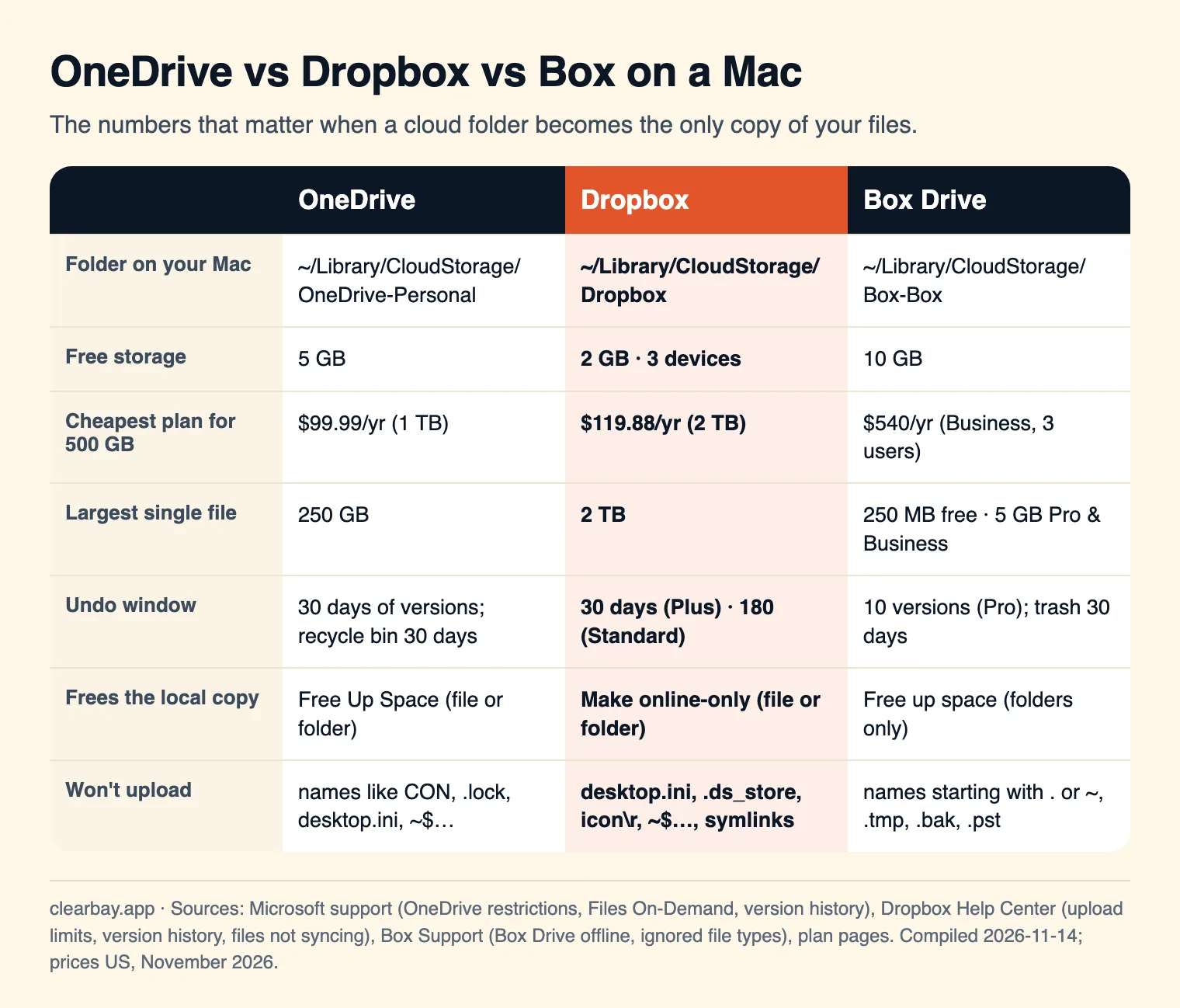
If you work with very large video or disk-image files, Dropbox's 2 TB per-file limit is the deciding factor: OneDrive stops at 250 GB and Box at 5 GB on most paid plans. More: OneDrive Free Up Space on Mac and Box Drive on Mac.
Troubleshooting
"Make online-only" isn't in the menu
Make sure you're inside ~/Library/CloudStorage/Dropbox and that the desktop app is running and signed in. Dropbox says that once you go over your storage limit it stops syncing, and users in Dropbox's forum report the option going missing then. Free space in your Dropbox account first.
I made files online-only but my disk didn't change
Run du -sh on the folder. If it's small, the space is free and macOS's figure is catching up, or the space is in System Data. If it's large, an app may have reopened the files (opening downloads them again), or a parent folder may be set to Make available offline.
Files keep coming back offline
Anything that reads the files' contents downloads them: video editors scanning media, backup apps, and some search tools. Point those apps somewhere else, or exclude the Dropbox folder.
Sync is stuck on one file
Dropbox may skip a file while an app is editing it. Close the app. Check the name for characters other devices reject, and check that the file isn't locked in Get Info.
Can Dropbox live on an external drive?
Dropbox says it has begun rolling out support for moving the Dropbox folder to compatible external drives, for some users only. If you don't see the option, the dependable way to park files on a drive is to use the drive directly.
How Clearbay offloads to Dropbox
Clearbay is a macOS disk-space app that can move large items into your Dropbox folder and remove the originals only after Dropbox reports them uploaded. It never signs in to Dropbox or calls Dropbox's API. It copies into the folder, and the Dropbox app does the upload.
- Clearbay detects
~/Library/CloudStorage/Dropboxautomatically. In Harbor → Cloud folders, click Use this folder next to Dropbox. - Choose items from any section, such as Forgotten Giants, Download Drift or Lookalikes, set them to Offload, and run the plan.
- Each item is copied into
Clearbay Offloadinside Dropbox, keeping its relative path, and the copy is checked by file count and total size. - The row reads Waiting for Dropbox to upload with a percentage, built from the uploaded flag on every file. It carries on after a restart.
- Once all files are uploaded, Clearbay deletes the original and asks macOS to make the copy online-only. If that doesn't happen, the row tells you to use Make online-only in Finder.
- If the original was edited after the copy, nothing is removed and you get Copy again.
Your Mac needs room for the item plus about 2 GB while it uploads. Live caches that tools still use (Gradle, Hugging Face, uv and the like) can't go to a cloud folder, because they need a local drive. Restore downloads the item, verifies it, puts it back where it came from, and then removes the copy from Clearbay Offload. Offloading into cloud folders is part of Clearbay Pro, a one-time purchase. Restore is always free. Harbor → Cloud files on this Mac lists Dropbox files that already have a local copy and frees them together. Download Clearbay (macOS 14 or later, Apple silicon and Intel).
Other routes: iCloud Drive, Google Drive, or object storage such as Backblaze B2 when you want pay-per-GB instead of a plan.
FAQ
Does making a file online-only in Dropbox delete it?
No. Make online-only removes the local data only. The file stays in your Dropbox account and in Finder, and downloads when you open it. Deleting is different: Dropbox says deleting an online-only file deletes it everywhere you use Dropbox. You can then restore it within your plan's window, which is 30 days on Basic and Plus.
Why is Dropbox taking up so much space on my Mac?
Files you add or open stay available offline until you make them online-only, and nothing changes that for existing files automatically unless your disk runs low. Run du -sh on folders in ~/Library/CloudStorage/Dropbox, make the big ones online-only, and set Default sync preference to Online-only in Preferences → Sync for new items in the Dropbox root.
Where is the Dropbox folder on a Mac?
With Dropbox on File Provider it's ~/Library/CloudStorage/Dropbox, shown under Locations in the Finder sidebar. Dropbox says changing the location isn't supported, apart from an external-drive option rolling out to some users. Apps that linked files at the old path may need to link them again.
How do I know when Dropbox has finished uploading?
A file stops showing a sync indicator in Finder when it's done, and it appears with the right size on dropbox.com. For many files at once, read macOS's per-file uploaded flag with the short Swift script in this guide. Only remove originals when every file reports uploaded.
What is the Dropbox file size limit?
Dropbox's maximum is 2 TB per file (2,199,019,061,248 bytes). Uploading files larger than 375 GB through a web browser may time out, so use the desktop app for big files. Your file also has to fit in your remaining Dropbox storage.
What's the difference between online-only and selective sync?
Online-only keeps the file visible in Finder as a placeholder that downloads when opened. Selective sync removes a folder from that computer entirely, so it no longer appears in Finder, and you reach it on dropbox.com. Online-only is better for parked files you might open; selective sync suits folders you never need on this Mac.
Does Dropbox make files online-only automatically?
It can. Dropbox says files not set to Make available offline may be made online-only automatically when your hard drive is low on disk space. Mark anything you need without internet as Make available offline so it isn't evicted, and keep some free space so Dropbox doesn't have to step in.
Sources
- Dropbox: Make files online-only
- Dropbox: Expected changes with Dropbox for macOS on File Provider
- Dropbox: What is the Dropbox file size limit?
- Dropbox: Files not syncing
- Dropbox: Version history overview
- Dropbox: How many devices can I use?
- Dropbox plans and prices
- Microsoft 365 plans and prices (US)
- Box pricing
- Samsung T7 1 TB (US list price)
- Apple: ubiquitousItemIsUploaded