How to Offload Files to iCloud Drive on Mac and Free Space
Store files in iCloud Drive and actually get the space back on your Mac: settings, Remove Download, Optimize Mac Storage, costs per TB and fixes.
 By Clearbay TeamGuides from the people building Clearbay

To offload files to iCloud Drive on a Mac, turn on iCloud Drive in System Settings → [your name] → iCloud → Drive, move the files into iCloud Drive in Finder, and wait for them to finish uploading. Then Control-click them and choose Remove Download. That last step is the one most people miss. Until you take it, a file in iCloud Drive still takes up its full size on your Mac. Optimize Mac Storage also frees space, but only when macOS decides space is needed.
This guide covers every setting and Finder command that affects whether iCloud Drive frees space, with exact menu paths for macOS 14, 15 and 26. It also works out what a terabyte of iCloud+ actually costs per year in November 2026, compared with Google One and a cheap external SSD.
Why moving files into iCloud Drive doesn't free space by itself
iCloud Drive is a sync folder. When you move a file into it, macOS uploads a copy to iCloud and keeps the original on your Mac too, so it opens instantly and works offline. Apple's own wording: if space is not needed, "the full contents of iCloud Drive remain on your Mac." The file is now safer, but your disk is just as full.
Space comes back in only two ways. Either macOS removes the local copy for you (Optimize Mac Storage), or you remove it yourself (Remove Download). Here's what each action does, compiled from Apple's Mac User Guide for macOS 15 and 26:
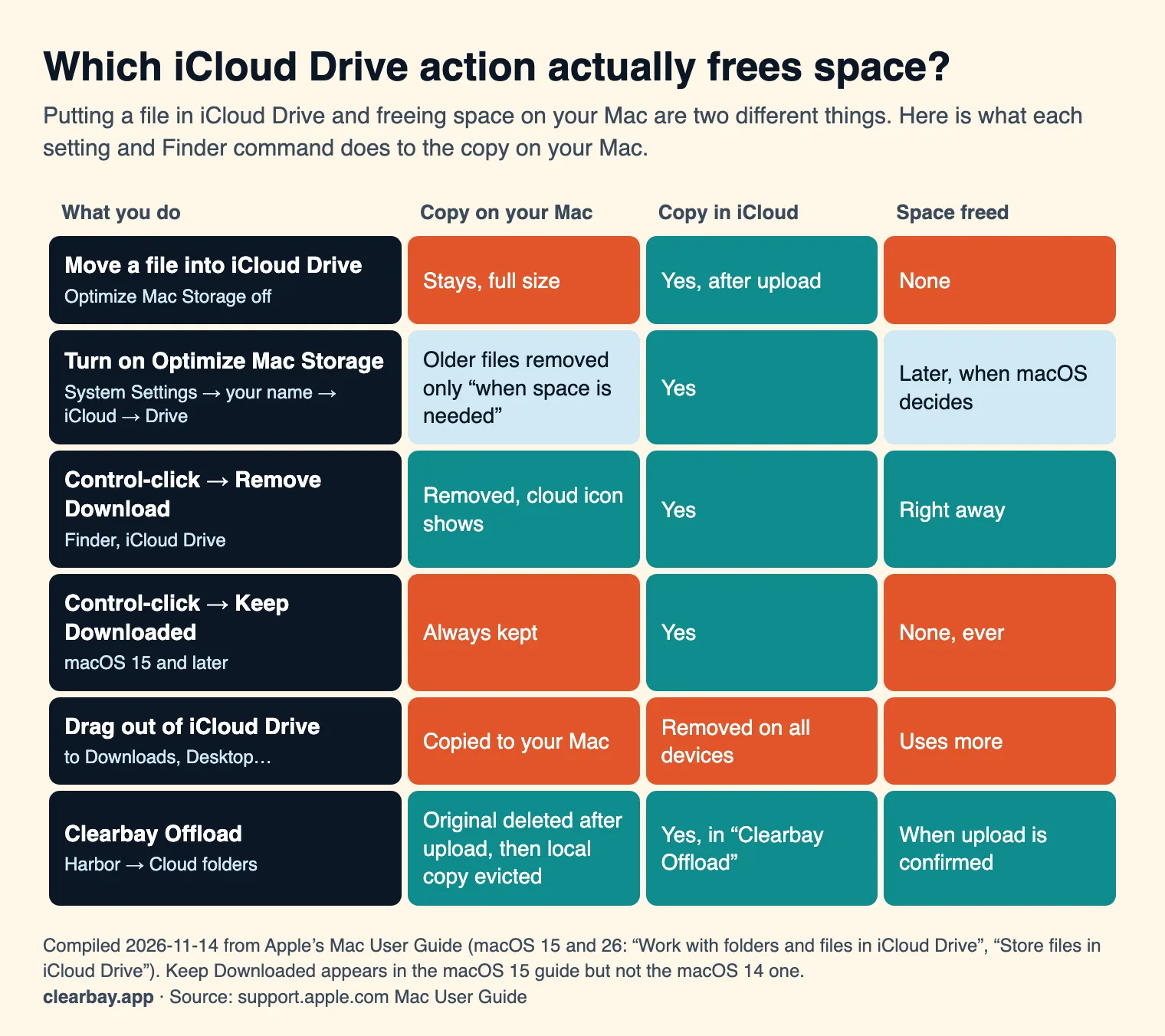
Two details are worth knowing before you start:
- Keep Downloaded (macOS 15 Sequoia and later) pins a file or folder to your Mac. Pinned items never free space, even with Optimize Mac Storage on. It's in Apple's macOS 15 guide but not the macOS 14 one.
- Dragging something out of iCloud Drive to another folder on your Mac copies it to the Mac and, in Apple's words, removes it "from iCloud Drive on all your devices". That's the opposite of offloading.
Set up iCloud Drive for offloading
macOS 15 Sequoia and macOS 26 Tahoe
- Open System Settings and click your name at the top of the sidebar. If you don't see it, click Sign in.
- Click iCloud, then Drive.
- Turn on Sync this Mac.
- Turn on Optimize Mac Storage if you want macOS to clear old local copies on its own when your disk gets tight.
- Click Done.
macOS 14 Sonoma
- Choose Apple menu → System Settings and click your name at the top of the sidebar.
- Click iCloud, then iCloud Drive, and turn on Sync this Mac. Click Done.
- Back in the iCloud pane, turn on Optimize Mac Storage near the bottom.
You'll also see Desktop & Documents Folders in the same panel. Turning it on moves both folders into iCloud Drive. That's convenient, but it means everything you save to the Desktop gets uploaded. Apple warns that a third-party app that also syncs those folders "can interfere with or stop the updating performed by iCloud Drive". You don't need it for offloading.
Finally, check how much room you have: System Settings → [your name] → iCloud shows a storage bar. iCloud Drive shares that space with iCloud Photos, iPhone and iPad backups, and iCloud Mail. If the plan is full, Apple says documents "stay on your Mac" and upload when space becomes available. So nothing is lost, but nothing is freed either.
How to offload files to iCloud Drive on a Mac, step by step
- Pick what to offload. Good candidates are finished projects, old course material, scanned paperwork, exported videos and photo shoots you've already edited. These are things you want to keep but rarely open.
- Make a folder for them. In Finder, click iCloud Drive in the sidebar and create a folder such as
Archive, so offloaded material doesn't mix with active work. - Move the files in. Drag them from their current folder into
Archive. Your home folder and iCloud Drive are on the same disk, so a plain drag moves the files instead of copying them. - Wait for the upload. Hold the pointer over iCloud Drive in Finder's sidebar and click the status icon to see progress. Files still uploading show a status indicator next to their names. Big uploads can take hours on a slow connection, and your Mac needs to stay awake and online.
- Remove the local copies. Select the uploaded items, Control-click, and choose Remove Download. A cloud icon replaces the file's local status.
- Check the result. Open System Settings → General → Storage. Free space should have grown by roughly the size of what you removed.
To open an offloaded file later, double-click it. macOS downloads it first, so you need an internet connection. To bring a whole folder back for offline work, Control-click it and choose Download Now.
What iCloud+ really costs per terabyte
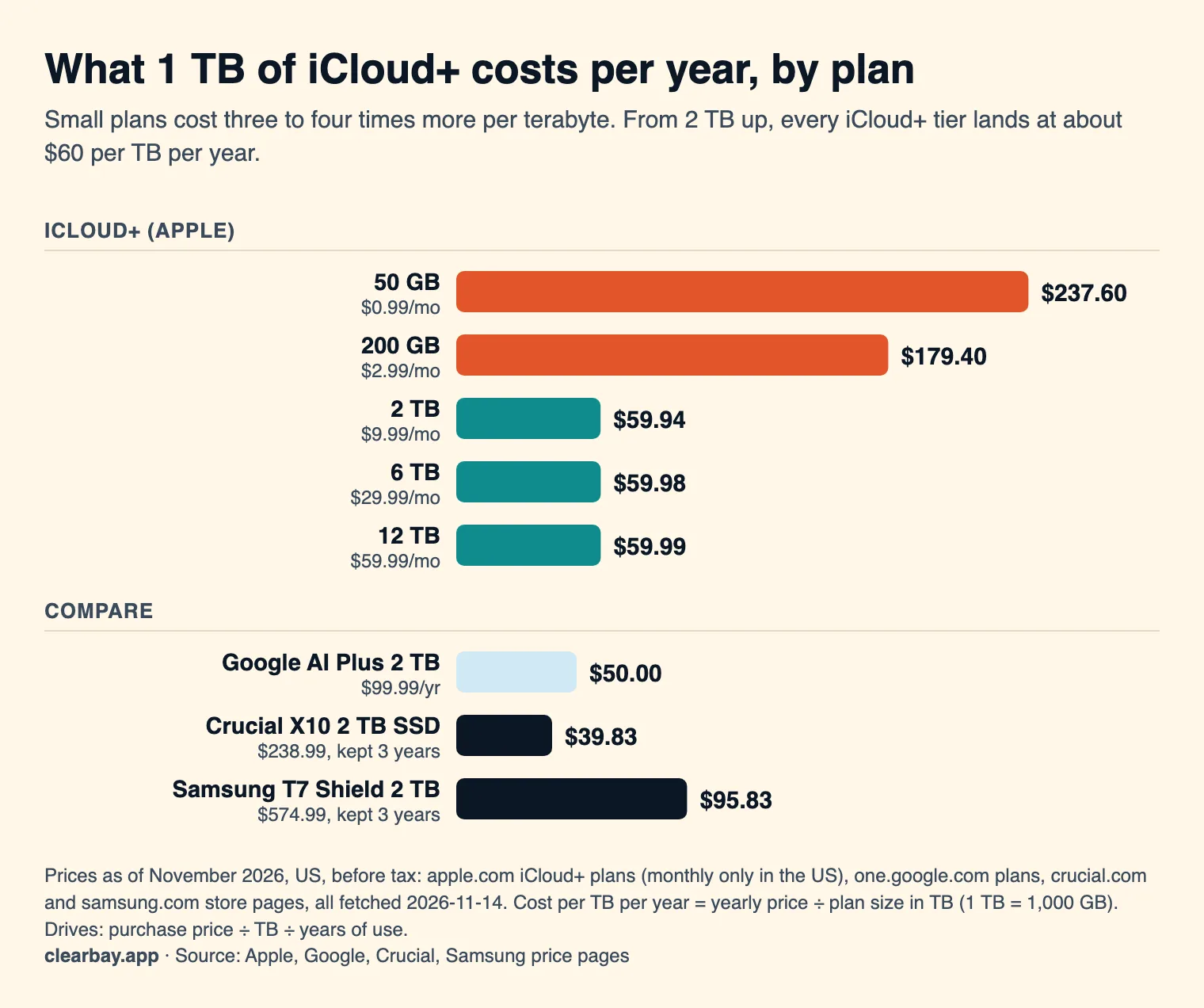
Apple sells iCloud+ only by the month in the US. We took the US prices from Apple's iCloud+ plans page on 14 November 2026 and worked out the yearly cost of each terabyte. We compared it with Google One (yearly billing) and two portable SSDs from their makers' own stores, kept for three years.
| iCloud+ plan | US price | Per year | Per TB per year | Room to offload (if nothing else is in iCloud) |
|---|---|---|---|---|
| Free | $0 | $0 | — | 5 GB |
| 50 GB | $0.99/month | $11.88 | $237.60 | Under 50 GB |
| 200 GB | $2.99/month | $35.88 | $179.40 | Under 200 GB |
| 2 TB | $9.99/month | $119.88 | $59.94 | Up to about 2 TB |
| 6 TB | $29.99/month | $359.88 | $59.98 | Up to about 6 TB |
| 12 TB | $59.99/month | $719.88 | $59.99 | Up to about 12 TB |
The pattern is clear. The 50 GB and 200 GB plans cost three to four times more per terabyte than the 2 TB plan. From 2 TB upwards, every tier works out at about $60 per TB per year. In practice, the jump that hurts is from 200 GB to 2 TB. Offloading 300 GB means paying for 2 TB, which is $119.88 a year instead of $35.88. Some US states add tax to the monthly payment, Apple notes.
iCloud Drive vs Google Drive vs an external drive
| iCloud Drive | Google Drive (Stream) | External SSD | |
|---|---|---|---|
| 2 TB, per year (Nov 2026) | $119.88 | $99.99 billed yearly | $238.99 once (Crucial X10), so $79.66 a year over 3 years |
| Free tier | 5 GB | 15 GB, shared with Gmail and Photos | — |
| Off-site copy | Yes | Yes | No, unless you keep it elsewhere |
| Opening an offloaded file | Needs internet; downloads on open | Needs internet; downloads on open | Needs the drive plugged in |
| Built into macOS | Yes | Needs Google Drive for desktop | Yes |
| Best for | Documents you want on iPhone and iPad too | People already paying for Google storage | Large, replaceable files and tool caches |
If you're mostly offloading large media or developer data, a drive is cheaper after about two years. See offloading to an external drive for our format tests. If you already pay for Google storage, the Google Drive guide covers the Stream vs Mirror setting that decides whether anything gets freed.
What not to put in iCloud Drive
- Live tool caches and build folders. Gradle, npm, Hugging Face and Xcode DerivedData change constantly and rebuild themselves. Syncing them wastes bandwidth, and evicting them just makes the tool download them again. Our guide to developer caches that are safe to clear covers which ones to delete.
- Virtual machine disks and databases in use. A single change re-uploads a huge file, and a half-synced copy can be inconsistent.
- Your Photos library. Use iCloud Photos with Optimize Mac Storage in the Photos settings instead of moving the library file.
- Folders with tens of thousands of tiny files, like a project's
node_modules. They sync slowly and gain little.
Troubleshooting
Remove Download is missing or greyed out
The item probably hasn't finished uploading, or it's pinned. Check the status icon next to the name. If the item shows the Keep Downloaded icon, Control-click and choose Keep Downloaded again to unpin it, then try Remove Download.
Optimize Mac Storage is on, but iCloud Drive still uses lots of space
That's expected. Apple's wording is that older documents are stored in iCloud "when space is needed". If your disk isn't nearly full, macOS keeps everything local. Use Remove Download for anything you want gone now.
Files are stuck uploading
Check that you're online and that your iCloud plan has room. If iCloud storage is full, files wait on your Mac. In macOS 26, Apple's guide links to a repair procedure for files and folders with broken permissions that won't sync. Restarting the Mac and leaving it awake on power for a while also helps large uploads finish.
A file came back after I removed its download
Opening a file, or an app reading it in the background, downloads it again. Remove Download once more when you're done with it.
I deleted a file from iCloud Drive by mistake
Deleting from iCloud Drive deletes it on all your devices. On a Mac, Apple says to look in the Trash first and drag the file back into iCloud Drive. On iPhone, iPad and iCloud.com, deleted files sit in Recently Deleted, which empties them after 30 days.
The space didn't come back
Empty the Trash, then give macOS a few minutes. Local Time Machine snapshots can also hold deleted data for a while. Our explainer on System Data covers snapshots and purgeable space.
How Clearbay offloads to iCloud Drive
Clearbay doesn't sign in to iCloud and doesn't use any Apple account API. It copies into your iCloud Drive folder, and macOS does the upload. In Clearbay, open Harbor → Cloud folders and click Use this folder next to iCloud Drive. Then set any item in your scan results to Offload and run the plan.
- Clearbay copies the item into a
Clearbay Offloadfolder inside iCloud Drive, keeping its original path, and checks the copy. - It shows Waiting for iCloud Drive to upload until macOS reports that the upload has finished. Waiting items carry on at the next launch if you quit.
- Only then does it delete the original from your Mac and ask macOS to drop the local copy, which leaves the file in iCloud only.
- While an item uploads, your Mac needs room for its size plus about 2 GB. Live caches (Gradle, Hugging Face, uv and similar) are refused, because they need a local drive.
- Harbor → Cloud files on this Mac lists big iCloud Drive and cloud-folder files (50 MB and up) that are downloaded to your Mac, with Free local copy next to each. Nothing is deleted from the cloud.
- Clearbay never scans or removes anything you keep in iCloud Drive. It only writes inside
Clearbay Offload.
Cloud-folder offloading and Free local copy are part of Pro, a one-time purchase, and Restore is always free. Download Clearbay for macOS 14 or later. For other ways to get space back, see how to free up space on a Mac without deleting files.
FAQ
Does moving files to iCloud free up space on my Mac?
Not by itself. iCloud Drive keeps a full local copy of every file unless Optimize Mac Storage removes it when space is needed, or you Control-click the file and choose Remove Download. Move the files in, wait for the upload to finish, then remove the downloads. That's when the space comes back.
How do I keep files in iCloud only and not on my Mac?
Put them in iCloud Drive, wait until they've uploaded, then Control-click them in Finder and choose Remove Download. They stay listed in Finder with a cloud icon and download again when you open them. Make sure they aren't set to Keep Downloaded, which pins them to your Mac.
What does Optimize Mac Storage do?
With Optimize Mac Storage on, macOS stores older iCloud Drive documents in iCloud only when your Mac needs space, and keeps recently opened ones local. If your disk has plenty of room, it does nothing, so the full contents of iCloud Drive stay on your Mac. Find it in System Settings → your name → iCloud → Drive.
Why is iCloud Drive taking up so much space on my Mac?
Because iCloud Drive keeps local copies by default. Files you opened recently, folders set to Keep Downloaded, and everything in Desktop & Documents if that's on all count against your disk. Remove Download frees specific items right away. Optimize Mac Storage only steps in when the disk is nearly full.
If I delete a file from my Mac, is it deleted from iCloud?
Yes, if the file is in iCloud Drive. Deleting it there deletes it on all your devices. Look in your Mac's Trash first; on iPhone, iPad and iCloud.com, Recently Deleted keeps them for 30 days. To free space without deleting from iCloud, use Remove Download instead of moving the file to the Trash.
Is iCloud Drive a backup?
No. iCloud Drive syncs, so a deletion or a bad edit spreads to every device. Once you've removed a file's download, iCloud holds its only copy. For important files, keep a second copy elsewhere, such as Time Machine or an external drive.
How much does 2 TB of iCloud storage cost?
As of November 2026, iCloud+ with 2 TB costs $9.99 a month in the US, or $119.88 a year, which is about $60 per terabyte per year. The 6 TB and 12 TB plans cost almost exactly the same per terabyte. The 50 GB and 200 GB plans cost three to four times more per terabyte.
Sources
- Apple: Work with folders and files in iCloud Drive (Mac User Guide)
- Apple: Store files in iCloud Drive on Mac
- Apple: Optimize storage space on your Mac
- Apple: iCloud+ plans and pricing
- Apple: If you're missing files in iCloud Drive
- Google One plans
- Crucial X10 2TB Portable SSD (crucial.com)
- Samsung T7 Shield 2TB (samsung.com)