Mac storage full? Here's what to do first
A full disk is fixable in minutes if you work in the right order, and nothing you care about has to be lost on the way.
Short answer: empty the Trash, delete installers you have already used, clear caches that rebuild on their own, then find the two or three biggest things on the disk. Move big files you rarely open to an external drive or the cloud instead of deleting them. Buy more storage only if your everyday files no longer fit.
- Free download
- macOS 14 or later
- Apple silicon & Intel
What “Your disk is almost full” actually means
macOS shows this warning when free space on the startup disk, the internal SSD your Mac boots from, runs low. It's not about memory (RAM) and not about iCloud storage: those are separate limits with their own messages. Plugging in an external drive doesn't help either until you actually move something onto it.
The warning matters because macOS and your apps need working room, not just room for your files. When the disk is nearly full you'll typically notice that:
- large exports, builds and downloads stop halfway with a “not enough space” error;
- macOS updates refuse to download or install, because the installer has to unpack itself first;
- apps that save often (Photos, Mail, Messages, editors) slow down or fail to save;
- the Mac feels sluggish once memory gets tight, because swap files live on the same disk.
Two numbers can disagree here. Storage settings and Finder may show different free space because part of the disk is purgeable: space macOS promises to reclaim by itself. If the grey System Data bar is the biggest part of your disk, read what System Data on a Mac is and how to shrink it before you delete anything.
The 5-minute triage: free space in this order
Each step is safer and faster than the one after it, so stop as soon as you have enough room to keep working.
- Empty the Trash, on every drive 30 secFiles you trashed still take up space until the Trash is emptied; Apple says so in its own storage guide. If you trashed something on an external drive, that drive has its own Trash too.
- Delete installers you've already run 1 minSort Downloads by size and look for
.dmg,.pkg,.xipand.zipfiles of apps you've installed, plus any leftover “Install macOS” app in Applications. They can all be downloaded again. - Clear what rebuilds itself 1 minApp caches, logs and developer build output come back on their own when needed, so removing them costs you nothing but a slower first launch. Developers usually win the most here; see developer cache cleanup on a Mac.
- Find the few items that really fill the disk 1 minOn most full Macs, a handful of items hold most of the space: a video project, an old phone backup, a virtual machine, a folder of AI models. A disk space analyzer for Mac shows them in one scan instead of folder by folder.
- Move big, cold files off the Mac 1 min to startAnything you want to keep but haven't opened in months can live on an external drive or in the cloud. Copy it, check the copy, then free the space. That's how offloading Mac storage works in Clearbay, with one-click restore.
Space jumped overnight? Restart the Mac before anything else. A restart resets swap and clears many temporary files, which is sometimes all a sudden drop was.
What not to do when your Mac is full
Panic cleaning causes more damage than a full disk. Avoid these, even if a forum post recommends them:
- Don't delete folders in Library you can't identify. Some hold app data you can't get back, such as settings, licences or a chat history.
- Don't pull files out of the Photos library or other app libraries by hand. Move the entire library using the app's own method, or leave it alone.
- Don't shuffle files between folders on the internal disk. It frees nothing. Space only comes back when a file leaves the internal disk or is deleted.
- Don't delete the original before the copy is checked. Compare item count and size on both sides first, or let a tool verify it for you.
- Don't run
sudo rmcommands you copied from the internet. There's no Trash and no undo.
Why your Mac keeps filling up again
If the warning comes back every few weeks, the cause is usually one kind of file growing in the background. Find your row and go straight to the page that covers it in depth.
| If this sounds like you | What usually fills the disk | Where to go next |
|---|---|---|
| 256 GB Mac, everyday use | Downloads, phone backups, screenshots, chat attachments | See what's using space |
| You write code | Xcode build data and simulators, node_modules, package caches | Clean developer caches |
| You run local AI models | Ollama, Hugging Face and LM Studio models, several GB each | Local AI model storage |
| You edit video or photos | Finished projects, raw footage, photo bursts | Offload to a drive or cloud |
| “Full, but I can't find any files” | System Data: snapshots, caches, disk images | System Data explained |
| Years of copying things around | Duplicate files and near-identical photos | Find duplicate files |
| Apps you tried once | Unused apps and the support files they left behind | Uninstall apps completely |
When to buy an external SSD, or a bigger Mac
Cleaning only helps if some of what's on the disk is disposable. After the triage, look at what's left and ask one question: how often do I open it?
| What's left on the disk | Best fix |
|---|---|
| Mostly caches, installers and leftovers | Clean up. You don't need new hardware. |
| Big files you open monthly or less | An external SSD or a cloud folder. Offload them and bring them back when needed. |
| Big files you open every week, and they still don't fit | A fast external SSD you keep plugged in for that work, and more internal storage on your next Mac. |
| Free space keeps shrinking with no new files | Not a hardware problem. Watch what grows (System Data, a sync app, backups) before buying anything. |
On Apple silicon MacBooks the SSD is part of the main board, so you can't add internal storage later. That makes an external USB-C or Thunderbolt SSD the practical upgrade, and the reason it pays to keep only the files you use often on the internal disk. One caution: a file moved to a single external drive has one copy. Keep anything irreplaceable on two places.
How Clearbay gets a full Mac back to normal
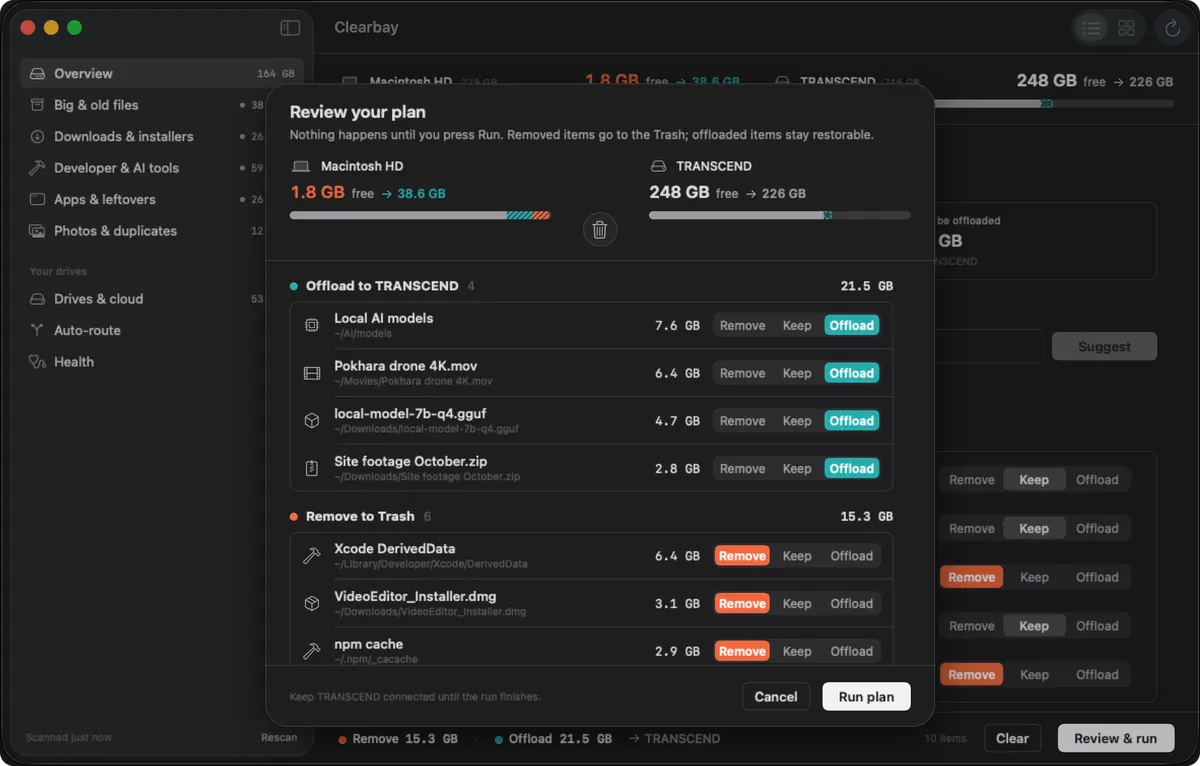
Clearbay turns the triage above into one review screen. A single Bay Scan sorts the disk into plain places and labels each item Safe, Review or Caution. You pick Remove, Keep or Offload per item, then check the whole plan, with totals for each action, before anything runs. Removed items land in the Trash, except caches and logs that regenerate, which are deleted at once unless you turn that setting off.
So it doesn't happen again
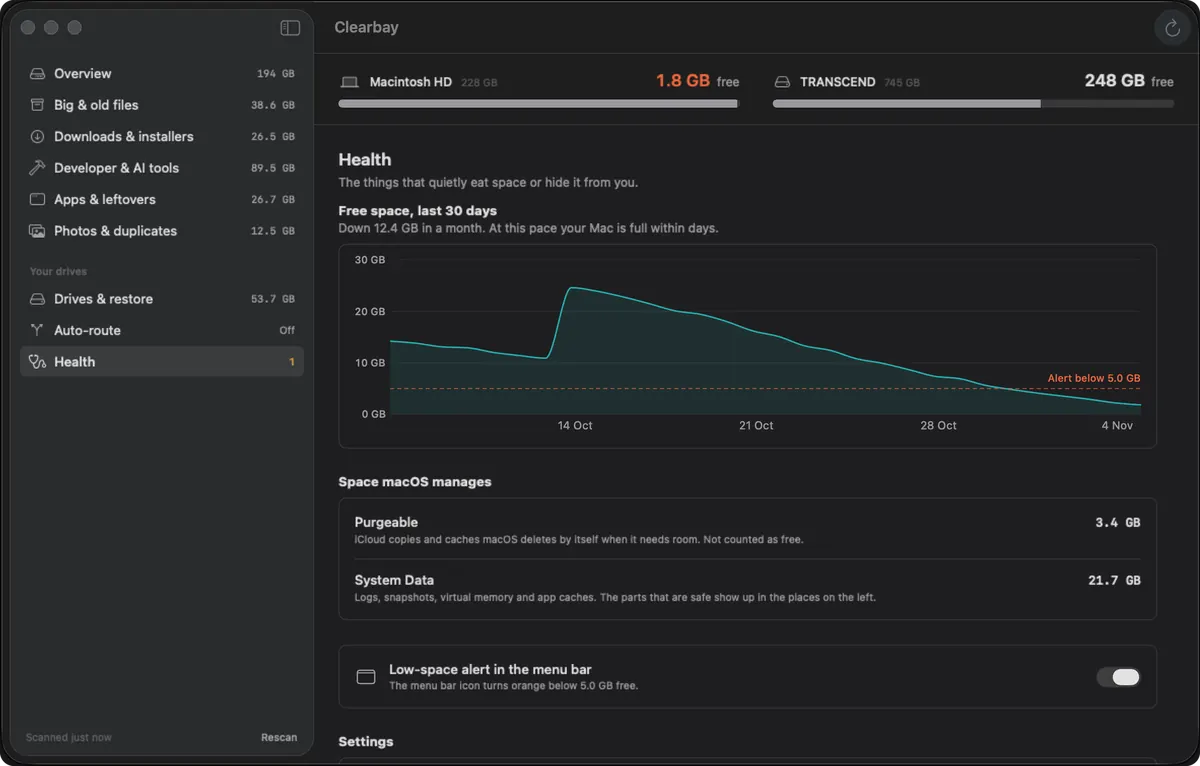
Vital Signs keeps a daily free-space history, so you can see whether your disk fills steadily or jumped on a certain day. In Pro, a menu-bar alert warns you when free space falls under a limit you set (5 GB unless you change it), and Auto-Dock sends new downloads, screenshots and AirDrop files to your drive while it's connected.
Mac storage full: questions people ask
What happens when Mac storage is completely full?
Your Mac keeps running, but it can't save new files, apps that write temporary data start failing, and macOS can't download or install updates. It can also slow down when it runs out of room for swap. Freeing even 10 to 20 GB is usually enough to get things working again while you clean up properly.
Why is my Mac storage still full after deleting files?
The most common reasons are a Trash that hasn't been emptied, Time Machine local snapshots that still hold the deleted files for a while, and Storage settings that haven't refreshed yet. Empty the Trash, wait a few minutes or restart, and check again.
Why is my Mac storage full when I use iCloud?
iCloud doesn't automatically keep files off your Mac. iCloud Drive keeps a local copy of every file you've opened, and with Optimize Mac Storage turned on it removes local copies only when macOS decides space is needed. Photos keeps full-size originals on the Mac if Download Originals is selected.
How much free space should a Mac have?
Apple doesn't publish a single number. A common rule of thumb is to keep at least 10 to 15 percent of the disk free, and never less than the size of the next macOS update. Clearbay's menu-bar alert defaults to 5 GB as a last-chance warning, and you can raise it.
Can I upgrade the storage in my MacBook?
Not on Apple silicon MacBooks: the storage is built into the main board and can't be replaced by you. The practical upgrade is an external SSD over USB-C or Thunderbolt for files you don't need every day, and choosing more internal storage when you buy your next Mac.
What can I safely delete when my Mac is full?
Installers you've already run, the contents of the Trash, caches and logs that rebuild themselves, and old downloads you don't need. Anything you'd be upset to lose, such as projects, photos or documents, is a candidate for moving to a drive, not for deleting.
Get your space back without losing a file
Scan your Mac for free, see exactly what fills the disk, and choose Remove, Keep or Offload for every item. Pro adds unlimited offload, Auto-Dock and the low-space alert, for one payment.
Related guides
Clearbay is made by Bisai Technologies, LLC · Mac storage guides · Changelog · Support · Privacy · Terms · Refunds