OneDrive Free Up Space on Mac: Offload Files Safely
Free up Mac space with OneDrive Files On-Demand: upload, verify, Free Up Space, plus limits, undo windows and 2026 prices.
 By Clearbay TeamGuides from the people building Clearbay

To free up space on a Mac with OneDrive, put the files in your OneDrive folder, wait until OneDrive has finished uploading them, then Control-click them in Finder and choose Free Up Space. The file stays in OneDrive and keeps its name and place in Finder, but its data leaves your Mac's disk. It downloads again when you open it. The catch most guides skip: once you delete the original, the OneDrive copy is the only copy, so you need to know it really uploaded, what OneDrive won't accept, and how long you can undo a mistake. This guide covers all three, with prices and limits checked on November 14, 2026.
The short version
- Install OneDrive and sign in. Your files live in
~/Library/CloudStorage/OneDrive-Personal(work and school accounts useOneDrive-plus the organization's name). - Move or copy the big items into a folder inside OneDrive.
- Wait until every file shows as uploaded (how to check is below; don't trust a spinning icon that has stopped).
- Control-click the folder and choose Free Up Space.
- Confirm the space came back with
du, not just the Finder size column.
If you copied rather than moved the files, delete the originals only after step 3. That ordering is the whole game.
How OneDrive Files On-Demand works on macOS
Since macOS 12.1 Monterey, OneDrive runs on Apple's File Provider system, and Microsoft says Files On-Demand is on by default and can't be turned off. That is why the folder moved from ~/OneDrive to ~/Library/CloudStorage and shows up under Locations in the Finder sidebar. Every file in it is in one of three states, which Finder marks with an icon:
| State | Finder icon | Uses space on your Mac? | Opens offline? |
|---|---|---|---|
| Online-only | Cloud | No (a small placeholder only) | No |
| Locally available | Check mark or line, depending on OneDrive version | Yes | Yes |
| Always available | Filled circle with a check mark | Yes, and macOS won't drop it | Yes |
The two commands you need are in the Finder context menu: Free Up Space turns a file or folder online-only, and Always Keep on This Device pins it locally. A new file you create in OneDrive starts out locally available, so it uses full space until it has uploaded and you free it.
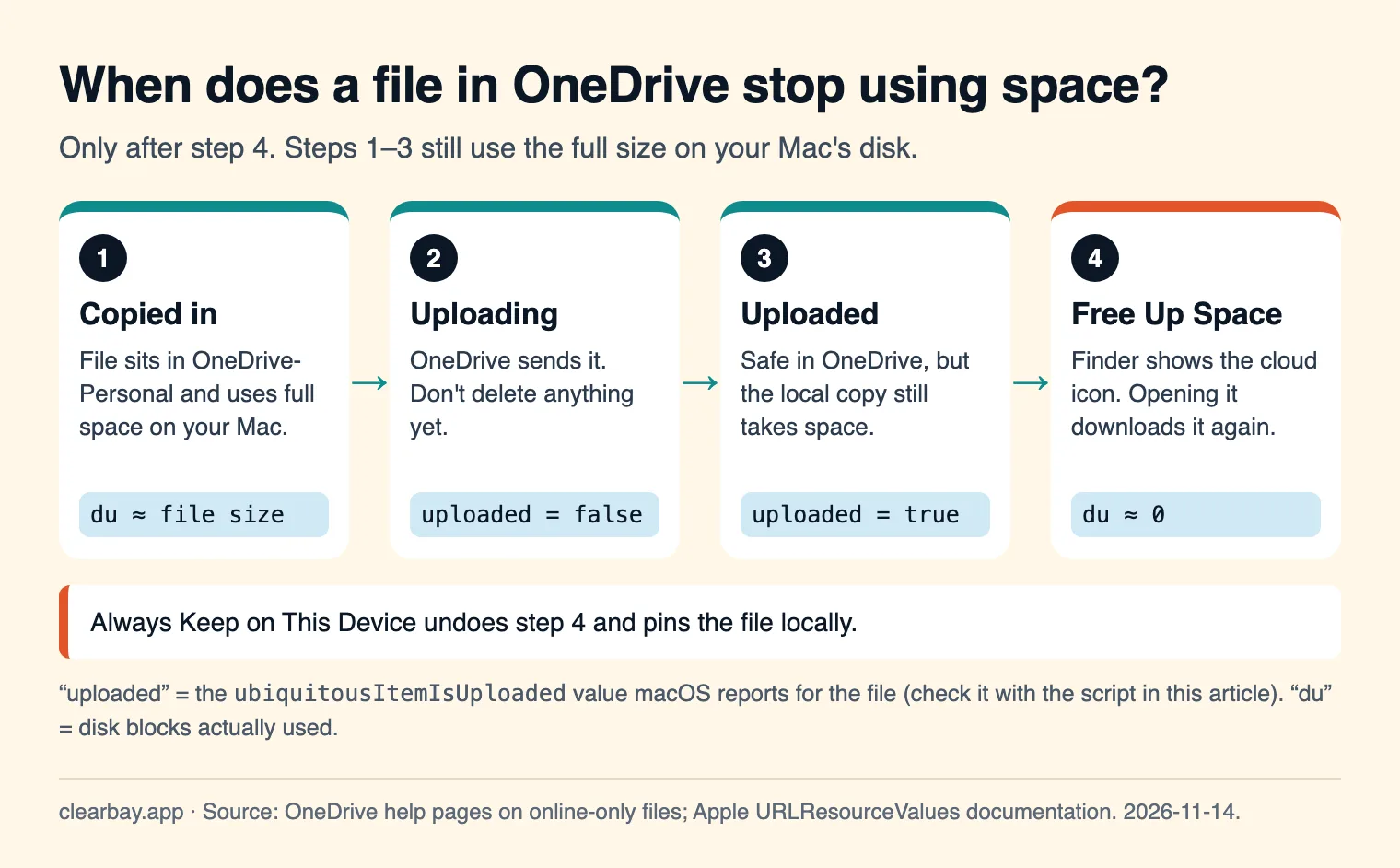
OneDrive free up space on Mac, step by step
1. Install and sign in
- Install OneDrive from the Mac App Store or from Microsoft's site and sign in with your Microsoft account.
- When setup finishes, open Finder. Your OneDrive appears under Locations in the sidebar. If it doesn't, open Finder → Settings → Sidebar and turn on Cloud Storage (macOS 14 Sonoma, 15 Sequoia and 26 Tahoe use the same path).
- Check your free storage before you start: click the OneDrive cloud icon in the menu bar. The free plan has 5 GB, which fills up after a few videos.
2. Move the large files in
Make one folder for things you're parking, such as Archive, so you can free it with one click later. Dragging a file from elsewhere in your home folder into OneDrive normally moves it. Hold Option while dragging if you want to copy instead, which is safer: you keep the original until the upload is confirmed.
3. Wait for the upload, then check it
Upload time is simple arithmetic. At full speed, 500 GB is 4 trillion bits, so:
| Your upload speed | 100 GB takes | 500 GB takes |
|---|---|---|
| 10 Mbps | 22.2 hours | 111 hours (4.6 days) |
| 20 Mbps | 11.1 hours | 55.6 hours (2.3 days) |
| 50 Mbps | 4.4 hours | 22.2 hours |
| 100 Mbps | 2.2 hours | 11.1 hours |
| 300 Mbps | 44 minutes | 3.7 hours |
| 1 Gbps | 13 minutes | 1.1 hours |
These are best cases (size × 8 ÷ speed, no protocol overhead). Upload speed is usually far lower than download speed on home connections, so run a speed test and look at the upload figure. During the upload the files use their full size on your Mac. If you're doing this because your disk is nearly full, start with one folder rather than everything at once.
4. Free Up Space
- Control-click the folder (or file) in Finder.
- Choose Free Up Space.
- The icon changes to a cloud. The file keeps its name, size and place in Finder.
Don't use Always Keep on This Device on a parent folder of things you want to free. Pinned folders keep everything inside them local.
5. Confirm the space came back
Finder's size column shows a file's logical size, which stays the same for online-only files. To see what's actually stored on disk, open Terminal and run:
du -sh ~/Library/CloudStorage/OneDrive-Personal/ArchiveAn online-only folder reports close to zero. macOS's own free-space figure in System Settings → General → Storage can take a few minutes to catch up.
How to know a file really uploaded
This is the step to take seriously, because Free Up Space and deleting the original both assume the cloud copy is complete. You have three ways to check, from quickest to most reliable:
- Finder icon. A file still uploading shows a sync indicator; a finished one doesn't. This is fine for one file and hard to read for a folder of 4,000.
- OneDrive on the web. Open onedrive.com, find the folder, and compare the number of items and the folder size with your Mac. It's slow, but it shows what Microsoft actually has.
- Ask macOS directly. File Provider apps report a per-file "uploaded" flag (
ubiquitousItemIsUploaded) that apps can read. This small script prints it for each file you pass in. It needs Apple's Command Line Tools (xcode-select --install).
cat > ~/uploaded.swift <<'EOF'
import Foundation
for path in CommandLine.arguments.dropFirst() {
    let keys: Set<URLResourceKey> = [.ubiquitousItemIsUploadedKey, .ubiquitousItemIsUploadingKey]
    let v = try? URL(fileURLWithPath: path).resourceValues(forKeys: keys)
    print(path, "uploaded:", v?.ubiquitousItemIsUploaded ?? false,
          "uploading:", v?.ubiquitousItemIsUploading ?? false)
}
EOF
swift ~/uploaded.swift ~/Library/CloudStorage/OneDrive-Personal/Archive/*
We tested the script on macOS 26.5 (measured 2026-11-14). It runs in under a second. A file outside a cloud folder correctly reports uploaded: false, so false on a OneDrive file means "not confirmed yet", not "broken". Run it on the files inside folders, not on the folder itself. Clearbay uses the same flag, walking every file in a folder, before it deletes anything.
What OneDrive won't take
A file OneDrive rejects stays on your Mac with an error, so nothing is lost. But it never uploads, and if you deleted the original thinking the folder was safe, that file is the gap. Microsoft's documented limits:
- File size: 250 GB per file. Microsoft recommends the sync app rather than the website for anything over a few GB.
- Reserved names:
.lock,CON,PRN,AUX,NUL,COM0–COM9,LPT0–LPT9,desktop.ini, any name containing_vti_, and any name starting with~$(Office lock files). - Spaces: no leading or trailing spaces in file or folder names.
- Characters:
" * : < > ? / \ |used to be blocked everywhere. Since OneDrive for Mac 24.206 (January 2025) these sync as-is from a Mac, but they show up HTML-encoded on Windows. - Path length: 400 characters for the full decoded path in the cloud.
- Item count: Microsoft recommends syncing no more than 300,000 items in total. A
node_modulesfolder alone can be tens of thousands. - Disk format: the sync app doesn't support case-sensitive APFS volumes.
- Not synced on purpose:
.DS_Storefiles.
If a folder has lots of tiny files (code projects, photo library exports), it's often better to compress it first (Control-click → Compress) and upload one .zip. One big file uploads faster and runs into none of the name rules.
Your undo window
Parking files in OneDrive is only safe for as long as you can recover from a mistake. For personal accounts, Microsoft keeps file version history for 30 days, for every file type, and deleted files sit in the OneDrive recycle bin on the web for up to 30 days. That matters more than it looks: deleting an online-only file in Finder deletes it from OneDrive everywhere, not just from your Mac. If you clean up the OneDrive folder carelessly six weeks after you parked something, there's no way back. If you want a second copy that doesn't depend on a 30-day window, see offloading to an external drive.
OneDrive vs Dropbox vs Box for parking files
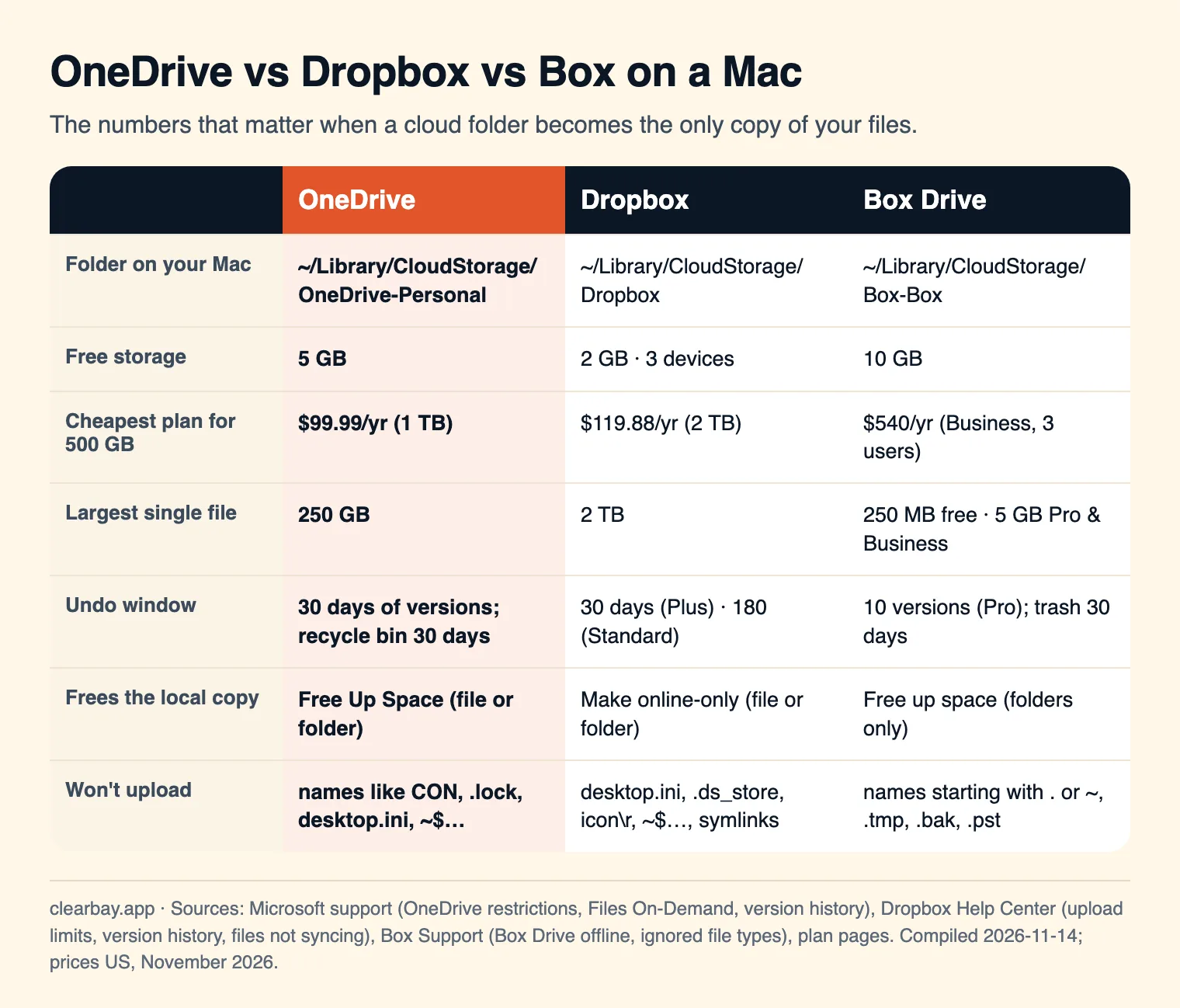
All three use the same macOS File Provider system, so freeing space works the same way. The differences are price, file size and how long you can undo. Detailed guides: Dropbox online-only on Mac and Box Drive on Mac.
What OneDrive storage costs (November 2026)
| Plan | OneDrive storage | US price | Cost per TB per year if full |
|---|---|---|---|
| Free Microsoft account | 5 GB | $0 | – |
| Microsoft 365 Basic | 100 GB | $1.99/month or $19.99/year | $199.90 |
| Microsoft 365 Personal | 1 TB | $99.99/year ($69.99 first-year offer shown) | $99.99 |
| Microsoft 365 Family | 2 TB, shared by up to 6 people | $129.99/year | $65.00 |
| Microsoft 365 Premium | 2 TB | $199.99/year | $100.00 |
The last column is our own calculation: annual price divided by terabytes included. It shows that Basic only makes sense for small amounts. Past about 200 GB, Personal costs less per GB. Note that microsoft.com now lists Family with 2 TB of shared storage, so check that before you count on a full terabyte per person.
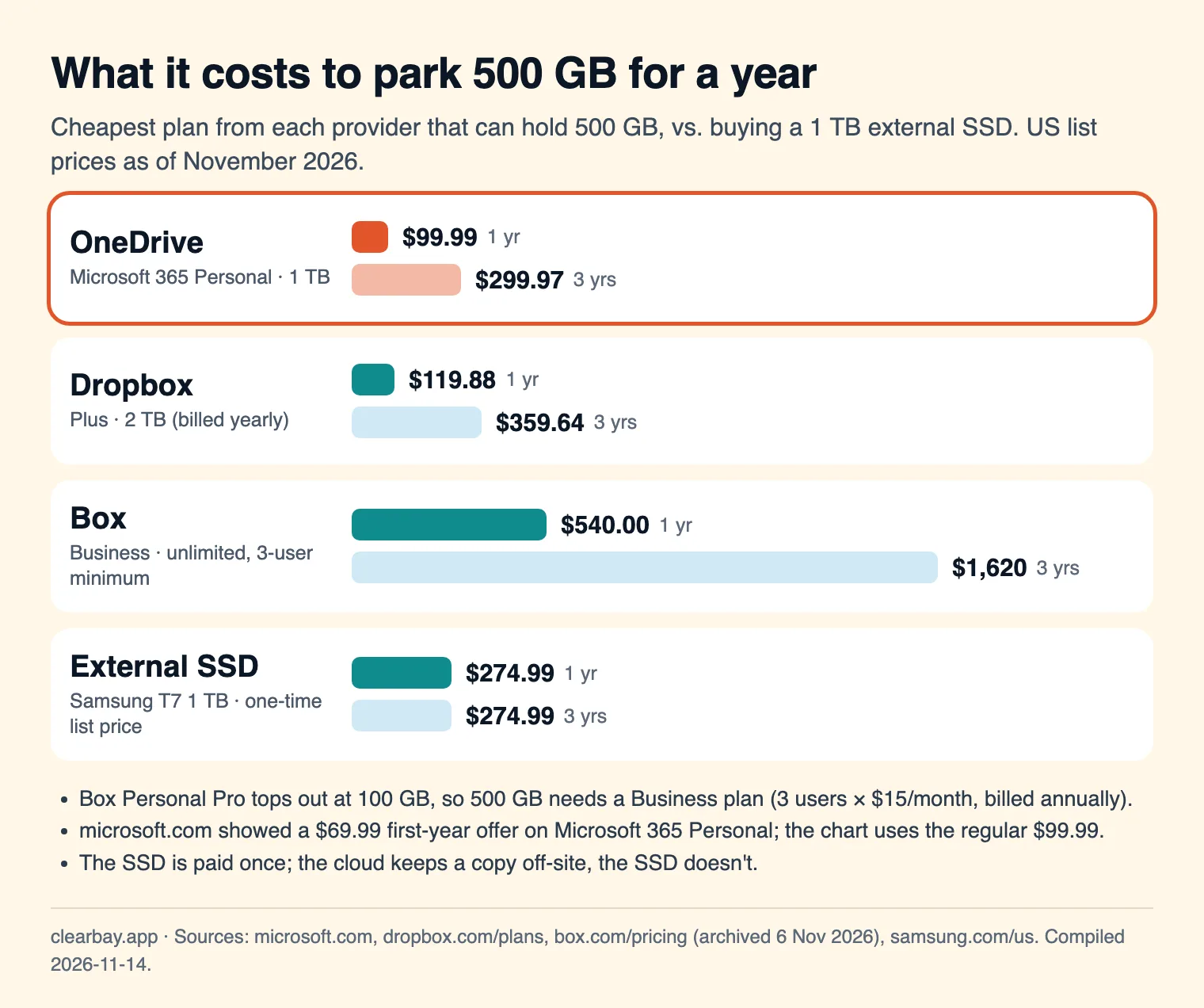
For 500 GB, OneDrive (through Microsoft 365 Personal) is the cheapest of the three for the first two years. A 1 TB portable SSD at Samsung's $274.99 list price catches up during year three, but an SSD sitting in a drawer isn't off-site. Many people end up using both: big media on a drive, and documents they might need anywhere in OneDrive.
Troubleshooting
"Free Up Space" is missing from the menu
Microsoft's fix is to relaunch Finder: hold Option, Control-click the Finder icon in the Dock and choose Relaunch. Also check that you're inside the OneDrive location. A file outside ~/Library/CloudStorage never shows the option.
I freed space but the disk is still full
Run du -sh on the folder. If it's still large, look for a parent folder set to Always Keep on This Device. Microsoft also notes that some file types are never evicted, and that pinned files on the home volume can keep counting because of APFS clones. If the folder looks small but free space hasn't changed, the space may be System Data or purgeable space, which macOS hands back on its own schedule.
A file is stuck uploading
Check the OneDrive menu bar icon for an error. The usual causes are a reserved name, a path over 400 characters, a file over 250 GB, a full OneDrive, or a file that's open in another app. Rename or close it, and the upload resumes.
OneDrive downloads everything again
Spotlight, backup tools and media apps that read every file can download online-only files. Microsoft notes that Spotlight indexes names in the sync root but won't download dataless files. Third-party scanners might, so exclude the OneDrive folder from them.
Can I put OneDrive on an external drive?
Only partly. Microsoft added full external-drive sync for Mac Insiders on macOS 15 or later, and only to non-ejectable, FileVault-protected APFS volumes. A normal USB drive doesn't qualify. If your aim is to park files on a USB drive, use the drive directly.
How Clearbay offloads to OneDrive
Clearbay is a disk-space app for macOS that can move large items into your OneDrive folder and only remove the original once OneDrive says it's uploaded. It doesn't sign in to Microsoft or use OneDrive's API. It copies into the folder, and the OneDrive app does the upload.
- Clearbay finds OneDrive under
~/Library/CloudStorageautomatically. SharePoint "SharedLibraries" folders are skipped. In Harbor → Cloud folders, click Use this folder next to OneDrive. - Pick items in any section, such as Forgotten Giants or Download Drift, set them to Offload, and run the plan.
- Clearbay copies each item into
Clearbay Offloadinside OneDrive, keeping its relative path, and checks the file count and total size. - The item shows Waiting for OneDrive to upload with a percentage. Clearbay checks the uploaded flag on every file, not just the folder. Waiting items carry on after a restart.
- When every file is uploaded, Clearbay deletes the original and asks macOS to free the local copy. If macOS doesn't free it, the row tells you to use Free Up Space in Finder.
- If you edit the original after it was copied, Clearbay removes nothing and offers Copy again.
A few limits: your Mac needs room for the item plus about 2 GB while it uploads. Live caches that tools are still using (Gradle, Hugging Face, uv and similar) are refused, because they need a local drive. Restore downloads the item, checks it, puts it back at its original path, and then removes the copy from Clearbay Offload. Offloading into cloud folders is part of Clearbay Pro, a one-time purchase. Restore is always free. Harbor → Cloud files on this Mac also lists OneDrive files that already have a local copy and frees them in one go. Download Clearbay (macOS 14 or later, Apple silicon and Intel).
Other routes: iCloud Drive, Google Drive, or, for no cloud at all, ways to free up space without deleting anything.
FAQ
Does Free Up Space delete files from OneDrive?
No. Free Up Space only removes the local data. The file stays in OneDrive, keeps its place in Finder with a cloud icon, and downloads again when you open it. Deleting the file is different: deleting an online-only file in Finder removes it from OneDrive on every device, and you then have up to 30 days to recover it from the recycle bin on onedrive.com.
Why is OneDrive taking up so much space on my Mac?
Files you create or open in OneDrive stay locally available until you free them, and folders marked Always Keep on This Device keep everything inside them on disk. Run du -sh on the OneDrive folder to see real usage, free the large folders with Free Up Space, and remove "always keep" from any parent folder you don't need offline.
Where is the OneDrive folder on a Mac?
On current versions it's ~/Library/CloudStorage/OneDrive-Personal for personal accounts, or OneDrive- followed by your organization's name for work or school accounts. Finder shows it under Locations in the sidebar. Microsoft moved it there because File Provider requires the sync root to sit inside your home folder.
How do I know if a file has uploaded to OneDrive?
Look for a cloud or check icon with no sync indicator in Finder, then confirm on onedrive.com that the file is there at the right size. For many files, read macOS's per-file uploaded flag with the short Swift script in this guide. Only delete originals once every file reports uploaded.
What is the maximum file size for OneDrive?
250 GB per file, for both upload and sync, according to Microsoft's restrictions page. Use the desktop app rather than the website for anything over a few gigabytes. Very large video projects can go over that limit, so check the biggest file in a folder before you rely on the upload.
How long does OneDrive keep deleted files?
For personal accounts, deleted files stay in the OneDrive recycle bin on the web for up to 30 days, and version history for a file also goes back 30 days. After that, they're gone. Treat 30 days as your undo window for anything you've parked in OneDrive.
Can I turn off Files On-Demand on a Mac?
Not on current versions. Microsoft says Files On-Demand is on by default from macOS 12.1 Monterey and can't be turned off in the File Provider version of OneDrive. To keep everything local, select your folders and choose Always Keep on This Device, or use Download all OneDrive files now in OneDrive's settings.
Sources
- Microsoft: Save disk space with OneDrive Files On-Demand for Mac
- Microsoft: Restrictions and limitations in OneDrive and SharePoint
- Microsoft: What are the file path length limits?
- Microsoft: Restore a previous version of a file in OneDrive
- Microsoft OneDrive blog: Improved filename and external drive support for OneDrive Mac
- Microsoft 365 plans and prices (US)
- Microsoft 365 Basic
- Dropbox plans
- Box pricing
- Samsung T7 1 TB (US list price)
- Apple: ubiquitousItemIsUploaded