Box Drive on Mac: Free Up Space and Offload Files
Free up Mac space with Box Drive: how its cache and offline folders work, what it won't upload, undo windows and 2026 prices per TB.
 By Clearbay TeamGuides from the people building Clearbay

To free up space on a Mac with Box Drive, put the files in your Box folder, let Box Drive finish uploading them, then Control-click the folder that holds them in Finder and choose Free up space. Box Drive works per folder, not per file, and it keeps a cache of the files you open, so the space you get back depends on both. Box is also the strictest of the big cloud folders about what it accepts. The free plan stops at 250 MB per file, Personal Pro at 5 GB, and Box Drive skips hidden files that start with a dot. This guide covers the Box Drive free-up-space workflow on a Mac, how to check an upload before you delete an original, and what Box costs per GB, with figures checked on November 14, 2026.
The short version
- Install Box Drive and sign in. Your Box appears at
~/Library/CloudStorage/Box-Box, under Locations in Finder. - Check your plan's single-file limit (250 MB free, 5 GB on Personal Pro and Business) before you copy anything big.
- Copy the files into a folder in Box and wait for the upload to finish.
- Confirm every file uploaded (the methods are below).
- Control-click the folder and choose Free up space. Then check with
du -sh.
How Box Drive stores files on a Mac
Box Drive runs on Apple's File Provider system. Box lists the mount point as ~/Library/CloudStorage/Box-Box and says a custom mount location isn't supported on macOS. Files can take up space on your Mac in three ways:
| Where the data is | How it got there | Size limit | How to free it |
|---|---|---|---|
| Online only | Default for content in Box | – | Already free |
Cache (~/Library/Application Support/Box/Box/cache) | Files you open or add | 25 GB or 50% of available space, whichever is smaller; not adjustable on Mac | Managed by Box Drive and macOS |
| Offline folders | Folders you marked Always keep on device | No limit; they don't count against the cache | Free up space on the folder |
The cache limit is easy to misread. "50% of available space or 25 GB" means a Mac with 30 GB free can cache up to 15 GB, and a Mac with 200 GB free caps at 25 GB. Box also says that adding a file to Box Drive copies it into that cache, which is why a newly copied file uses full space until it uploads and is evicted. Box Drive needs at least 1 GB free to work properly.
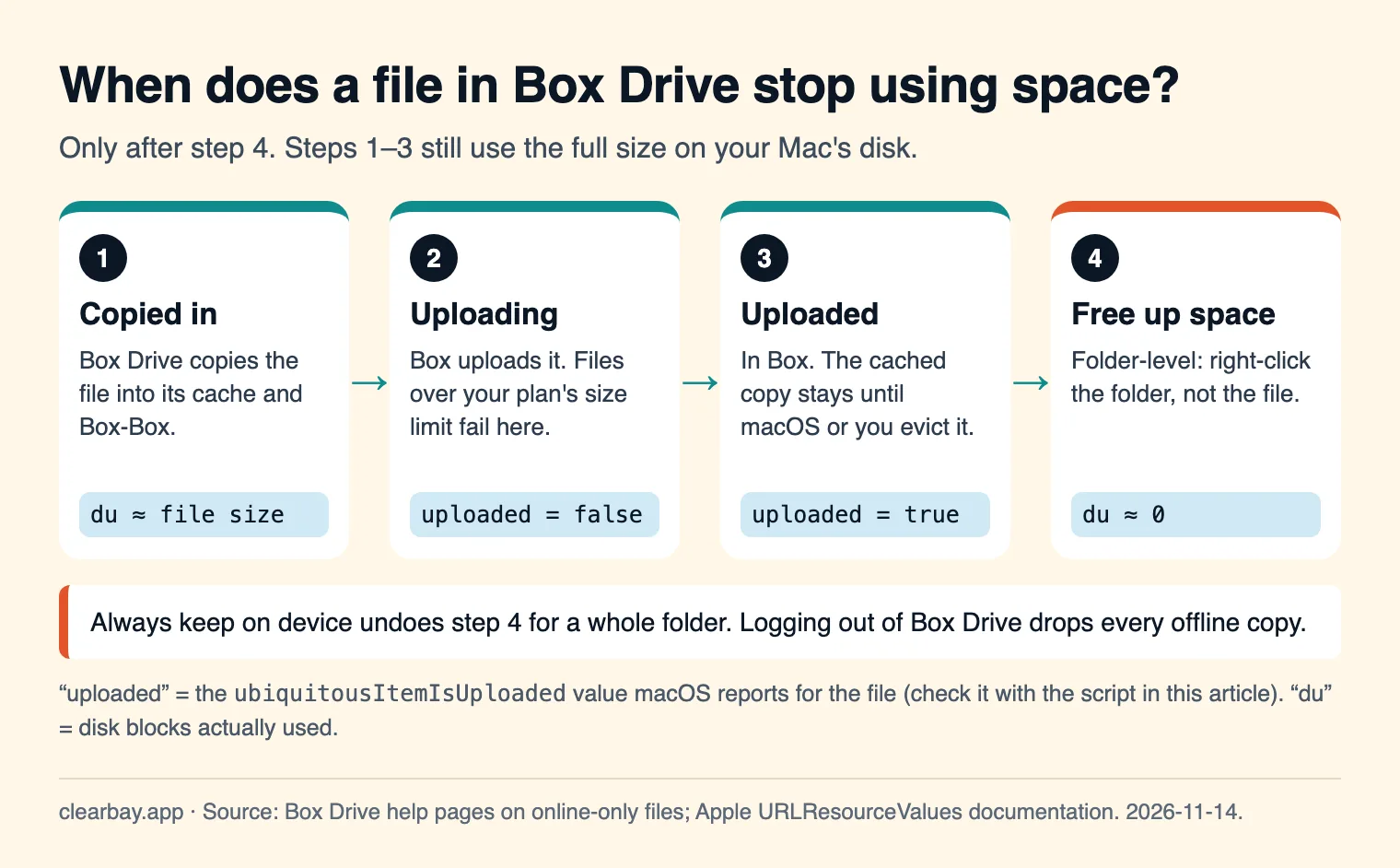
Box Drive: free up space on Mac, step by step
1. Install and sign in
- Download Box Drive from box.com and sign in with your Box account.
- Open Finder. Box appears under Locations. If not, turn on Finder → Settings → Sidebar → Cloud Storage (the same on macOS 14, 15 and 26).
- Check your plan's per-file upload limit (see the price table below). It decides which files can go to Box at all.
2. Copy the files into a dedicated folder
Make one folder such as Archive for parked files. Because Box frees space per folder, a single parking folder lets you free everything with one command. Copy rather than move (hold Option while dragging) so the original stays until you've confirmed the upload.
3. Wait for the upload
Estimated upload times at full line speed (bytes × 8 ÷ speed):
| Upload speed | 10 GB | 100 GB |
|---|---|---|
| 10 Mbps | 2.2 hours | 22.2 hours |
| 50 Mbps | 27 minutes | 4.4 hours |
| 100 Mbps | 13 minutes | 2.2 hours |
| 1 Gbps | 80 seconds | 13 minutes |
The table stops at 100 GB because that's all Personal Pro holds.
4. Free up space on the folder
- Control-click the folder (not a file inside it).
- If the folder is marked for offline use, you'll see Free up space. Choose it. If you see Always keep on device instead, the folder isn't pinned, and its files are only in the cache.
- Box's icons: an orange Pending badge means downloading, a green Available Offline badge means fully local, and a red circle with an exclamation mark marks a problem item.
Box says individual files can't be set on their own. A file follows the offline or online-only status of the folder it's in.
5. Check the result
du -sh ~/Library/CloudStorage/Box-Box/Archive
du -sh ~/Library/Application\ Support/Box/Box/cache
The first command should show close to zero for a freed folder. The second shows how much the cache is holding. Box says you can't set the cache size on a Mac, so if it's large and you need the space now, signing out of Box Drive clears downloaded content. That also clears every offline mark, so you'll need to set those again.
How to know a file really uploaded
Before you delete the original, make sure Box has every file. Three checks:
- Finder. Problem items show a red badge. A clean folder with no pending or error badges is a good first sign.
- box.com. Open the folder in a browser and compare item counts and sizes with your Mac.
- The uploaded flag. File Provider apps report
ubiquitousItemIsUploadedper file. This script prints it. It needs Apple's Command Line Tools (xcode-select --install).
cat > ~/uploaded.swift <<'EOF'
import Foundation
for path in CommandLine.arguments.dropFirst() {
    let keys: Set<URLResourceKey> = [.ubiquitousItemIsUploadedKey, .ubiquitousItemIsUploadingKey]
    let v = try? URL(fileURLWithPath: path).resourceValues(forKeys: keys)
    print(path, "uploaded:", v?.ubiquitousItemIsUploaded ?? false,
          "uploading:", v?.ubiquitousItemIsUploading ?? false)
}
EOF
swift ~/uploaded.swift ~/Library/CloudStorage/Box-Box/Archive/*
We tested it on macOS 26.5 (measured 2026-11-14). It runs in under a second, and a file outside any cloud folder correctly prints uploaded: false. Treat false as "not confirmed yet", and check the files inside folders rather than the folder itself. The * wildcard skips names that start with a dot, which is fine here, because Box Drive doesn't upload those anyway.
What Box Drive won't upload
This list matters more for Box than for Dropbox or OneDrive, because Box skips common files that developers and designers keep in their folders:
- Hidden files: Box says file names that start with a dot are treated as hidden and aren't synced. That includes
.gitfolders,.envfiles and other dot-files inside a project. - Temporary and backup files:
.tmpfiles, files that start with~, and.bakbackups. - Links:
.lnkshortcuts, hard links and symbolic links. - Blocked types:
.pst,.qbw,.qba,.qbr,.qby,.qdt,.des,.nd,.qbw.tlg,.qba.tlg. You can still upload them on box.com, but Box Drive won't. - Names: no
/or\. A trailing space in a file or folder name gives Error code -50 on a Mac. Renames that only change upper or lower case fail with "already taken". - Size: 250 MB per file on the free plan, 2 GB on Business Starter, 5 GB on Personal Pro and Business, 15 GB on Business Plus, 50 GB on Enterprise.
The practical fix is the same for all of them: compress the folder first (Control-click → Compress) and park the .zip. An archive keeps hidden files and links intact. Keep it under your plan's file limit, or split the folder into several archives.
Your undo window
Box keeps deleted files in Trash for 30 days by default (business admins can change this). Previous versions depend on your plan: the free plan keeps 1 version (in effect, no history), Personal Pro keeps 10, Business Starter 25 and Business 50. Box's Trash article also describes a short recovery window after a purge for paid accounts, which doesn't apply to free accounts. If the Box copy is the only one, the 30-day Trash is your whole safety net. For a second copy, see offloading to an external drive.
What Box storage costs (November 2026)
| Plan | Storage | Max file | US price, billed annually (monthly) | Cost per TB per year if full |
|---|---|---|---|---|
| Individual | 10 GB | 250 MB | Free | – |
| Personal Pro | 100 GB | 5 GB | $10/month ($14) | $1,200 |
| Business Starter | 100 GB, 3–10 users | 2 GB | $5/user/month ($7) | $1,800 (3 users) |
| Business | Unlimited, 3-user minimum | 5 GB | $15/user/month ($20) | $540/year flat |
| Business Plus | Unlimited, 3-user minimum | 15 GB | $25/user/month ($33) | $900/year flat |
The last column is our own math (yearly price ÷ TB included). Box's individual plans cost about 12 to 20 times more per terabyte than OneDrive or Dropbox: $1,200 per TB-year on Personal Pro, against $99.99 for Microsoft 365 Personal and $59.94 for Dropbox Plus. Box's unlimited Business plans flip that once you store a lot: $540 a year covers 500 GB or 5 TB alike. Box's box.com pricing pages load prices with scripts, so we read them from the Internet Archive's copy of November 6, 2026.
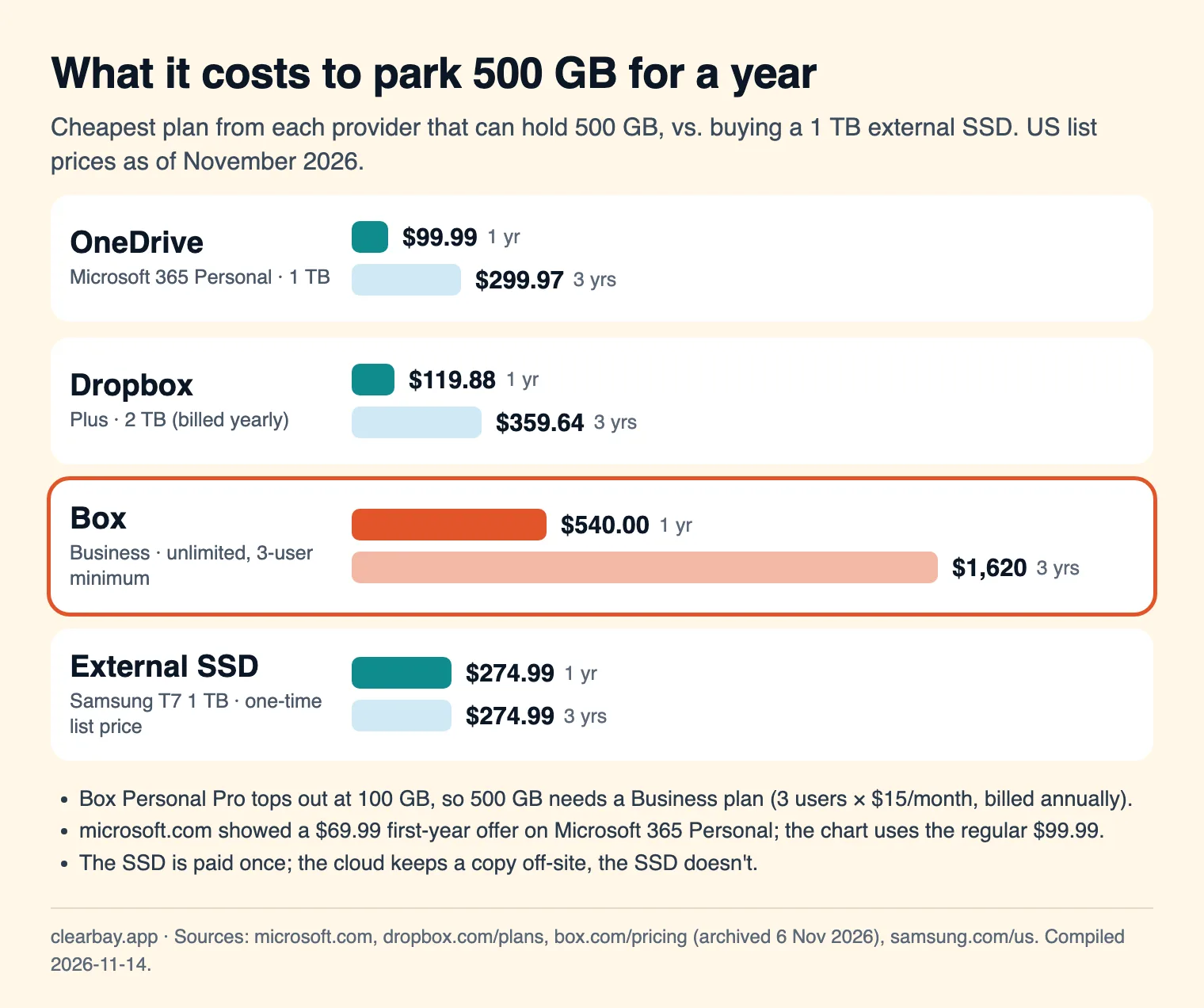
If your employer already pays for Box Business, parking files there costs you nothing extra. Check your company's policy on personal files first. If you'd be paying yourself, Box only makes sense for up to 100 GB of files under 5 GB each. Beyond that, OneDrive, Dropbox or an SSD costs a fraction as much.
Box vs OneDrive vs Dropbox
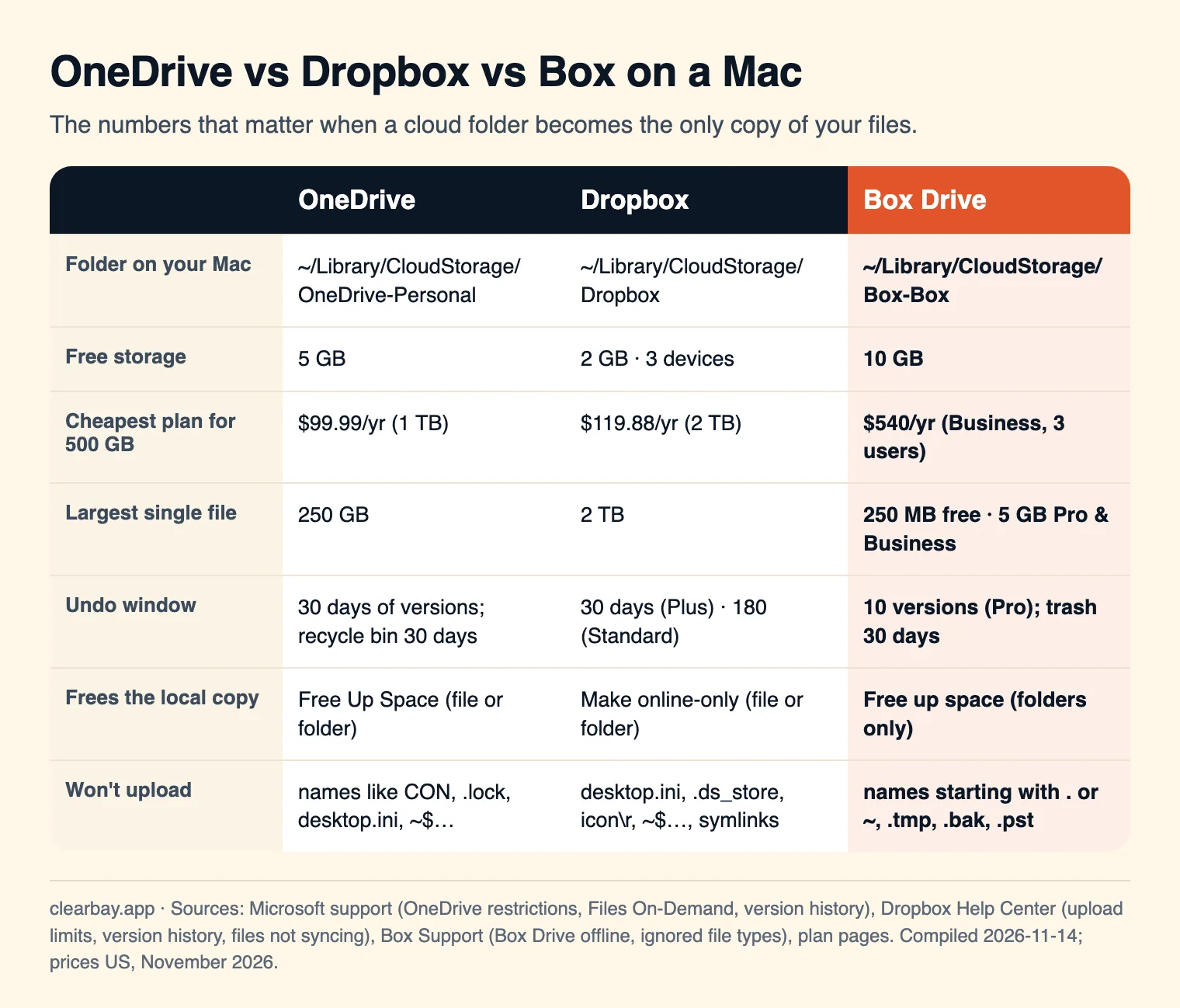
For big media, see Dropbox online-only on Mac (2 TB per file) or OneDrive Free Up Space on Mac (250 GB per file).
Troubleshooting
"Free up space" isn't in the menu
You're probably on a file, or on a folder that was never pinned. The command only appears on folders marked Always keep on device. Unpinned files live in the cache, which Box Drive and macOS manage themselves.
Error code -50 when copying
Box documents this one: a trailing space at the end of a file or folder name. Rename the item without the space and copy again.
A red badge on a folder
That's a problem item. Box lists two common causes: folders you can view but not download, and content that doesn't fit on your disk. Check permissions on box.com, or free disk space and try again.
Spotlight can't find my Box files
That's expected. Box says Spotlight, Finder search and tags don't return results from Box Drive. Use Box Drive's own search, or box.com.
Files duplicated after a Time Machine restore
Box says Box Drive doesn't support Time Machine or similar backups of the Box location. It recommends excluding ~/Library/CloudStorage/Box-Box/, ~/Library/Application Support/Box/Box and ~/Library/Application Support/FileProvider from automatic backups. This doesn't make Box a backup of your Mac, so keep Time Machine for everything else.
Disk still full after freeing space
Measure the cache with du (above). If both are small, the space may be System Data or purgeable space that macOS returns over time.
How Clearbay offloads to Box
Clearbay is a macOS disk-space app that can move large items into your Box folder and delete the originals only after Box Drive reports every file uploaded. It doesn't sign in to Box or use Box's API. It copies into the folder, and Box Drive does the upload.
- Clearbay finds
~/Library/CloudStorage/Box-Boxautomatically. In Harbor → Cloud folders, click Use this folder next to Box. - Pick items in Forgotten Giants, Download Drift or any other section, set them to Offload, and run the plan.
- Each item is copied into
Clearbay Offloadinside Box, keeping its relative path, and the copy is checked by file count and total bytes. - The row shows Waiting for Box to upload and a percentage built from the uploaded flag on every file. It resumes after a restart.
- When every file reports uploaded, Clearbay deletes the original and asks macOS to free the local copy. If that copy stays, the row says to use Free up space in Finder.
- If the original changes after copying, nothing is removed and you can choose Copy again.
Because Clearbay waits for every file, a folder with files Box skips (dot-files, ~ temp files, links) or files over your plan's size limit won't finish, and the original stays on your Mac. That's deliberate. Compress such folders first, or offload them to a drive instead. Your Mac needs room for the item plus about 2 GB while it uploads, and live caches that tools still use (Gradle, Hugging Face, uv and so on) can't go to a cloud folder. Restore downloads, verifies and puts the item back at its original path, then removes the copy from Clearbay Offload. Cloud-folder offload is part of Clearbay Pro, a one-time purchase. Restore is always free. Download Clearbay (macOS 14 or later, Apple silicon and Intel).
Other routes: iCloud Drive, Google Drive, or other ways to free up space without deleting anything.
FAQ
Does Box Drive take up space on my Mac?
Some. Files you open or add are kept in a cache capped at 25 GB or half your available space, whichever is smaller, and folders marked Always keep on device are stored in full. Everything else is online-only. Measure the cache with du -sh ~/Library/Application\ Support/Box/Box/cache.
Where is the Box Drive folder on a Mac?
On current Box Drive versions it's ~/Library/CloudStorage/Box-Box, shown under Locations in the Finder sidebar. Box says a custom mount location isn't supported on macOS, because Apple's File Provider system decides where the folder lives. Box's cache lives separately in ~/Library/Application Support/Box/Box/cache.
Can I make a single file available offline in Box Drive?
No. Box's documentation says only folders can be marked Always keep on device, and each file follows the status of its folder. To keep one file offline, put it in its own folder and pin that folder. Freeing space works the same way: use Free up space on the folder.
What is the Box file size limit?
It depends on the plan: 250 MB per file on the free Individual plan, 2 GB on Business Starter, 5 GB on Personal Pro and Business, 15 GB on Business Plus, 50 GB on Enterprise, and up to 500 GB on Box's top enterprise tier. Files over your limit won't upload through Box Drive.
Why won't some files sync to Box Drive?
Box Drive skips hidden files that start with a dot, temporary files (.tmp, names starting with ~), .bak backups, links and shortcuts, and blocked types such as .pst and QuickBooks files. Names with slashes or a trailing space also fail. Compressing a folder into a zip gets around all of these.
Is Box Drive free?
The Box Drive app is a free download. Storage depends on your Box plan. The free Individual plan includes 10 GB with a 250 MB per-file limit, and Personal Pro costs $10 a month billed annually for 100 GB, as of November 2026.
Does signing out of Box Drive delete my files?
It deletes the downloaded copies on your Mac, not the files in Box. Box says signing out removes downloaded content and returns everything to online-only, so you'll need to mark offline folders again. Make sure everything has uploaded first, or local changes could be lost.
Sources
- Box Support: Making content available offline
- Box Support: Technical information for Box Drive administrators
- Box Support: Box Drive known limitations on Mac
- Box Support: File types ignored or blocked by Box Sync and Box Drive
- Box Support: Managing Trash
- Box Developer: File limitations
- Box individual pricing (Internet Archive, 6 Nov 2026)
- Box business pricing (Internet Archive, 6 Nov 2026)
- Microsoft 365 plans and prices (US)
- Dropbox plans and prices
- Samsung T7 1 TB (US list price)
- Apple: ubiquitousItemIsUploaded