How it works
How Clearbay works, from download to undo
Short answer: you install a notarized app, let it measure your disk, and give each item one of three answers: Remove, Keep or Offload. Nothing changes on disk until you open the finished plan and press Run plan. Removed files land in the Trash, offloaded files are copied and checked before the original goes, and each run is journaled so you can reverse it.
- Keep is the default
- One review screen
- Every run can be undone
The whole flow in nine steps
- Download and installGet
Clearbay.dmgfrom the download page and drag the app into Applications. Apple has notarized it and it carries a Developer ID signature, so Gatekeeper lets it open normally, and one universal build runs on Apple silicon and Intel. It is deliberately not a Mac App Store app: outside the sandbox it can uninstall apps fully, run developer tools’ own cleanup commands and manage login items. - Decide on Full Disk AccessOnboarding offers it, but you can skip it. Without it, Clearbay covers whatever your account can open and marks the rest “Needs Full Disk Access”. Grant it later in System Settings and the app notices and scans again by itself. How to allow it.
- ScanClick Scan my Mac. Clearbay collects names, sizes and dates, never document contents, and sorts the results into places in the sidebar, each with a running total.
- Read the labelsEvery row carries Safe, Review or Caution from the built-in rule set. If a name means nothing to you, press Space for a preview or click Explain for a short description of the item and its maker.
- Choose Remove, Keep or Offload per rowRows start on Keep. Pick another action on the ones you want gone; if a rule forbids an action, its button is greyed out and says why. With Pro you can type a goal instead and let the AI cleanup plan fill in choices for you to check.
- Pick where offloads goIn Harbor, choose a connected drive, a cloud folder or a bucket as the current target. Only items set to Offload will use it.
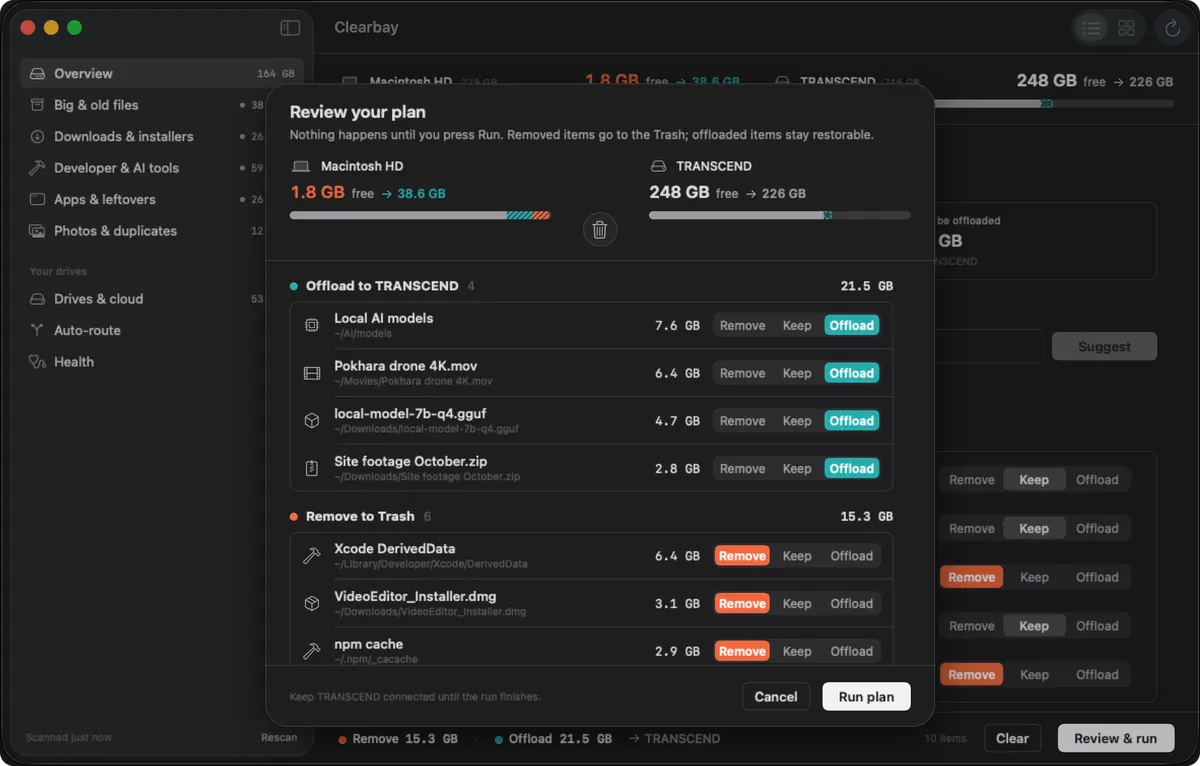
- Review & runAs soon as one item is staged, a bar at the bottom totals each action, for example “Remove 14.2 GB · Offload 22.8 GB → TRANSCEND”. Clicking Review & run opens one sheet with every item grouped by what will happen to it, including groups called Deleted for good and Needs your password.
- Run the planPress Run plan. One engine carries out removals and offloads together, and the capacity bars update as space comes back. If system files are involved, macOS asks for your password once; cancel there and those files stay where they are.
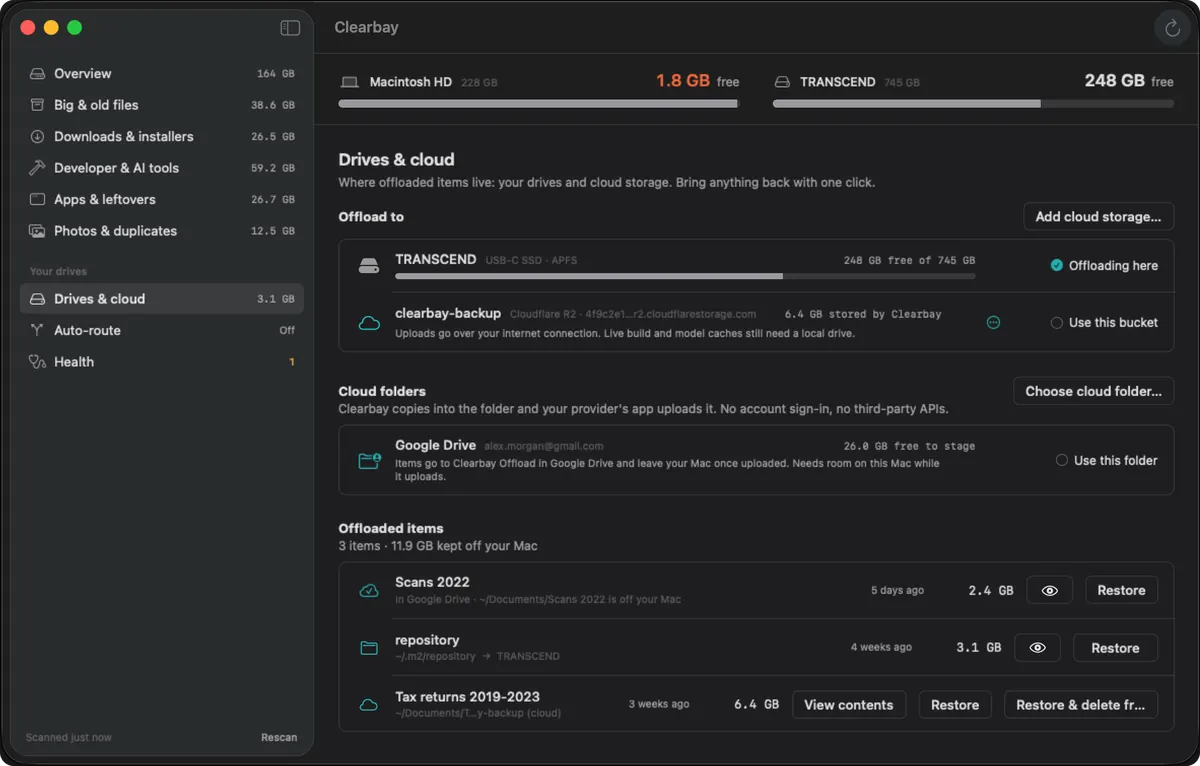
- Restore or undo whenever you likeOffloaded items wait in Harbor with a Restore button, the most recent run can be reversed in one click, and the Logbook keeps the history. Details are further down.
Remove
What Remove does to a file
Remove is a move to the Trash for almost everything: your documents, downloads, installers, duplicate copies, apps and their leftovers. You can still drag them back out of the Trash, or use Undo, until the Trash is emptied.
The one exception: caches that rebuild themselves
A trashed cache still occupies the disk, which defeats the purpose when you are out of space. So items whose rule says both “Safe” and “regenerates”, like build output, logs and app caches, are deleted permanently by default. The review sheet lists them under Deleted for good before you run. If you prefer the Trash for those as well, turn off Delete caches and logs immediately in Settings.
- Permanent deletion only ever applies to locations a rule identified, never to rule-less items
- Never permanent inside Desktop, Documents, Downloads, Movies, Music or Pictures, in iCloud or other cloud folders, or on other drives
- Some rules call the tool’s own command instead, for example
xcrun simctl delete unavailablefor old simulators - Your first cleanup during onboarding always uses the Trash, so the promised Undo really works
Files that belong to the system
Items you are not allowed to trash yourself, such as an app installed for all users or its helpers in /Library, are gathered into a single administrator prompt per run. Clearbay then moves them into your own Trash and gives the ownership back to you. It never erases them in that step.
Offload
What Offload does, in order
- CopyThe item is copied to the destination with its extended attributes and permissions.
- VerifyOn a drive, the file count and byte total must match. For a bucket, Clearbay compares the uploaded size and metadata and records a SHA-256 checksum. For a cloud folder, it also holds off until the provider’s app confirms the upload is complete.
- Remove the originalOnly after verification is the source deleted from the Mac. It doesn’t go via the Trash, because a trashed original would keep using the space you asked to free. The verified copy is now the safe one.
- Record itClearbay writes a manifest listing the item, its original path and its destination, then adds the run to the journal.
If any of these steps fails, the original is left exactly where it was. Caches a tool keeps using, such as Gradle’s or Hugging Face’s, can be offloaded to a local drive only; Clearbay then points the tool at the new location so it keeps working. Destinations, cloud-folder timing and bucket setup are covered on the offload page.
What happens to your files: one table
| Your choice | Where the item goes | Space comes back | Getting it back |
|---|---|---|---|
| Keep | Stays put | Not freed | Nothing to undo |
| Remove: your files, apps, downloads | Your Trash | When you empty the Trash | Put Back in Finder, or Undo last run |
| Remove: Safe caches and logs that rebuild | Deleted for good (default setting) | Right away | The tool rebuilds it; Undo skips it |
| Remove: system files | Your Trash, after one password prompt | When you empty the Trash | Put Back from the Trash |
| Offload to a drive | The drive, with a manifest | Once the copy is verified | Restore in Harbor with the drive connected |
| Offload to a cloud folder | A Clearbay Offload folder in that service | After the provider confirms the upload | Restore in Harbor |
| Offload to an S3 bucket | Your bucket, streamed as one archive | After size, metadata and checksum match | Restore in Harbor; the bucket copy stays unless you choose to delete it |
Getting things back
Restore from Harbor, Undo and the Logbook
Restore one item
Open Harbor, find the item and press Restore. It is copied back to its original path. If something has appeared there in the meantime, usually because a tool rebuilt its cache, the newer copy gets a dated suffix instead of being overwritten. A drive that isn’t plugged in is still shown with its items, so you know which one to fetch.
Undo a whole run
Undo last run reverses the latest plan: offloaded items return from their destination and removed items return from the Trash. Anything that was deleted for good is skipped, and the app tells you which items those were.
The Logbook
The journal behind Undo is kept on your Mac and shown as the Logbook: each run, each item, its size, where it came from and where it went. It is the place to look when you want to know what happened to a folder last spring.
Safety
Safety rules Clearbay doesn’t bend
- Rules decide, AI explains. Labels and allowed actions come from a fixed rule set plus a hard-coded denylist. An AI answer that mentions a path outside your scan is discarded, and an AI plan can only contain items the rules already allow.
- You press Run. No plan, AI-made or not, starts by itself. The only things that act on their own are the automations you switch on: Auto-Dock for new files and scheduled cleanup of self-rebuilding caches.
- Never touched:
/System,/usr,/bin,/sbin,/private/var/db, your Keychains, Mail (apart from its Downloads folder), Messages, Photos libraries, iCloud Drive’s storage and any.gitfolder. - Active projects are left alone. Build folders and
node_modulesare only offered in projects that haven’t changed for 7 days. - Measured, never offered. Swap, the sleep image, macOS’s own assets, other users’ folders and the Photos and Mail stores show up in the totals for context but can’t be selected.
- Failures keep the original. A copy that can’t be verified is never followed by a delete.
- Restore never deletes. Bringing an item back renames anything in its way rather than replacing it.
Updates
How updates arrive
Clearbay doesn’t bundle a third-party updater. Once a day it reads a small version file from clearbay.app and, when a newer build exists, offers to download it; Check for Updates does the same on request. Each disk image is notarized, and its SHA-256 checksum is printed on the download page if you want to compare it. What changed in each version is listed in the changelog.
Questions about how Clearbay works
Can Clearbay change files without me pressing Run?
Only through automations you turn on yourself. Auto-Dock moves newly arrived AirDrop files, downloads and screenshots to your drive, and scheduled cleanup clears caches that rebuild. Everything else waits for you to review a plan and press Run plan.
Why doesn't Offload put the original in the Trash?
Because the Trash still uses disk space, so trashing the original would free nothing until you emptied it. Clearbay deletes the original only after the copy at the destination has been checked, which makes that copy the safe one.
What if my drive disconnects in the middle of an offload?
The step fails and the original stays untouched on your Mac. Reconnect the drive, make sure it has room, and run the plan again.
Can I get back a cache that was deleted for good?
No, and you rarely need to: the app or tool that made it creates it again when it needs it. If you'd rather keep that option, turn off Delete caches and logs immediately in Settings and those items will go to the Trash too.
Does Clearbay need an internet connection?
Not for scanning, removing or offloading to a drive. It goes online to check for updates, to reach cloud folders' providers or a bucket, and to unlock Pro.
See the plan for your own Mac
Install Clearbay, scan once, and open the review sheet before you decide anything. Looking costs nothing.
Related
Clearbay is made by Bisai Technologies, LLC · Mac storage guides · Changelog · Support · Privacy · Terms · Refunds