Set Up Wasabi for Mac Offloading: Costs and Steps
Step-by-step Wasabi setup for Mac offloading, with November 2026 costs: the 1 TB minimum, the 90-day rule and the 4 KB floor, calculated.
 By Clearbay TeamGuides from the people building Clearbay

To set up Wasabi for Mac offloading, you create a bucket in the region closest to you, make a sub-user whose access key can only touch that bucket, and paste the region, bucket name and key pair into Clearbay under Harbor → Add cloud storage… → Wasabi. The whole job takes about ten minutes. Before you start, know the two rules that decide your Wasabi bill: Pay as You Go is $7.99 per TB per month as of November 2026, with a 1 TB monthly minimum, and anything you delete before it is 90 days old is still billed for 90 days.
This guide walks through the setup step by step. It also turns those billing rules into real dollar figures for typical Mac offloads, which most Wasabi tutorials skip.
What Wasabi costs for Mac offloads (November 2026)
Wasabi raised its Pay as You Go price to $7.99 per TB per month in all regions on July 1, 2026. Egress and API requests still cost nothing. Four rules turn that headline price into your actual bill:
- 1 TB monthly minimum. If you store less than 1 TB of active storage, you are billed for 1 TB. Storing 100 GB costs the same $7.99 a month as storing 1 TB.
- 90-day minimum storage duration. If you delete an object before day 90, Wasabi adds a "Timed Deleted Storage" charge for the remaining days. Reserved Capacity contracts use 30 days instead, but they start at 25 TB.
- 4 KB minimum billable object size. A 2 KB object is billed as 4 KB.
- Free egress up to your active storage. If you download no more in a month than you have stored, you pay nothing for downloads. Wasabi can limit accounts that regularly download more than that.
Wasabi also bills in base 2, so 1 TB means 1,024 GB on your invoice. The chart below applies all of that to a year of storage.
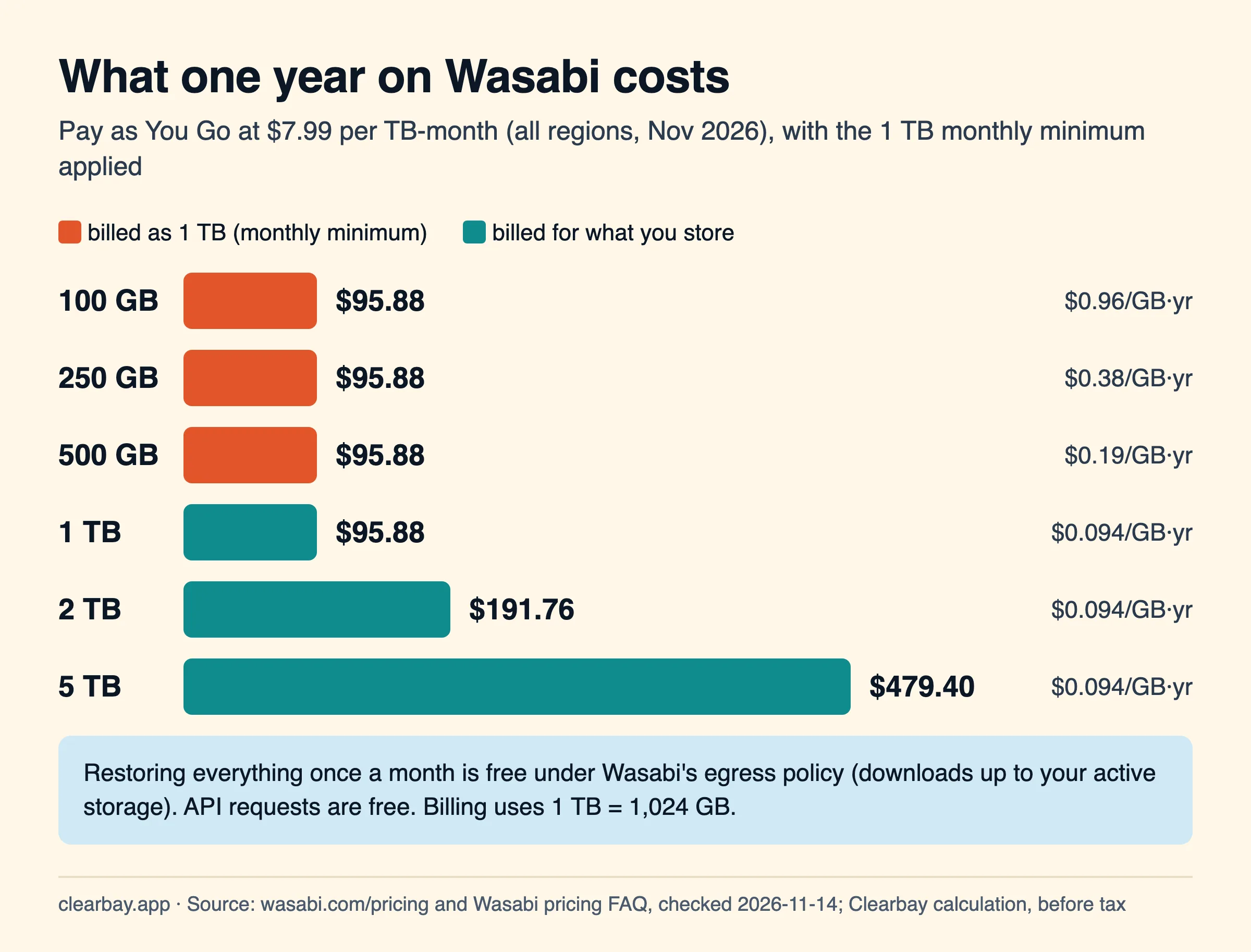
| You keep on Wasabi for 12 months | Billed as | Cost per year | Cost to restore it all once |
|---|---|---|---|
| 100 GB | 1 TB (minimum) | $95.88 | $0 |
| 500 GB | 1 TB (minimum) | $95.88 | $0 |
| 1 TB | 1 TB | $95.88 | $0 |
| 2 TB | 2 TB | $191.76 | $0 |
| 5 TB | 5 TB | $479.40 | $0 |
The takeaway: Wasabi gets good value once you store close to 1 TB or more. If you only plan to offload 100 to 300 GB, you are paying for space you don't use. In that case, compare Backblaze B2 and Cloudflare R2, which have no monthly minimum, or MEGA S4, whose smallest plan covers 750 GB.
The 90-day minimum, in dollars
The minimum duration matters most when you offload something and then bring it back soon after. Suppose your account is already above the 1 TB minimum and you offload a 200 GB folder. If you delete it on day 7, day 30 or day 60, you pay the same $4.68 as if you had kept it for 90 days. After day 90 you pay only for the days it exists.
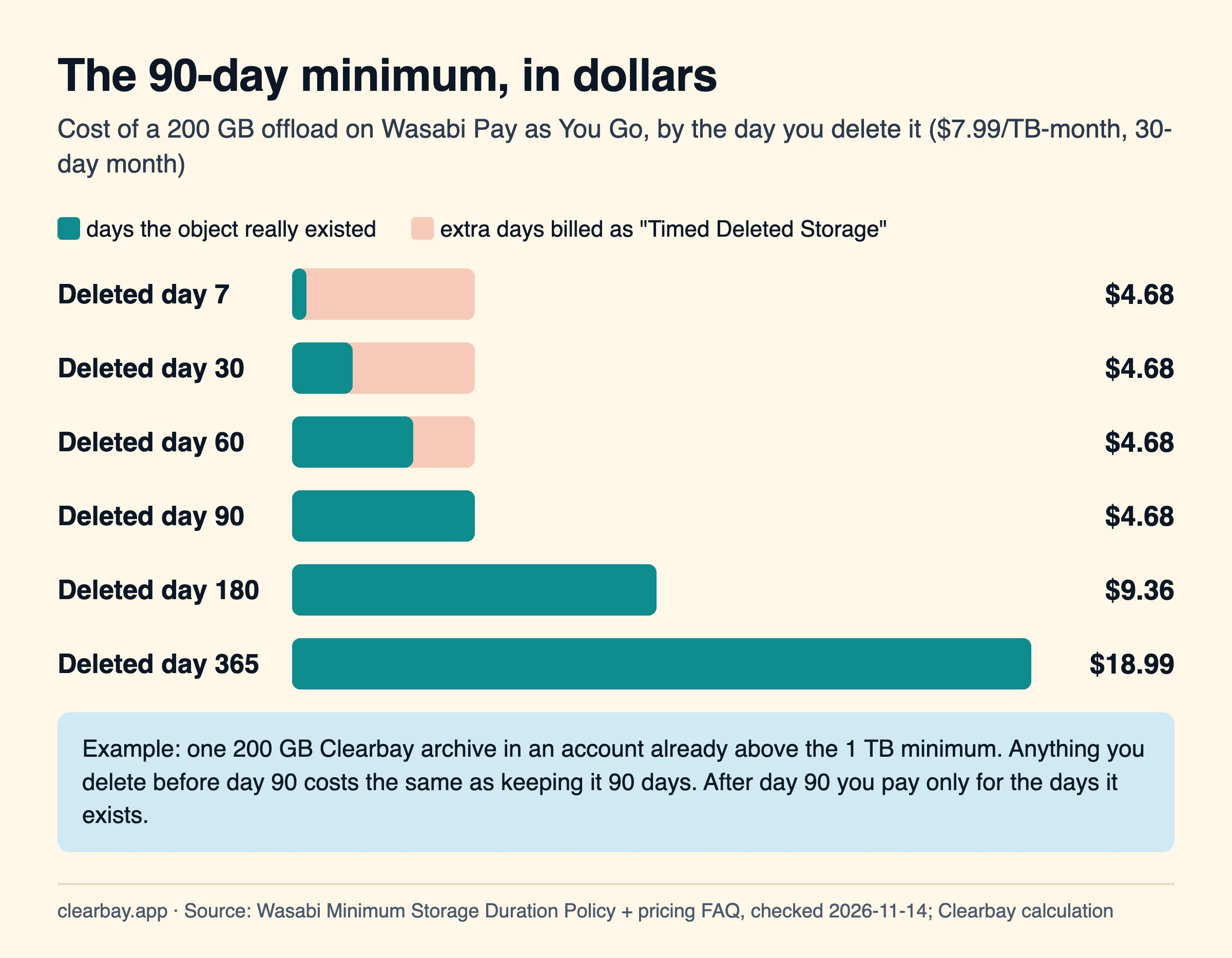
Wasabi's docs don't say whether Timed Deleted Storage is absorbed by the 1 TB minimum for accounts storing less than 1 TB. The invoice lists it as its own line. If you are under the minimum and delete early, check your next invoice before you plan around it.
In Clearbay, the minimum applies when you click Restore & delete from cloud or Delete cloud copy. A plain Restore keeps the cloud copy. So the cheapest habit on Wasabi is simple: offload things you won't need for at least three months, such as finished projects, old video exports and archived installers.
The 4 KB floor barely matters with Clearbay
Backup tools that upload one object per file can lose money to the 4 KB floor, because every tiny file is billed as 4 KB. Clearbay never uploads files one by one. It streams each item you offload as a single tar archive in 16 MiB parts, plus a small manifest file. We measured what that means for three real folder shapes in a fresh temp folder on November 14, 2026:
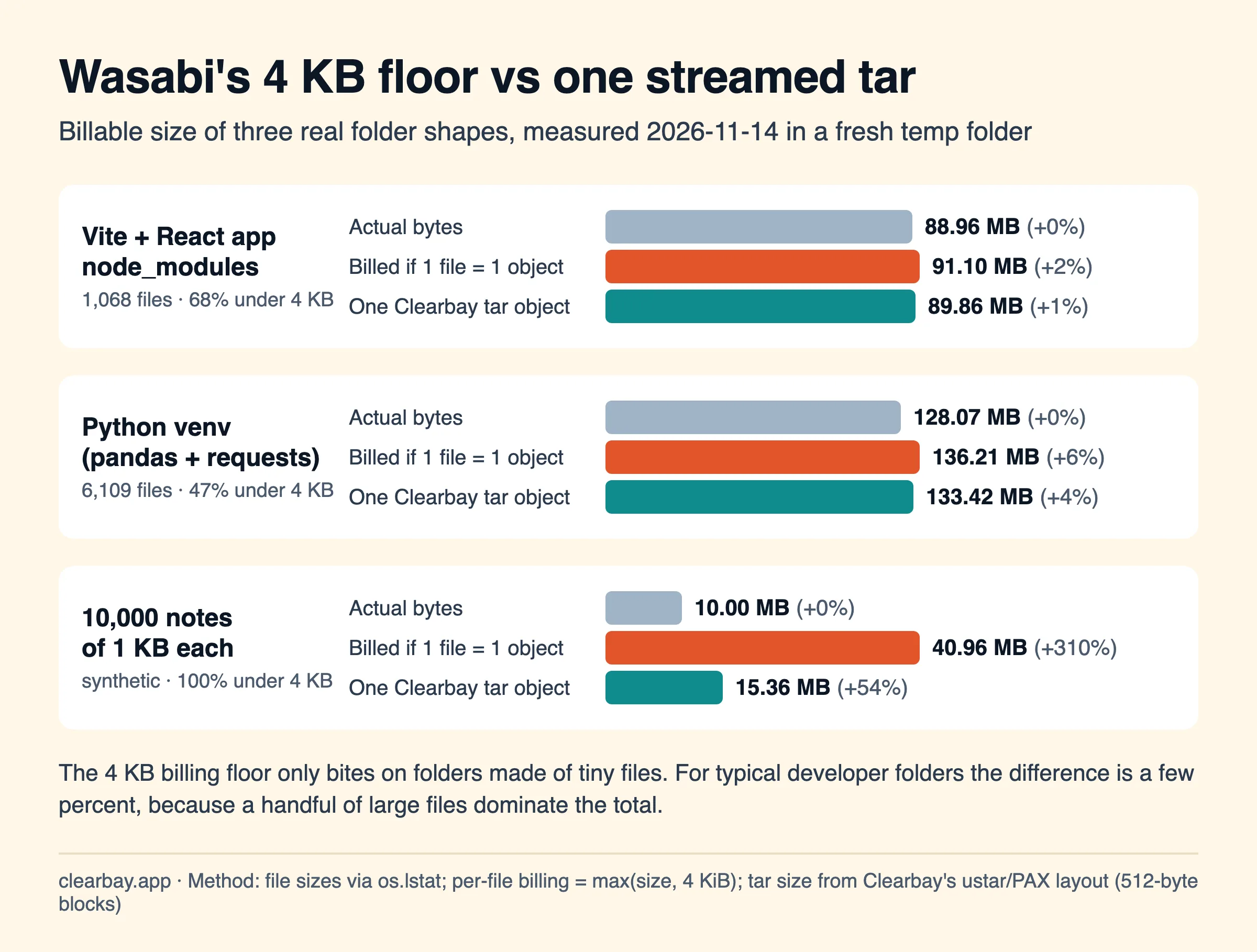
| Folder | Files | Files under 4 KB | Actual size | Billed file by file | Billed as one tar |
|---|---|---|---|---|---|
| Vite + React node_modules | 1,068 | 68% | 88.96 MB | 91.10 MB (+2.4%) | 89.86 MB (+1.0%) |
| Python venv (pandas + requests) | 6,109 | 47% | 128.07 MB | 136.21 MB (+6.4%) | 133.42 MB (+4.2%) |
| 10,000 notes of 1 KB | 10,000 | 100% | 10.00 MB | 40.96 MB (+310%) | 15.36 MB (+54%) |
Method: sizes come from os.lstat. The file-by-file column uses max(size, 4 KiB) per file. The tar column follows Clearbay's archive layout: a 512-byte header per entry, data padded to 512 bytes, and an extra PAX header for paths longer than 100 bytes. We cross-checked it against macOS tar --format ustar, which came within 0.01%.
Two honest conclusions. First, for typical developer folders the floor costs a few percent at most, because a handful of large files dominate the total. Second, a tar has its own per-file overhead, so folders made entirely of tiny files still grow, just much less than they would object by object. Either way, the 1 TB minimum and the 90-day rule move your bill far more than object size does.
Step 1: Create a Wasabi bucket
- Sign in at
console.wasabisys.com. The console address is the same for every region. - Click Buckets, then Create Bucket.
- Enter a name, for example
yourname-mac-offload. Bucket names are unique across all of Wasabi, so a generic name likeclearbayis probably taken. Use lowercase letters, digits and hyphens. Clearbay lowercases whatever you type. - Pick the region closest to you and write down its code. Wasabi has 16 regions, listed below.
- Leave Bucket Versioning and Object Lock off, then click Create Bucket.
| Area | Region codes to type in Clearbay |
|---|---|
| Americas | us-east-1, us-east-2 (N. Virginia), us-central-1 (Texas), us-west-1 (Oregon), us-west-2 (San Jose), ca-central-1 (Toronto) |
| Europe | eu-central-1 (Amsterdam), eu-central-2 (Frankfurt), eu-west-1 and eu-west-3 (United Kingdom), eu-west-2 (Paris), eu-south-1 (Milan) |
| Asia-Pacific | ap-northeast-1 (Tokyo), ap-northeast-2 (Osaka), ap-southeast-1 (Singapore), ap-southeast-2 (Sydney) |
Clearbay builds the endpoint as s3.<region>.wasabisys.com, which matches Wasabi's published service URL for every region. That includes s3.us-east-1.wasabisys.com, an alias of the older s3.wasabisys.com.
Why leave versioning off? With versioning on, a deleted or overwritten object becomes an older version that is still stored and billed. Clearbay's "Restore & delete from cloud" would then free nothing. Object Lock is worse for this use: it blocks deletion entirely during its retention period.
Step 2: Create a policy and a sub-user for Clearbay
Wasabi recommends against using root-account keys for everyday access, because a root key can reach every bucket in the account. Give Clearbay a sub-user that can only use one bucket.
- Click Policies → Create Policy. Name it
clearbay-one-bucketand paste this JSON, replacingBUCKETwith your bucket name in both places:{ "Version": "2012-10-17", "Statement": [ { "Effect": "Allow", "Action": ["s3:ListBucket", "s3:ListBucketMultipartUploads"], "Resource": "arn:aws:s3:::BUCKET" }, { "Effect": "Allow", "Action": ["s3:GetObject", "s3:PutObject", "s3:DeleteObject", "s3:AbortMultipartUpload", "s3:ListMultipartUploadParts"], "Resource": "arn:aws:s3:::BUCKET/*" } ] } - Click Users → Create User. Name it, for example,
clearbay-mac, and choose Programmatic (create API key) access only. It doesn't need console access. - Skip groups, or add one, then attach the
clearbay-one-bucketpolicy and finish. - Copy or download the Access Key and Secret Key. Wasabi shows the secret only once. If you lose it, create a new key under Access Keys.
Each action in that policy maps to something Clearbay actually does. PutObject uploads the archive, its parts and the manifest. GetObject covers the HEAD request that checks the upload and the download when you restore. ListMultipartUploadParts confirms every part arrived at the right size before the upload is finished. AbortMultipartUpload and DeleteObject clean up after a failed run or when you delete a cloud copy. ListBucket lets the Harbor card show how much you are storing.
Step 3: Set up Wasabi in Clearbay
- Open Clearbay and go to Harbor, then click Add cloud storage….
- Choose Wasabi as the provider.
- Fill in the Region (for example
eu-central-2), the Bucket name, the Access key ID and the Secret access key. - Click Test connection. Clearbay writes a tiny probe file, reads it back and deletes it. Testing is free.
- Click Save. The keys go into your Mac's Keychain, set to this device only, and never into a settings file.
The probe is about 40 bytes, which Wasabi bills as 4 KB for 90 days. That works out to roughly $0.0000001 per test, so test as often as you like.
Clearbay stores everything under the prefix clearbay/<install-id>/ in your bucket. Each offloaded item becomes one .tar object plus one .manifest.json. The manifest records the first 500 entries of the archive, so View contents in Harbor can show what's inside without downloading anything.
Step 4: Offload your first item
- Pick something big you won't need for at least 90 days. Forgotten Giants (large old files) and Space Atlas are good places to look.
- Set its action to Offload, open the review screen and choose your Wasabi bucket in the Offload to menu.
- Click Run plan. Clearbay streams the item as a tar archive in 16 MiB parts, three at a time, without writing a temporary copy to your disk. It then checks the uploaded size and metadata and records a SHA-256 in the manifest. Only after that check passes does it delete the local copy.
- The item now appears in Harbor with Restore, Restore & delete from cloud and View contents. Restoring is always free in Clearbay.
Two limits are worth knowing. Each item can be up to 200 GB. And live tool caches that Clearbay rewires to another location, such as Gradle, Hugging Face or Xcode DerivedData, need a local drive, so they can't go to the cloud. For those, see offloading to an external drive.
Step 5: Clean up interrupted uploads
When an upload fails, Clearbay aborts the multipart upload itself and leaves your files untouched. Only a crash, power loss or force-quit in the middle of an upload can leave parts behind, because v1 doesn't resume interrupted uploads. Wasabi handles this better than most providers:
- Wasabi automatically deletes incomplete multipart uploads after about 31 days, even without a lifecycle rule.
- Those parts are billed as active storage for 30 days, then as deleted storage until the minimum duration ends. On Pay as You Go, that means about 90 days in total.
- Example: a crash halfway through a 200 GB item leaves about 100 GB of parts, which costs about $2.34.
To clear them sooner, open the bucket's Settings → Lifecycle → Create New Rule, apply it to all objects, and turn on Delete incomplete multipart uploads after 1 day. Wasabi applies the rule only to uploads started after you create it, so add it on day one. It doesn't shorten the 90-day billing window. It only stops abandoned parts from sitting in the bucket for a month.
Troubleshooting Wasabi in Clearbay
| Message in Clearbay | Cause | Fix |
|---|---|---|
| "The bucket is in region … Change the region and try again." | The region you typed doesn't match the bucket's region. | Type the region code from the Buckets list. |
| "The bucket doesn't exist at this endpoint." | Typo in the bucket name, or the wrong region. | Copy the name exactly from the console. |
| "The access key ID isn't recognised." | The key was copied partly, or it was deleted or deactivated. | Check its status under Access Keys. Create a new key if needed. |
| "The secret key doesn't match the access key." | A secret from a different key, or a truncated paste. | Paste the secret again. Clearbay strips stray spaces and line breaks. |
| "These keys can't write to this bucket." | The policy names another bucket, or isn't attached to the user. | Check both arn:aws:s3:::BUCKET lines and the user's attached policies. |
| "Your Mac's clock is off." | Request signatures expire when the clock is skewed. | Turn on System Settings → General → Date & Time → Set time and date automatically. |
| "The bucket is out of space or over its quota." | The service refused the upload for space reasons. On Wasabi this usually means a trial account reached its cap. | Upgrade to a paid plan. |
About trials: as of November 2026, Wasabi's pricing table lists trial capacity of 100 GB for 30 days with a company email address, or 10 GB for 14 days with a free-mail address such as Gmail or Outlook.com. Wasabi deletes trial data if you don't convert to a paid account, so never offload anything to a trial bucket. Clearbay deletes the local copy after a verified upload, which would leave the trial bucket as the only copy.
How Clearbay uses Wasabi
Clearbay is a disk-space app for macOS 14 and later, on Apple silicon and Intel, and is a free download from clearbay.app/download. Wasabi is one of its built-in presets, alongside Amazon S3, Cloudflare R2, Backblaze B2, MEGA S4 and any self-hosted S3-compatible server. Adding a bucket and testing the connection are free. Offloading to cloud storage is part of the one-time Pro purchase.
Clearbay never sends your files anywhere except the bucket you choose. Your keys stay in the Keychain. Clearbay runs no servers that handle your data. Removing an item and offloading it sit side by side on every item, so you can send old projects to Wasabi and move true junk to the Trash in the same plan. For more ways to reclaim space, see how to free up space on a Mac without deleting anything.
FAQ
Does Wasabi charge for deleting files?
Deleting is free as a request, but storage you delete before it is 90 days old (on Pay as You Go) is billed as Timed Deleted Storage for the remaining days. A 200 GB object deleted on day 7 costs the same $4.68 as one kept for 90 days. After day 90, deleting stops the charge right away.
What is Wasabi's minimum storage duration?
90 days on Pay as You Go and 30 days on Reserved Capacity Storage, which starts at 25 TB. Wasabi can switch an account from 90 to 30 days on request, but the change only applies to objects uploaded after it, and it starts a new billing cycle.
Why does Wasabi bill me for 1 TB when I store less?
Pay as You Go has a monthly minimum tied to 1 TB of active storage. If you store 0.5 TB, the invoice shows 0.5 TB of Timed Active Storage plus a Minimum Active Storage top-up, for a total of $7.99. You can't pause an account to avoid it.
Does Wasabi have a free tier?
No. There is a free trial: 100 GB for 30 days with a company email, or 10 GB for 14 days with a free-mail address, as listed in November 2026. Trial data is deleted if you don't upgrade, so use the trial only to test the connection, never to hold offloaded files.
Is downloading from Wasabi really free?
Yes, as long as you download no more in a month than you have stored. Restoring everything you offloaded once in a month fits that rule. Wasabi may limit or suspend accounts that regularly download more than their active storage.
Which Wasabi region should I choose?
Choose the region closest to your Mac for the fastest uploads. Since July 1, 2026, Pay as You Go costs the same in every region. Type the region code exactly as the console shows it, for example us-east-2 or eu-central-2. Clearbay builds the matching s3.<region>.wasabisys.com endpoint for you.
Can I use my Wasabi root access key?
It works, but don't. A root key can read and delete every bucket in the account. A sub-user with the one-bucket policy above limits the damage if the key ever leaks, and you can delete it without affecting anything else in your account.
Sources
- Wasabi pricing (Pay as You Go and RCS table, trial capacity), checked November 14, 2026
- Wasabi pricing FAQs: minimum storage duration, 4 KB minimum object size, 1 TB minimum, free egress policy
- May 2026: Wasabi pricing change notice ($7.99/TB-month from July 1, 2026)
- Wasabi: Minimum Storage Duration Policy
- Wasabi: Interpreting charges on an invoice
- Wasabi: base-2 billing calculations
- Wasabi: Multipart uploads and Lifecycle settings
- Wasabi: Service URLs for storage regions
- Wasabi: Creating a user account and access key
- Clearbay measurements: fresh Vite 8 + React 19 project, Python 3.14 venv with pandas and requests, synthetic 10,000 × 1 KB folder, in a temp folder, November 14, 2026