Lookalikes
Duplicate file finder for Mac that matches by content
Short answer: macOS has no duplicate finder for ordinary files; only the Photos app spots duplicates, and only inside its own library. Clearbay’s Lookalikes compares your files byte for byte (matching size, a hash of the first 64 KB, then a SHA-256 checksum of the whole file), groups photo bursts and same-name files separately, and suggests which copy to keep. Nothing is removed until you review the plan.
- macOS 14 or later
- Apple silicon & Intel
- Never opens the Photos library
Four kinds of lookalike, and how sure each one is
“Duplicate” means different things depending on how a finder checks. Lookalikes keeps the four kinds apart, because you can safely act on some of them without looking and should glance at the others first.
| Kind | How it is matched | How sure | What to do |
|---|---|---|---|
| Exact copies | Same size, same first 64 KB, same SHA-256 of the whole file | Identical bytes | Keep one, remove or offload the rest |
| Similar photo series | Three or more photos in one folder, each saved within 3 seconds of the next | Different photos of one moment | Keep the sharpest, glance at the rest |
| Same-name files | The same file name in different folders, 10 MB or larger | Contents may differ | Open both and compare before choosing |
| Duplicate AI model weights | Model files with the same size and SHA-256 | Identical bytes | Keep the copy your AI app loads |
How exact duplicates are found
Comparing every file with every other file would take hours. Lookalikes narrows the field in three passes, each more expensive and more certain than the last:
- SizeOnly files of exactly the same size can be identical, so every file with a unique size drops out immediately. Files under 1 MB are skipped: they rarely add up to much.
- Partial hashFor the files left, Clearbay hashes the first 64 KB. Two videos of the same length but different content almost always differ here, without reading the whole file.
- Full SHA-256Survivors are hashed end to end, read in 1 MB chunks so memory stays flat. Only files whose SHA-256 matches are grouped as copies.
Two things are deliberately not counted. Hard links and overlapping folders point at the same data on disk, so they are recognised and listed once; removing one would free nothing. Files inside code projects and inside app or library packages are left out, because a “duplicate” there is usually a file the project or package needs in both places.
Lookalikes compares your Desktop, Documents, Pictures, Movies and Music folders. Old files in Downloads have their own home: see Download Drift in the disk space analyzer.
Which copy to keep
Each group shows how many copies there are and how much space the extra ones take. Clearbay treats the copy with the oldest creation date as the original and never offers it for removal. On top of that, every group gets a suggested keeper with a one-line reason. The built-in rules prefer:
- a copy in a regular folder over one in Downloads, the Trash, a temporary folder or a cache;
- the original name over “copy”, “(1)” or “Photo 2.jpg” style names;
- the oldest copy, then the one with the shortest path, which is the easiest to find again.
On macOS 26 with Apple Intelligence turned on, the suggestion can come from the on-device model instead, marked “may be wrong”. It sees file names, short paths and dates, never contents. Disagree? Pick any copy yourself.
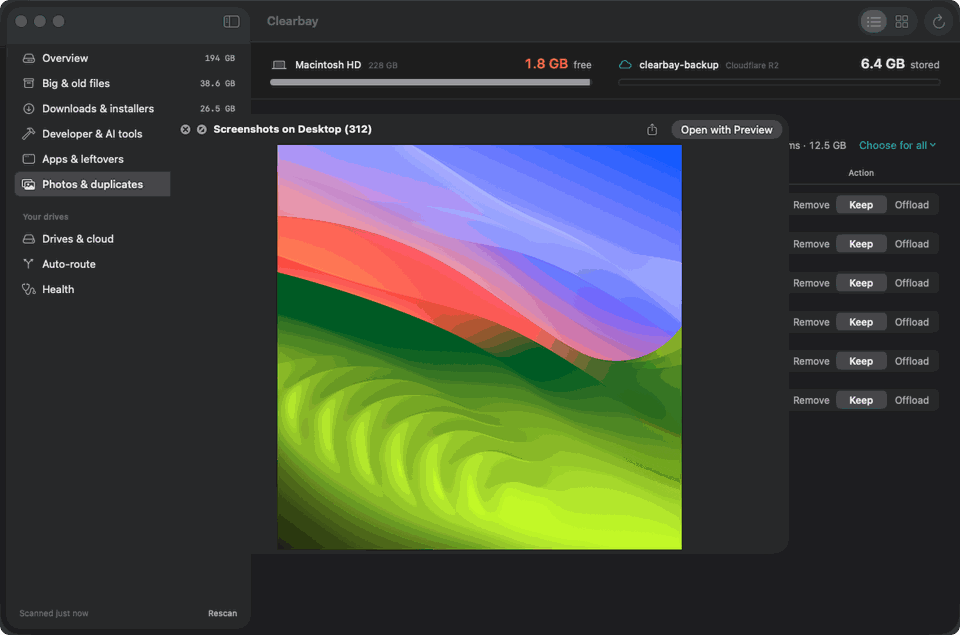
Keep this sets the chosen copy to Keep and every other copy to Remove, or to Offload where only that is allowed. It only stages choices; your files stay put until you press Review & run. Press Space on any row to see the file in Quick Look before you decide.
Similar photos and bursts
Burst mode, a shaky hand and a nervous photographer all produce the same thing: five nearly identical shots where one is enough. Lookalikes looks for JPEG, HEIC and PNG photos in your Pictures and Desktop folders whose files were created within three seconds of each other, three or more in a row. They are not byte-identical, so instead of a checksum Clearbay measures how sharp each one is (blur and camera shake score low) and keeps the sharpest. When sharpness can’t be read, the largest file is kept.
Because these are different pictures, nothing in a series is chosen for you. Look at the group, then stage the shots you don’t want.
Lookalikes never opens your Photos library; it’s on Clearbay’s protected list. For pictures inside Photos, use its own Duplicates album in the sidebar under Utilities, which merges copies and keeps their albums and metadata.
Duplicate AI model weights
Local AI tools download the same model more than once without telling you: a GGUF file grabbed in the browser, then again inside LM Studio, then a copy in a project folder. Every extra copy can cost many gigabytes. Clearbay checks ~/.ollama, ~/.cache/huggingface, LM Studio’s folders, Downloads and Documents for .gguf, .safetensors, .mlx, .ckpt and .pt files, plus .bin files of 500 MB or more, and confirms copies with the same size, partial-hash and SHA-256 passes as above.
The oldest copy is kept. The extra copies appear next to your other AI tool files in Code Dust; before removing one, make sure it isn’t the copy your app loads. For how big each model family gets and where every tool stores them, read our guide to local AI model storage on a Mac, and for the rest of the AI and developer caches see the Mac cleaner for developers.
What happens to the copies you don’t keep
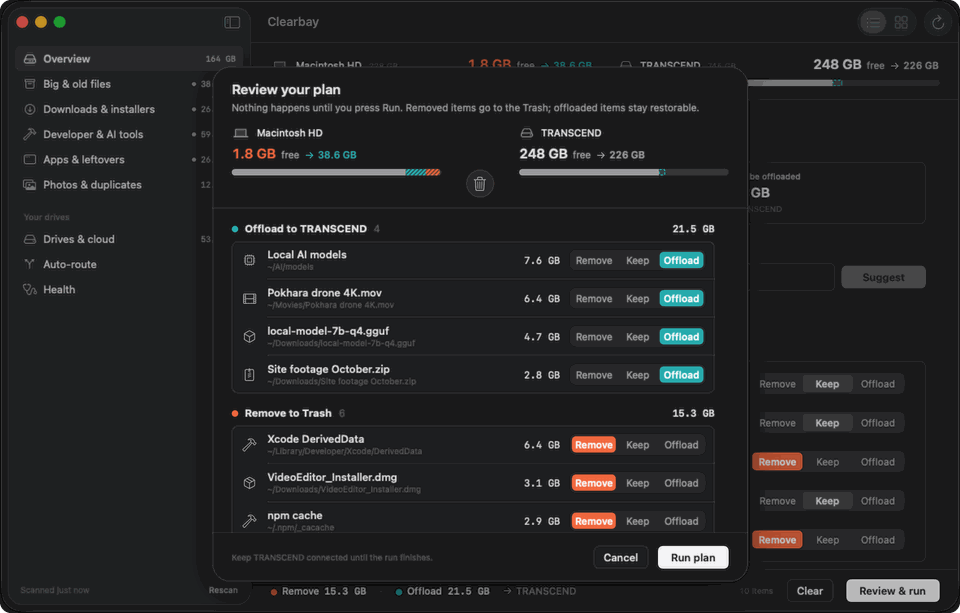
Every choice lands in one review sheet with totals per action, and nothing runs until you press Run plan. Removed duplicates go to the Trash, never straight to deletion, so you can put one back until you empty it. If you’d rather not lose the second copy at all, for example the backup of a wedding video, choose Offload to keep it on an external drive instead.
Free and Pro
The free version scans your Mac, and Lookalikes rows carry a small Pro label. Choosing which copies to keep and removing or offloading duplicates, photo series and same-name files comes with Clearbay Pro: you pay once and keep it. See the full Free vs Pro comparison.
Questions about duplicate files on a Mac
Does a Mac have a built-in duplicate file finder?
Not for ordinary files. Finder can sort by name or size, but it can't compare contents. The Photos app has a Duplicates album for pictures inside its library, and that's the only built-in duplicate detection in macOS.
Is it safe to delete duplicate files on a Mac?
Exact duplicates confirmed by a full checksum are safe to remove as long as you keep one copy and no app depends on the copy's location. Files that only share a name, or photos that only look alike, need a quick look first. Clearbay moves removed copies to the Trash so you can recover a mistake.
How does Clearbay know two files are identical?
It groups files by exact size, then compares a hash of the first 64 KB, then a SHA-256 hash of the whole file. Only files whose full SHA-256 matches are shown as exact copies.
Which duplicate should I keep?
Usually the copy with the original name in the folder where you'd look for it, not the one in Downloads or a file called "copy". Clearbay suggests a keeper with its reason, and you can always pick a different one.
Will Clearbay remove duplicates from my Photos library?
No. Clearbay never opens or changes the Photos library. Use the Duplicates album in Photos for pictures stored there; Lookalikes covers photos saved as files in folders such as Pictures and Desktop.
Can I find duplicate files on a Mac for free?
The Photos Duplicates album is free for your photo library. Clearbay's free version scans your Mac and shows what Lookalikes found; choosing and removing the copies needs Clearbay Pro, a one-time purchase.
Keep one copy. Get the space back.
Download Clearbay free and see how much your duplicates take. Upgrade once to clear them with a suggested keeper for every group.
Related
Clearbay is made by Bisai Technologies, LLC · Mac storage guides · Changelog · Support · Privacy · Terms · Refunds