Disk space analyzer for Mac that tells you what each item is
Short answer: Clearbay is a free disk space analyzer for macOS 14 or later. One scan measures your Mac, sorts what it finds into plain places, gives every item a Safe, Review or Caution label, and lets you click into any folder as a map. With Full Disk Access it accounts for the whole startup disk, System Data included.
Most analyzers stop at “this folder is 40 GB”. Clearbay also tells you what that folder is, which app made it, and what happens if it goes.
- Every analysis feature is free
- macOS 14 or later
- Reads names and sizes, never contents
What the analyzer shows you
Clearbay looks at your disk from three angles at once: by place (what kind of thing it is), by folder (where it sits) and by part of the disk (who it belongs to). Each view answers a different version of “what is taking up space on my Mac?”.
Bay Scan: one pass, sorted into plain places
Bay Scan measures your home folder, your apps, caches and, with Full Disk Access, the rest of the startup disk. Instead of a raw folder tree you get places with names that say what's inside, each with a size and a count. Every item carries a label from built-in rules: Safe (it rebuilds or you can get it again), Review (probably fine, worth a look) or Caution (think twice). The labels never come from guesswork, so the same folder gets the same label on every Mac.
Space Atlas: click into any folder
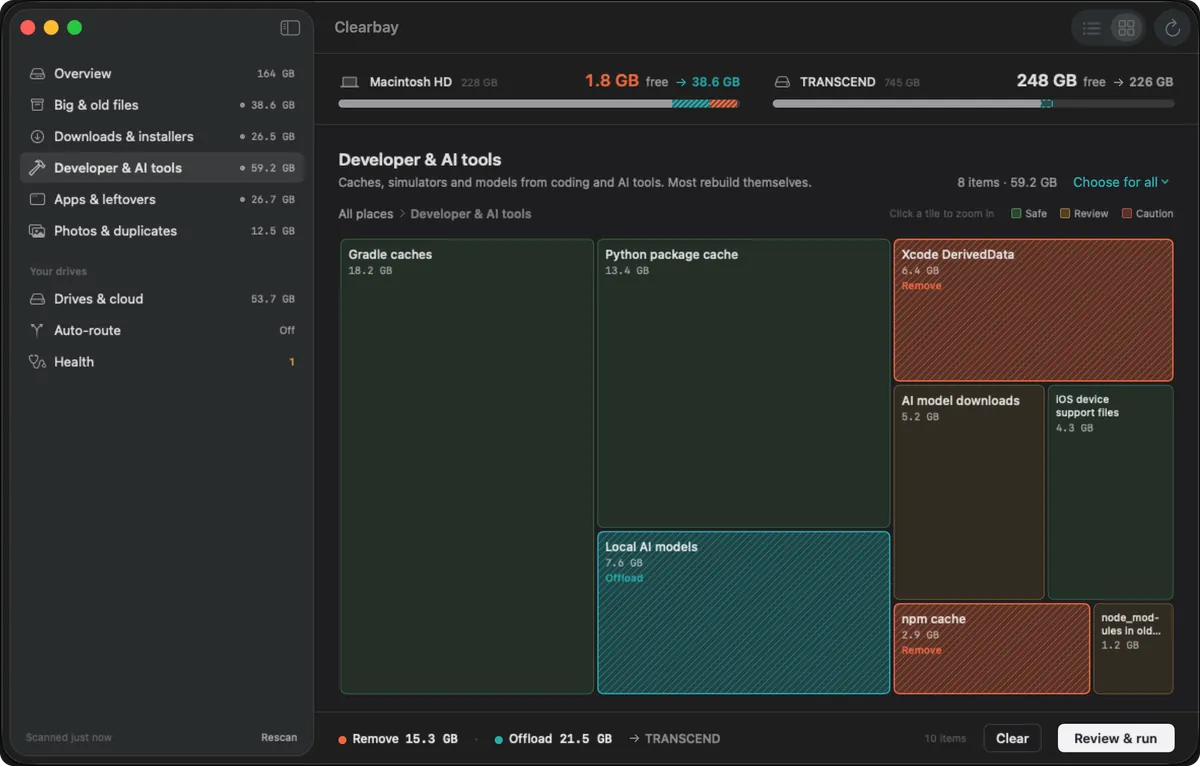
Space Atlas draws a folder or a whole drive as tiles sized by the space they take. Click a tile to zoom in, step back with the path above the map, and set Remove or Offload straight from a tile. It works on external drives too, which helps when a backup disk is mysteriously full.
“Where your space goes”: the whole disk, accounted for
With Full Disk Access turned on, Vital Signs splits the startup disk into a few clear parts: your files, other users, apps, system libraries, macOS itself, snapshots and purgeable space. Click any part to open it in Space Atlas. This is the view to use when Storage settings and your own folder totals don't add up.
System Data, in plain words
The Overview shows used, free and purgeable space, and “System Data, decoded” in Vital Signs turns the grey bar from Storage settings into named parts: developer and AI tools, app caches, logs and chat media, Time Machine snapshots and purgeable space, and swap. Some parts, such as swap, snapshots, the Photos and Mail stores or other users' folders, are measured for context but never offered for removal. For the background on each part, read our System Data guide.
Forgotten Giants: large files you stopped opening
Size alone is a poor signal. A 20 GB project you open daily belongs on your Mac; a 4 GB screen recording from last spring probably doesn't. Forgotten Giants lists your biggest files together with when you last opened each one, so the large-and-untouched ones rise to the top. With Full Disk Access it also checks Shared, Application Support and /opt.
Download Drift: what your Downloads folder forgot
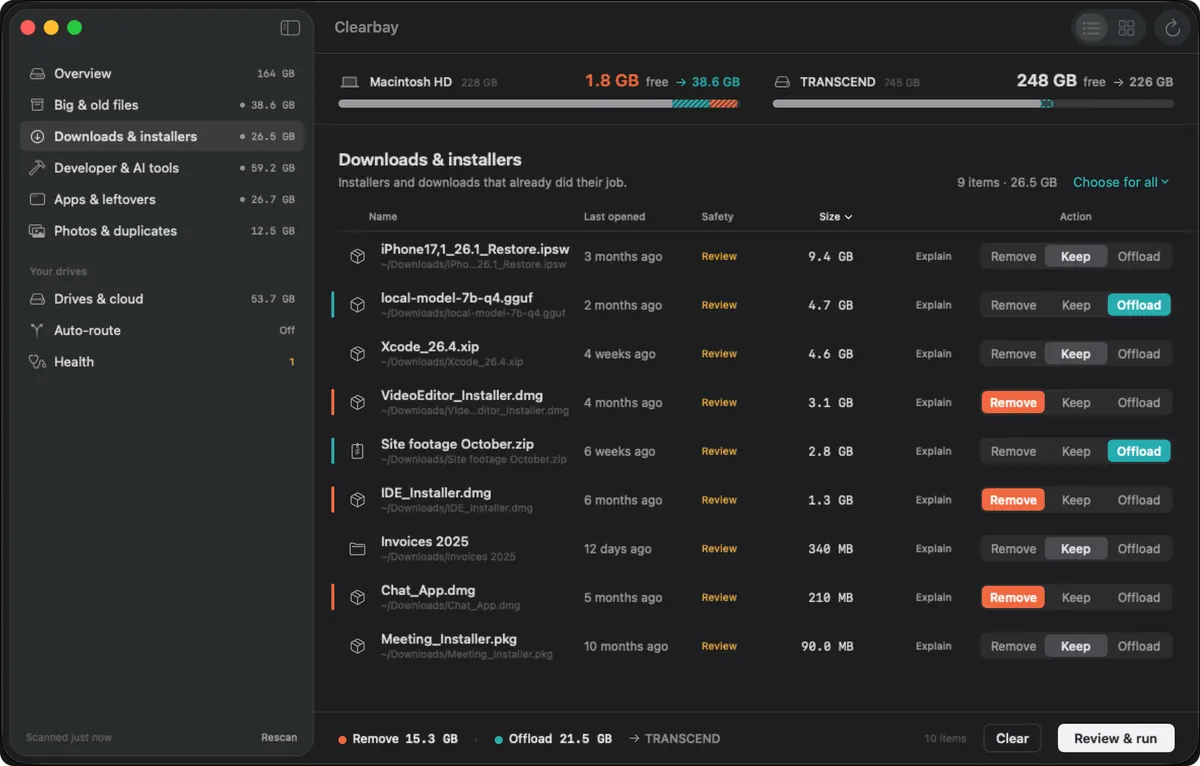
Download Drift groups old downloads by age and type and pulls out installers that already did their job: .dmg, .pkg, .xip and .zip files, plus phone restore images and archives.
How it works: from first scan to a clear answer
- Download and open ClearbayGet the free app from the download page. It's signed with Apple's Developer ID and notarized, and runs on Apple silicon and Intel.
- Allow Full Disk Access, if you want the whole diskOptional. Without it Clearbay scans everything you can open yourself, and places that need more access say “Needs Full Disk Access”. Turn it on later and Clearbay rescans by itself.
- Run Bay ScanClearbay reads names, sizes and dates. It never opens your documents, and no file details are sent anywhere.
- Start with the biggest place, then drill inOpen the largest place in the sidebar, or switch to the map and click into tiles until you reach the folder that matters.
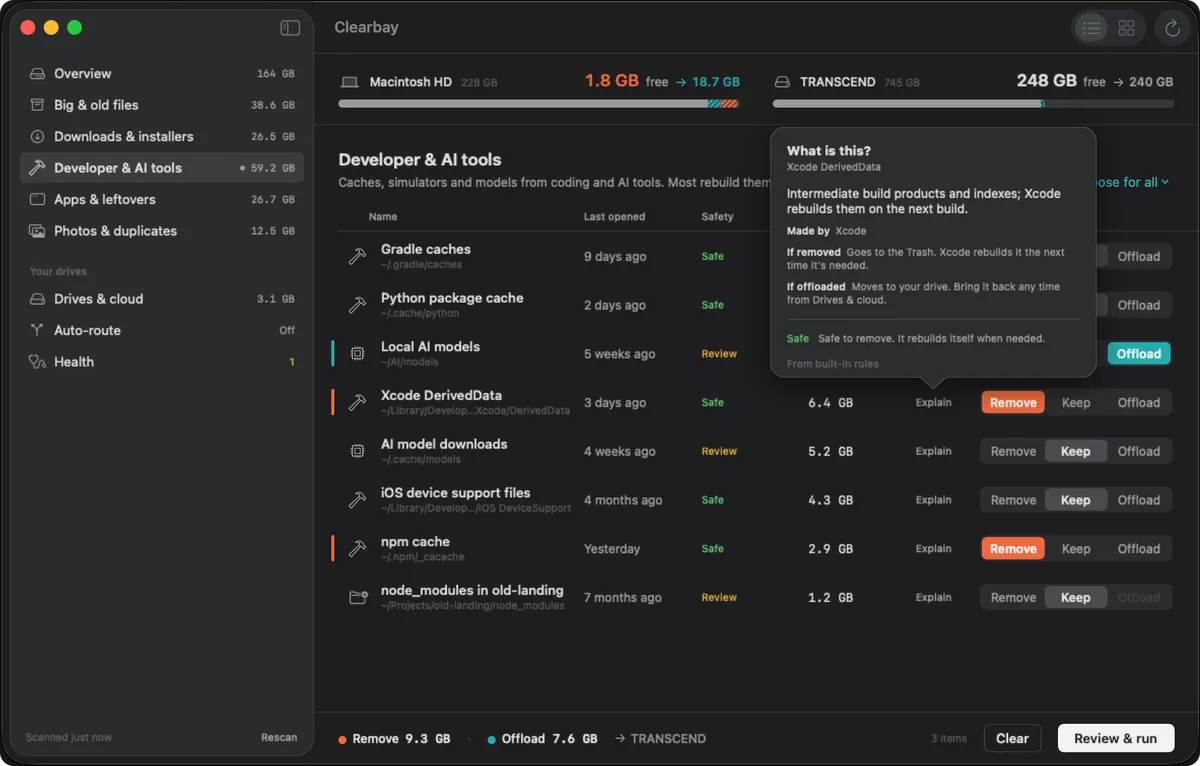
- Look before you decidePress Space for a Quick Look preview of a file, or Peek at a folder's 30 biggest items. Click Explain to learn what an item is, which app made it and what removing or offloading it would do.
- Choose, review, runSet Remove, Keep or Offload per item. Nothing happens until you look at the full plan and click Run, and every run can be undone.
Clearbay vs. the tools already on your Mac
macOS gives you three ways to check disk usage. They're fine for a quick look, but each answers only part of the question.
| What you need | Storage settings | Finder | Terminal du | Clearbay |
|---|---|---|---|---|
| Whole-disk breakdown | Broad categories | No | Folder totals you add up | Yes, with Full Disk Access |
| What's inside System Data | No list | No | If you know where to look | Yes, by part |
| Clickable folder map | No | No | No | Yes |
| Large files with last-opened date | Large files list | With a search | No | Yes |
| What an item is and if it's safe | No | No | No | Label on every item |
| Act from the same view | Delete only | Move to Trash | Commands, no undo | Remove, Keep or Offload, with undo |
| Cost | Built in | Built in | Built in | Free; Pro is one payment |
Whatever tool you use, totals rarely match Storage settings exactly. APFS clones, sparse disk images, snapshots and purgeable space all count differently, and our System Data guide shows why with a small test.
What's free and what Pro adds
Everything on this page is in the free version: Bay Scan, the Overview, Space Atlas, Forgotten Giants, Download Drift, Explain and the free-space history in Vital Signs. The free version also removes items labelled Safe and offloads one folder of up to 5 GB, so you can fix a full disk without paying.
Pro is a one-time purchase that adds removing Review items, unlimited offload, duplicate finding, the full uninstaller, Auto-Dock and the menu-bar low-space alert. The Free and Pro comparison lists every difference.
Two related jobs have their own pages: duplicates are covered by the duplicate file finder for Mac, and Xcode, package-manager and AI-tool caches by the Mac cleaner for developers.
Disk space analyzer questions
How do I see what is taking up space on my Mac?
For a quick overview, open Apple menu → System Settings → General → Storage. For the actual files and folders, run a disk space analyzer such as Clearbay: it scans the disk once, sorts everything by size and type, and lets you drill into any folder to find the few items that use the most space.
Does macOS have a built-in disk space analyzer?
Not a full one. Storage settings shows broad categories and a list of large files, and Finder can calculate folder sizes in list view, but neither gives you a map of the whole disk or explains System Data item by item.
Is there a free disk space analyzer for Mac?
Yes. Clearbay's analysis features are free with no time limit: the full scan, the folder map, the large and old files list, old downloads and installers, Explain, and the free-space history. Pro is optional and only adds more cleanup and offload actions.
How do I find large files on my Mac?
In Finder, press Command-F, set the first filter to File Size and choose “is greater than”, for example 1 GB. In Clearbay, open Forgotten Giants: it lists your largest files with the date you last opened each one, which makes the forgotten ones easy to spot.
Why doesn't the analyzer's total match Storage settings?
macOS counts some space in ways that don't add up folder by folder: cloned files share their data, sparse disk images take less than their stated size, and snapshots and purgeable space sit outside any folder. Small differences are normal and don't mean a scan missed anything.
Do I need to give Clearbay Full Disk Access?
No. Clearbay works without it and scans everything you can open yourself. Full Disk Access adds other apps' caches and containers, system-wide caches and logs, and the whole-disk breakdown. You can turn it on or off at any time in System Settings.
Does Clearbay read or upload my files?
No. It reads file names, sizes and dates, never their contents, and nothing about your files leaves your Mac. There is no account to create and no analytics.
See what's filling your Mac in one scan
Download Clearbay free, run Bay Scan and get a clear answer, item by item. Upgrade once to Pro if you want unlimited offload and every cleanup action.
Related
Clearbay is made by Bisai Technologies, LLC · Mac storage guides · Changelog · Support · Privacy · Terms · Refunds