How to Offload Files to an External Drive on Mac
Move files off your Mac to an external drive without losing anything: tested drive formats, exact steps, verification, costs and fixes.
 By Clearbay TeamGuides from the people building Clearbay
To offload files to an external drive on a Mac, format the drive as APFS (or exFAT only if Windows PCs must use it too), copy the folders you want off your Mac, check that the copy is complete, then delete the originals and empty the Trash. If you hold Command while you drag to the drive, Finder moves the files instead of copying them. The space only comes back once the originals are gone from your Mac and the Trash is empty.
That's the short version. The details are where people lose files or get less space back than they expected. We formatted test drives in four formats on macOS 26.5 and copied the same folder to each, so this guide shows you what each format really keeps. On a 1 TB exFAT drive, 1,000 small files took up 58 times more space than on APFS.
Offloading is not a backup
Offloading means the file now lives only on the external drive. That's the whole point, because it frees space on your Mac. But it also means the drive holds the only copy. A backup is a second copy of something that still exists somewhere else.
So before you offload anything you'd hate to lose, decide where its second copy will live. You could use Time Machine on a different drive, a second external drive, or a cloud folder. Cheap portable drives get dropped, lost and corrupted. For things you can download again, like installers, old Xcode simulators or AI models, one copy is fine. For family photos and client work, it isn't.
Which format to use: what we measured
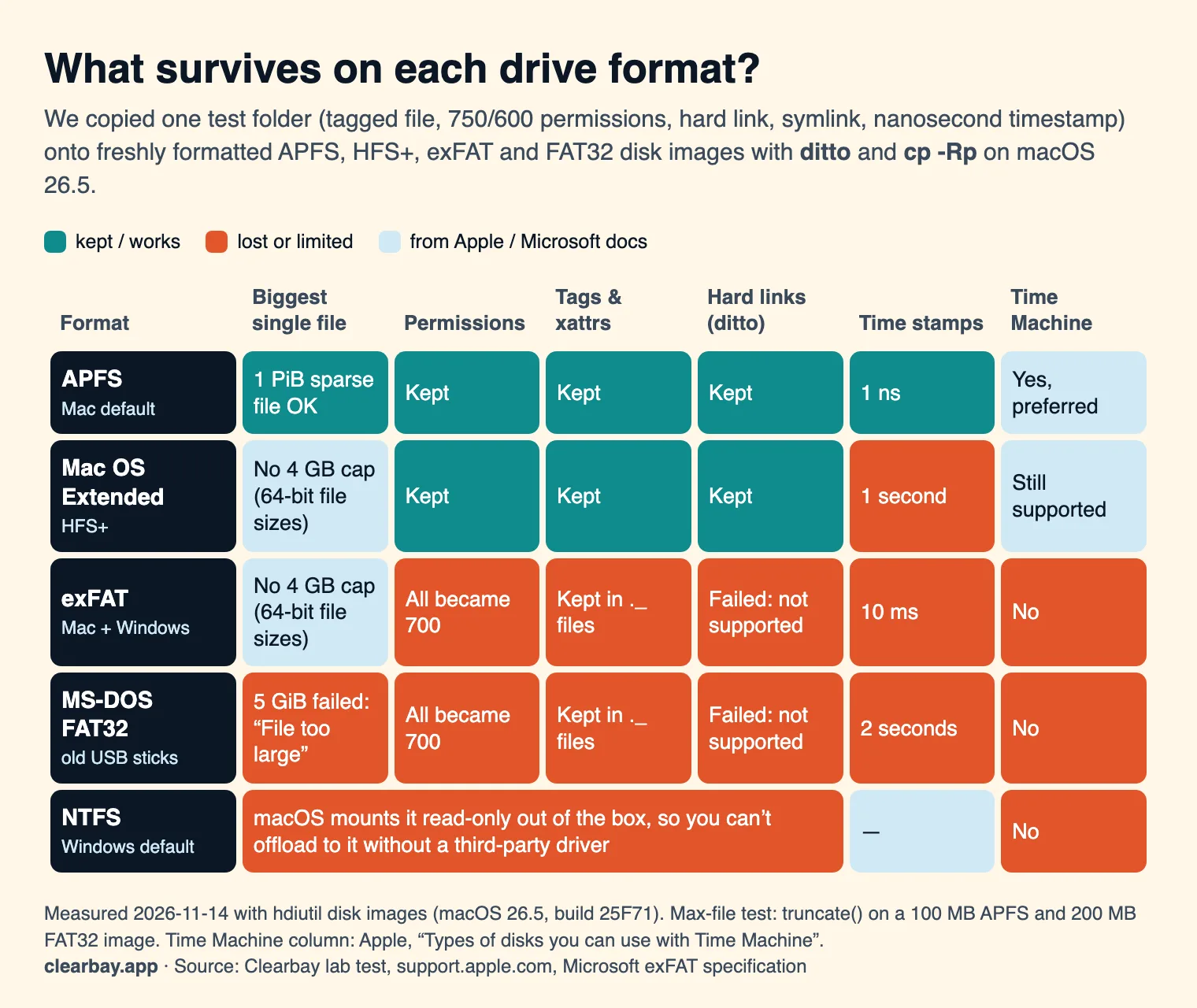
Most "which format" articles copy the same three lines from Disk Utility's help. We tested instead. On 14 November 2026 we created APFS, Mac OS Extended (HFS+), exFAT and MS-DOS (FAT32) disk images with hdiutil on macOS 26.5 (build 25F71). We then copied the same test folder onto each one with both ditto and cp -Rp. The folder held a file with a Finder tag and a custom extended attribute, a script with 750 permissions, a private file with 600 permissions, a hard link, a symlink and a file with a nanosecond timestamp.
| What we checked | APFS | Mac OS Extended | exFAT | FAT32 |
|---|---|---|---|---|
| Permissions (750, 600) | Kept | Kept | Every file became 700 | Every file became 700 |
| Finder tags and extended attributes | Kept | Kept | Kept, in a hidden ._ file per item | Kept, in a hidden ._ file per item |
Hard link (copied with ditto) | Kept as a link | Kept as a link | "Operation not supported", second name skipped | "Operation not supported", second name skipped |
| Timestamp precision | 1 nanosecond | 1 second | 10 milliseconds | 2 seconds (odd seconds rounded down) |
| 255-character name of accented letters (é) | Accepted | Rejected: "File name too long" | Accepted | Accepted |
| 5 GiB file | Fine (a 1 PiB sparse file worked) | No 4 GB cap | No 4 GB cap | Rejected: "File too large" |
| Case-only names (Readme.txt vs README.txt) | Treated as the same name | Treated as the same name | Treated as the same name | Treated as the same name |
A few of these results need explaining.
- Permissions. exFAT and FAT have no Unix permissions, so macOS shows every file as
rwx------. For documents that's harmless. For scripts, or a folder you plan to copy back and run, you'd need to fix the permissions afterwards. - Hidden ._ files. macOS keeps tags and other metadata on exFAT and FAT by writing a separate file named
._yourfilenext to each one. On the Mac you never see them. On Windows, or a TV, or a camera, they show up as clutter, and if another system deletes them your tags are gone. - Hard links.
dittostopped with an error on the second name of a hard-linked file and left it out.cp -Rpmade two independent copies instead, which uses twice the space. Time Machine folders and some developer tools rely on hard links. - Accented names on HFS+. Mac OS Extended stores names in decomposed form, so each "é" counts as two characters. A name that fits on APFS can be too long for an older Mac-formatted drive.
- All four were case-insensitive. These are the default variants. If you copy a Linux project that has
Makefileandmakefileside by side, one of them will be overwritten.
The exFAT small-file tax
exFAT gives every file at least one whole cluster, its smallest unit of space. When we formatted a 1 TB disk image as exFAT with macOS defaults, the cluster size was 128 KiB. We then wrote 1,000 files of 1 KiB each to a 1 TB APFS image and a 1 TB exFAT image and measured the space used with df.
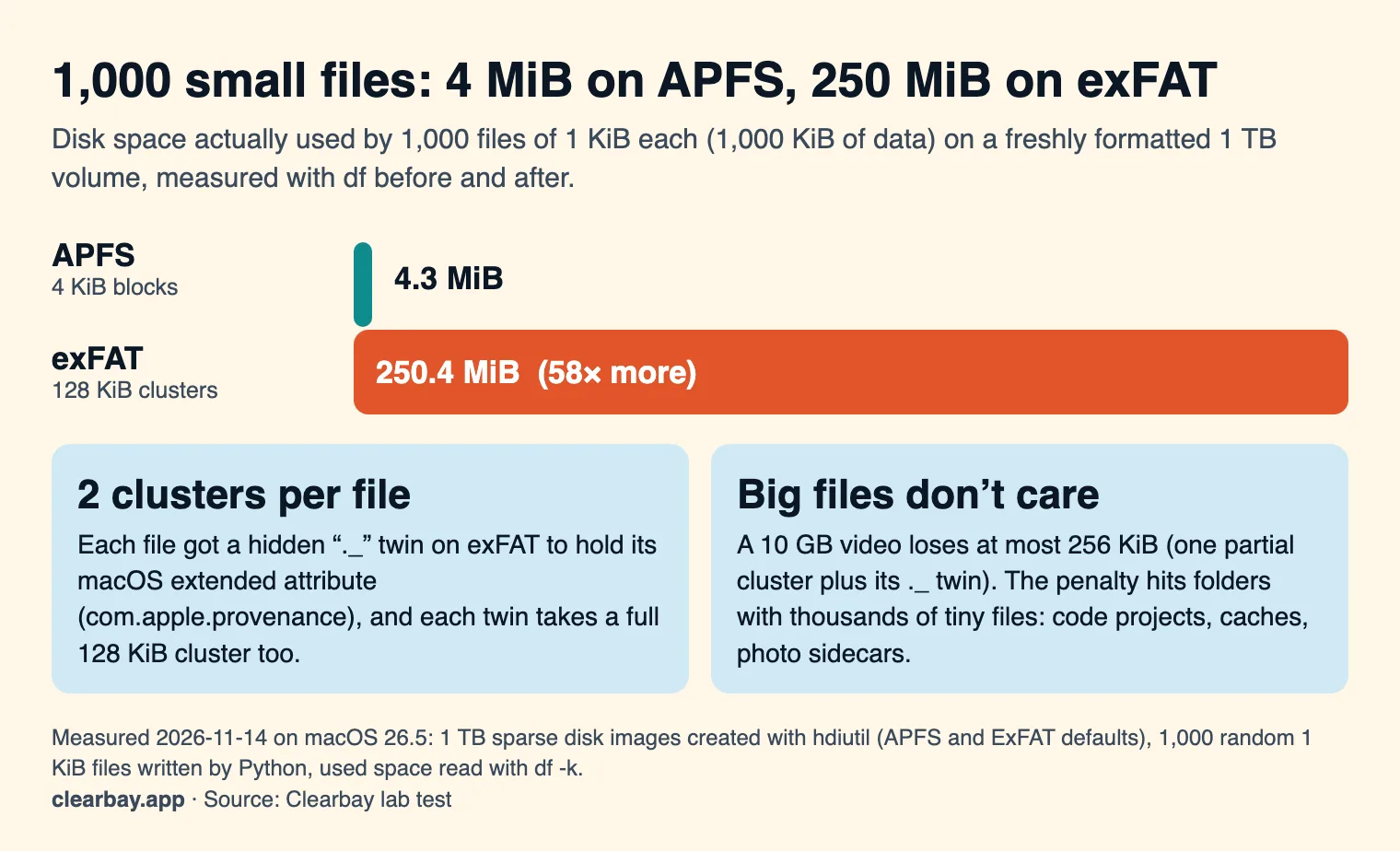
APFS used 4.3 MiB. exFAT used 250.4 MiB, which is 58 times more. Half of that came from the hidden ._ files. Every file we wrote on macOS 26.5 carried a com.apple.provenance extended attribute, so exFAT needed a second 128 KiB cluster for each file's ._ twin. Large videos and disk images don't care about this. A code project, a cache folder or a photo library with thousands of sidecar files will fill an exFAT drive much faster than its size suggests.
What about NTFS and Time Machine?
macOS 26.5 includes an NTFS driver, but out of the box it mounts NTFS drives read-only, and Disk Utility can't create NTFS. A Windows-formatted drive straight out of the box therefore can't take offloaded files until you reformat it or install a third-party driver. As for Time Machine, Apple says APFS is the preferred format for backup disks. Mac OS Extended disks with existing backups still work. exFAT isn't on the list.
One more detail: Apple's Disk Utility guide for macOS 26 now lists only APFS, MS-DOS (FAT) and ExFAT. The macOS 15 version still listed Mac OS Extended. In practice, choose APFS for a drive that only Macs will use. Choose exFAT if Windows PCs must read and write it, and offload mostly large files to it.
How to format an external drive for your Mac
Erasing deletes everything on the drive. Copy off anything you need first.
- Connect the drive, then open Disk Utility (Applications → Utilities, or Spotlight).
- Choose View → Show All Devices so you can select the whole physical disk, not just a volume on it.
- Select the drive at the top of its group in the sidebar and click Erase.
- Give it a short name without slashes. For Format, pick APFS, or APFS (Encrypted) if the drive leaves the house. For Scheme, pick GUID Partition Map.
- Click Erase, wait for "Erase process is complete", then click Done.
The steps are the same on macOS 14 Sonoma, 15 Sequoia and 26 Tahoe. If you want one drive for both Time Machine and offloaded files, keep them in separate APFS volumes. Apple notes that Time Machine reserves the whole APFS volume it backs up to. Select the container in Disk Utility and click + to add a second volume. Both volumes share the free space.
How to offload files to an external drive on Mac, step by step
- Find what's big. Open System Settings → General → Storage and click the ⓘ next to a category, or sort a Finder window by size. Finished video projects, raw photo shoots, old virtual machines, installer files and downloaded AI models are the usual suspects.
- Make a folder on the drive that mirrors where things came from, such as
Offload/Movies/2025 wedding. In a year you'll want to know where each folder belonged. - Copy, or move in one step. Dragging to another disk copies by default. Hold Command while you drag and Finder moves the item instead. You can also copy, then press Option-Command-V in the drive window to move it.
- Verify. Select the original and the copy, press Command-I and compare the item count and size. For a stronger check, run
diff -rq "/path/to/original" "/Volumes/Drive/Offload/original"in Terminal. No output means the files match byte for byte. - Delete the original and empty the Trash. Until you empty it, nothing is freed.
- Eject before unplugging. Click the eject button next to the drive in Finder's sidebar.
If you copy with Terminal, ditto "source" "/Volumes/Drive/Offload/source" keeps extended attributes, permissions and hard links on APFS. That's why we used it in the test.
What to offload, and what to leave alone
| Good to offload | Offload with care | Leave on the Mac |
|---|---|---|
| Finished video and photo projects, exports, raw shoots | Photos and Music libraries (use the app's own steps to move the library) | Anything inside iCloud Drive (use Remove Download instead) |
| Old installers (.dmg, .pkg, .xip) and disk images | Tool caches like Gradle, Hugging Face or Ollama models (the tool must be pointed at the new path) | Mail and Messages data |
| Virtual machines you rarely boot | Final Cut Pro and iMovie libraries (APFS drives only) | System folders and anything under /System or /Library you don't recognise |
| Archives of old work, finished courses, scanned paperwork | Apps (many run from a drive, but updates and login items can break) | Files you open every day |
Developer folders are a special case. Moving ~/.gradle or a Hugging Face cache simply makes the tool download everything again on your Mac, unless you also tell the tool where the files went. Our guide to developer caches that are safe to clear covers which ones to delete outright. The AI models storage guide shows how to point Ollama and Hugging Face at a drive.
External drive or cloud: what a terabyte costs
A drive is a one-off purchase. A cloud plan is rent. We took US prices as of November 2026 from Apple's iCloud+ page, Google One's plan page, and the Crucial and Samsung online stores, and worked out the cumulative cost of 2 TB over five years.
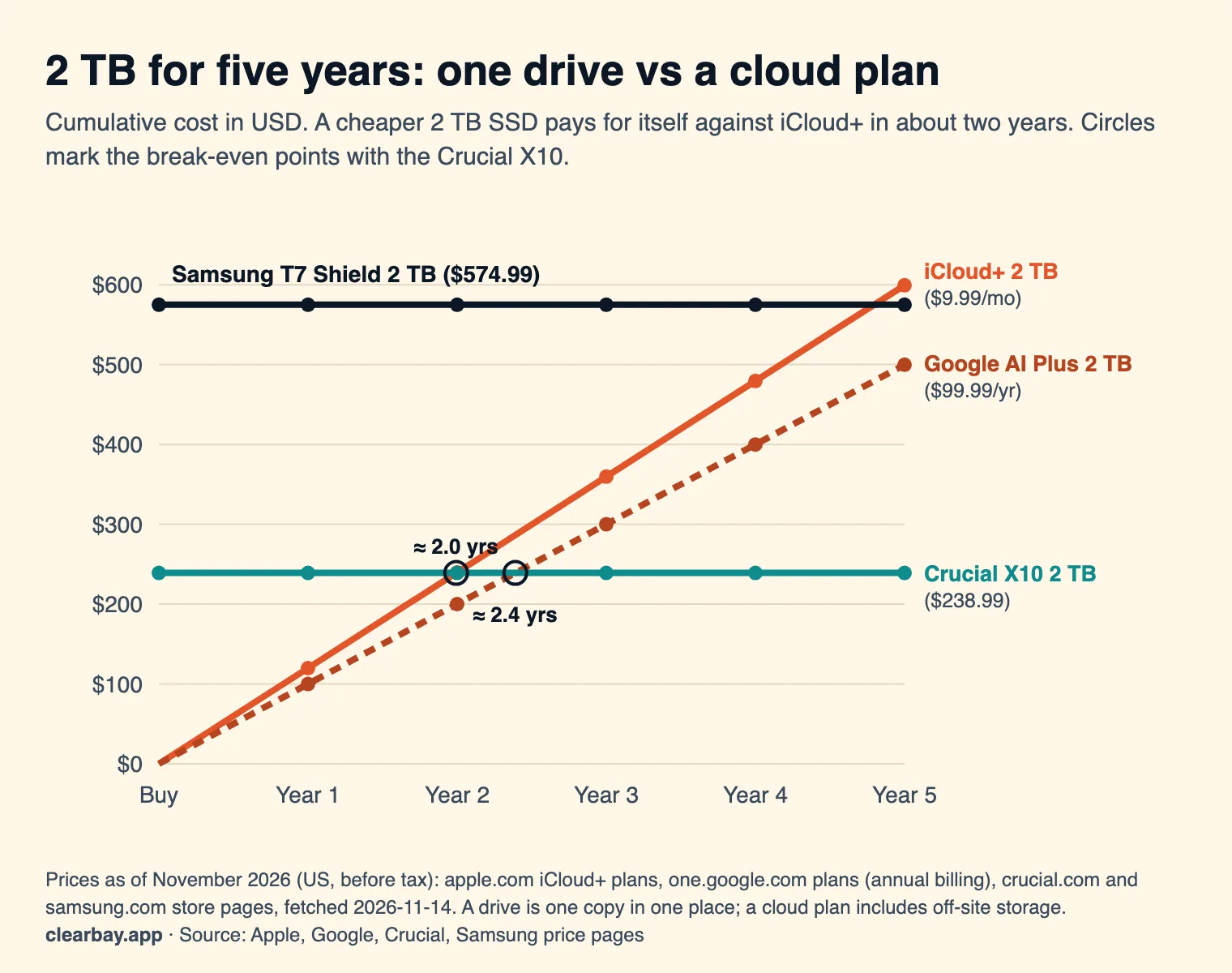
| Option (2 TB) | Price, November 2026 | Cost after 3 years | Per TB per year over 3 years |
|---|---|---|---|
| Crucial X10 portable SSD | $238.99 once | $238.99 | $39.83 |
| Samsung T7 Shield portable SSD | $574.99 once (list price on samsung.com) | $574.99 | $95.83 |
| Google AI Plus, billed yearly | $99.99 a year | $299.97 | $50.00 |
| iCloud+ 2 TB | $9.99 a month | $359.64 | $59.94 |
The cheaper SSD pays for itself against iCloud+ in about 24 months. But the comparison isn't apples to apples. A cloud plan keeps your files off-site and on redundant hardware. A drive is one copy in one bag. Many people end up using both: a drive for big, replaceable things, and a cloud folder for documents they need everywhere. If you lean towards the cloud, read our guides to offloading to iCloud Drive and offloading to Google Drive.
Troubleshooting
The drive is read-only or Finder won't let you copy
Select the drive and press Command-I. If Format says NTFS, macOS can only read it. If it's a Mac format, open Sharing & Permissions at the bottom of the Info window, click the lock, and give yourself Read & Write. You can also tick Ignore ownership on this volume, which is how macOS mounted all of our test images.
"The item can't be copied because it's too large for the volume's format"
The drive is FAT32, which can't hold a file of 4 GB or more. Reformat it as APFS or exFAT, after copying off what's on it.
The drive doesn't appear
Open Disk Utility and choose View → Show All Devices. If the disk is there but greyed out, select it and click Mount. If it's missing from Finder's sidebar, open Finder → Settings → Sidebar and turn on External disks.
"The disk wasn't ejected because one or more programs may be using it"
Quit apps that might have files open on the drive, including Spotlight-heavy apps, Photos and media players, then try again. Spotlight indexing a fresh drive can also hold it for a few minutes.
Windows shows lots of ._ files
Those are the metadata twins described above. dot_clean -m /Volumes/DriveName deletes them, but the Finder tags and other attributes they held are gone too. Only do this if you don't need them.
You deleted files but the space didn't come back
Empty the Trash first. If the space still doesn't come back, local Time Machine snapshots may still hold the deleted data for a while. See what System Data is on a Mac for how snapshots and purgeable space work.
How Clearbay offloads to an external drive
Clearbay does the copy, verify and delete routine for you, and remembers where everything went. Connect a drive and it appears in Harbor → Offload to. Click Use this drive. Then set any item in Bay Scan, Forgotten Giants, Download Drift, Code Dust or App Attic to Offload and run the plan.
- It copies the item into an
Offloadfolder on the drive, keeping the path it had under your home folder. It checks that the drive has room for the item plus 1 GB first. - It compares the file count and total bytes of the copy with the original. Only then does it delete the original from your Mac, permanently, because moving it to the Trash would free nothing. If any step fails, the original stays where it was.
- It won't put Xcode build data, Final Cut Pro or iMovie libraries on an exFAT or FAT drive, because those need APFS.
- For tool caches such as Gradle, Hugging Face, uv, npm, CocoaPods, Xcode DerivedData and Ollama models, it points the tool at the drive so the tool doesn't rebuild everything on your Mac.
- Harbor → Offloaded items lists everything on the drive, even when the drive isn't connected, and Restore puts an item back where it was. Undo last run reverses the latest run.
- Auto-Dock can send new downloads and screenshots to the drive whenever it's plugged in.
The free version offloads one folder. Pro, a one-time purchase, removes the limit, and Restore is always free. Download Clearbay. It runs on macOS 14 or later, on Apple silicon and Intel.
FAQ
Can I move files to an external hard drive to free up space on my Mac?
Yes. Copy the files to the drive, check that the copy is complete, then delete the originals and empty the Trash. Or hold Command while you drag them to the drive, and Finder moves them in one step. The space only comes back once the originals are gone. Remember that the drive then holds the only copy, so back up anything you can't replace.
What format should an external drive be for a Mac?
Use APFS for a drive that only Macs will use. In our test it kept permissions, tags, hard links and nanosecond timestamps, and Apple prefers it for Time Machine. Use exFAT only if Windows PCs also need to write to the drive. Avoid FAT32 for offloading, because it rejects any file of 4 GB or larger.
Should I use exFAT or APFS for an external drive on a Mac?
APFS, unless you need Windows. On exFAT, our test files lost their permissions, hard links failed to copy, and every file got a hidden ._ twin. On a 1 TB drive, 1,000 small files used 250 MiB on exFAT versus 4.3 MiB on APFS. exFAT is fine for large videos and disk images that you move between Mac and PC.
Why can't I copy files to my external hard drive on a Mac?
Usually one of three things: the drive is NTFS, which macOS mounts read-only; the drive is FAT32 and the file is 4 GB or larger; or your account doesn't have write permission. Check the format with Command-I. For a Mac-format drive, give yourself Read & Write, or tick Ignore ownership on this volume.
Does moving files to an external drive delete them from my Mac?
A normal drag to another disk copies, so the original stays on your Mac. Holding Command while dragging moves the item, so it's removed from the Mac once the copy finishes. Either way, check the copy before you delete anything, and empty the Trash afterwards so the space is actually freed.
Can I run apps from an external drive on a Mac?
Many apps run fine from an APFS drive, but some expect to live in /Applications. They can break on updates, login items or helper tools, and they won't open when the drive is unplugged. It's usually better to offload an app you rarely use and restore it when you need it than to run it from the drive every day.
Is it safe to keep files only on an external drive?
Only for things you can replace, like installers, downloaded models or old simulators. Portable drives fail, get lost and get dropped. For irreplaceable files, keep a second copy on another drive, in Time Machine or in a cloud folder. Offloading frees space, but it doesn't protect your files.
Sources
- Clearbay lab test, 14 November 2026: hdiutil disk images (APFS, HFS+, ExFAT, MS-DOS FAT32) on macOS 26.5 build 25F71; copies made with ditto and cp -Rp; space measured with df -k.
- Apple: File system formats available in Disk Utility on Mac
- Apple: Types of disks you can use with Time Machine
- Apple: Backup disks you can use with Time Machine
- Apple: Mac keyboard shortcuts (Command-drag to another volume)
- Microsoft: exFAT file system specification
- Apple: iCloud+ plans and pricing
- Google One plans
- Crucial X10 2TB Portable SSD (crucial.com)
- Samsung T7 Shield 2TB (samsung.com)