Offload Files to Google Drive on Mac (Stream, Not Mirror)
Move files into Google Drive and actually free space on your Mac: Stream vs Mirror, exact steps, limits, Google One cost per TB and fixes.
 By Clearbay TeamGuides from the people building Clearbay

To offload files to Google Drive on a Mac, install Google Drive for desktop and set My Drive to Stream files, not Mirror. Move your files into the Google Drive folder in Finder, wait for them to upload, then make sure they aren't marked Available offline so macOS can drop the local copies. With Mirror files, Google keeps a full copy of everything on your Mac. Moving files into a mirrored Drive frees nothing.
This guide walks through the exact settings, shows where Google Drive keeps files on macOS 12.1 and later, and covers the limits that matter for big uploads. It also compares what a terabyte of Google One costs per year in November 2026 with iCloud+ and an external SSD.
Stream vs Mirror: the setting that decides everything
Google Drive for desktop offers two ways to sync My Drive. Google's own help page puts it plainly. With streaming, "files are primarily stored in the cloud, but will be made available offline when accessed". With mirroring, "mirrored files will always be stored on your computer and in the cloud". Only streaming can free space on your Mac.
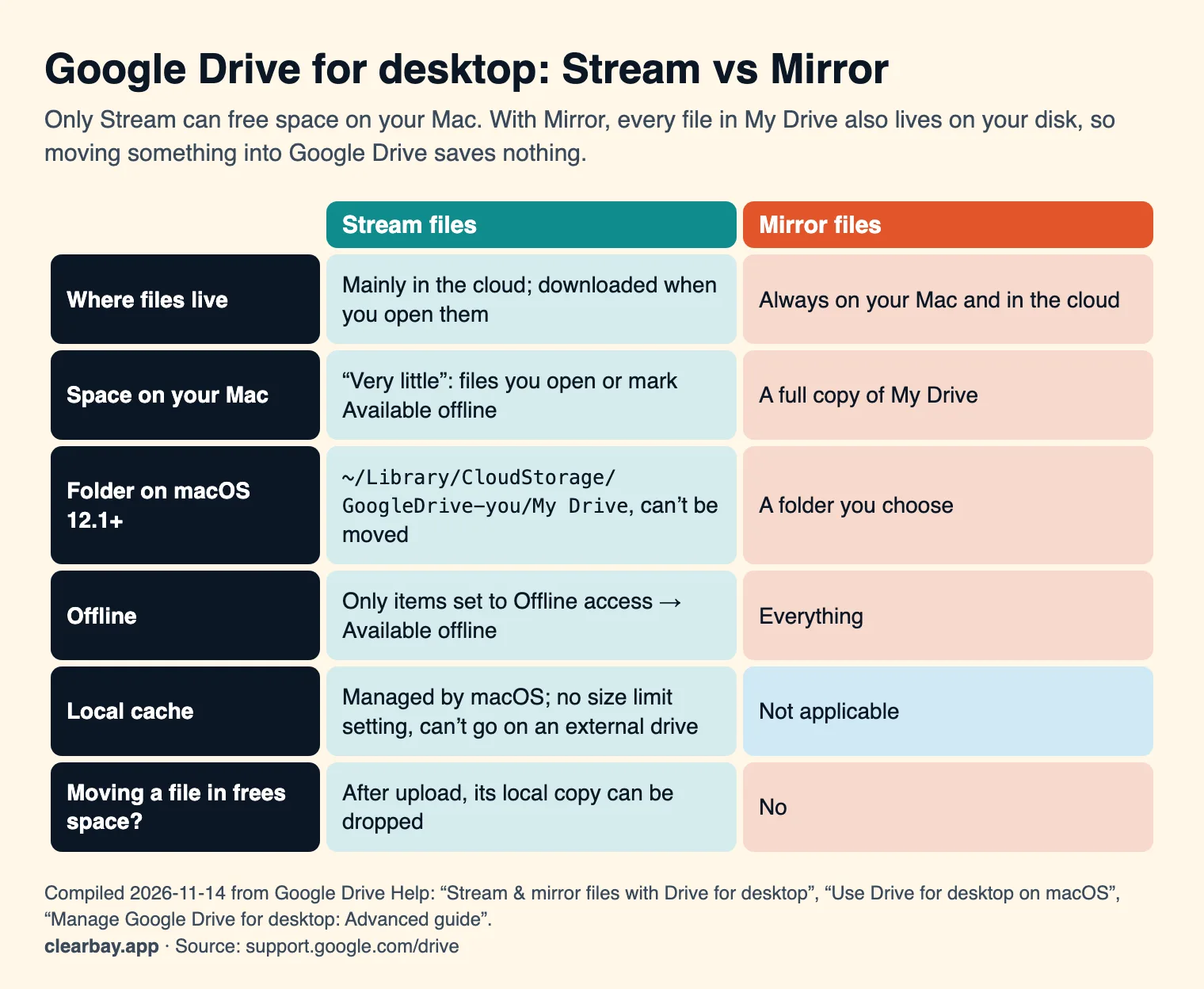
On macOS 12.1 and later, streaming runs on Apple's File Provider system. That has three practical effects:
- The folder lives at
~/Library/CloudStorage/GoogleDrive-your-account/My Drive, and Google says you can't change that location. In Finder it appears under Locations in the sidebar. - macOS, not Google, manages the cache of downloaded files. Google states you can't set a limit for it or move it to an external drive.
- Files you downloaded or created stay readable even when Drive for desktop isn't running.
Set up Google Drive for desktop to free space
- Download Google Drive for desktop from
google.com/drive/download, open the installer and follow the steps. - Sign in with your Google account. macOS may ask you to allow the File Provider extension. Allow it, or streaming can't work.
- Click the Google Drive icon in the menu bar, then the gear icon, then Settings.
- Open Preferences → Folders from Drive (called Google Drive in some versions). Under My Drive syncing options, choose Stream files.
- Click Save. Open Finder and check that Google Drive appears under Locations.
Already on Mirror? Switch safely
Google's steps: make sure all local files have finished syncing first, then choose Stream files, quit Drive for desktop, and delete the old mirrored folder. Google warns that skipping the sync check can lose data. Before you delete the mirrored folder, open the new streamed folder and spot-check that your newest files are there.
How to offload files to Google Drive on a Mac, step by step
- Choose what to offload. Finished projects, exported videos, scanned paperwork, old course material. These are files you want to keep but rarely open.
- Create a folder in My Drive, for example
Archive. - Move the files in. Drag them into the folder while holding Command, so Finder moves them rather than copying.
- Wait for the upload. The Drive for desktop menu bar icon shows activity. In Finder, files that are still uploading show a sync status next to their names. Your Mac has to stay awake and online until the upload finishes.
- Drop the local copies. Control-click the uploaded items. If Offline access → Available offline is ticked, untick it. Then choose Remove Download if Finder offers it, so the space comes back right away instead of whenever macOS decides to tidy its cache.
- Check the result in System Settings → General → Storage.
Later, double-click any streamed file to open it. It downloads first, so you need an internet connection. To work offline on a folder, Control-click it and choose Offline access → Available offline. Google Docs, Sheets and Slides are different: Google says they're made available offline from Drive on the web, not through Finder.
Limits that matter for big offloads
| Limit | Value | Source |
|---|---|---|
| Largest file you can store | Up to 5 TB | Google Drive Help |
| Upload and copy limit (Google Workspace accounts) | 750 GB per user per 24 hours | Google Workspace Admin Help |
| Free storage | 15 GB, shared by Drive, Gmail and Google Photos | Google One plans page |
| Cache location for streamed files | Managed by macOS; can't be moved to an external drive | Google Drive Help |
| Space needed to stage a file | The file's full size, until it uploads and is evicted | How streaming works |
The last row catches people out. Streaming saves space after the upload. While a 200 GB folder is uploading, it still occupies 200 GB on your Mac. If your disk is nearly full, offload in batches.
What Google Drive storage costs per terabyte
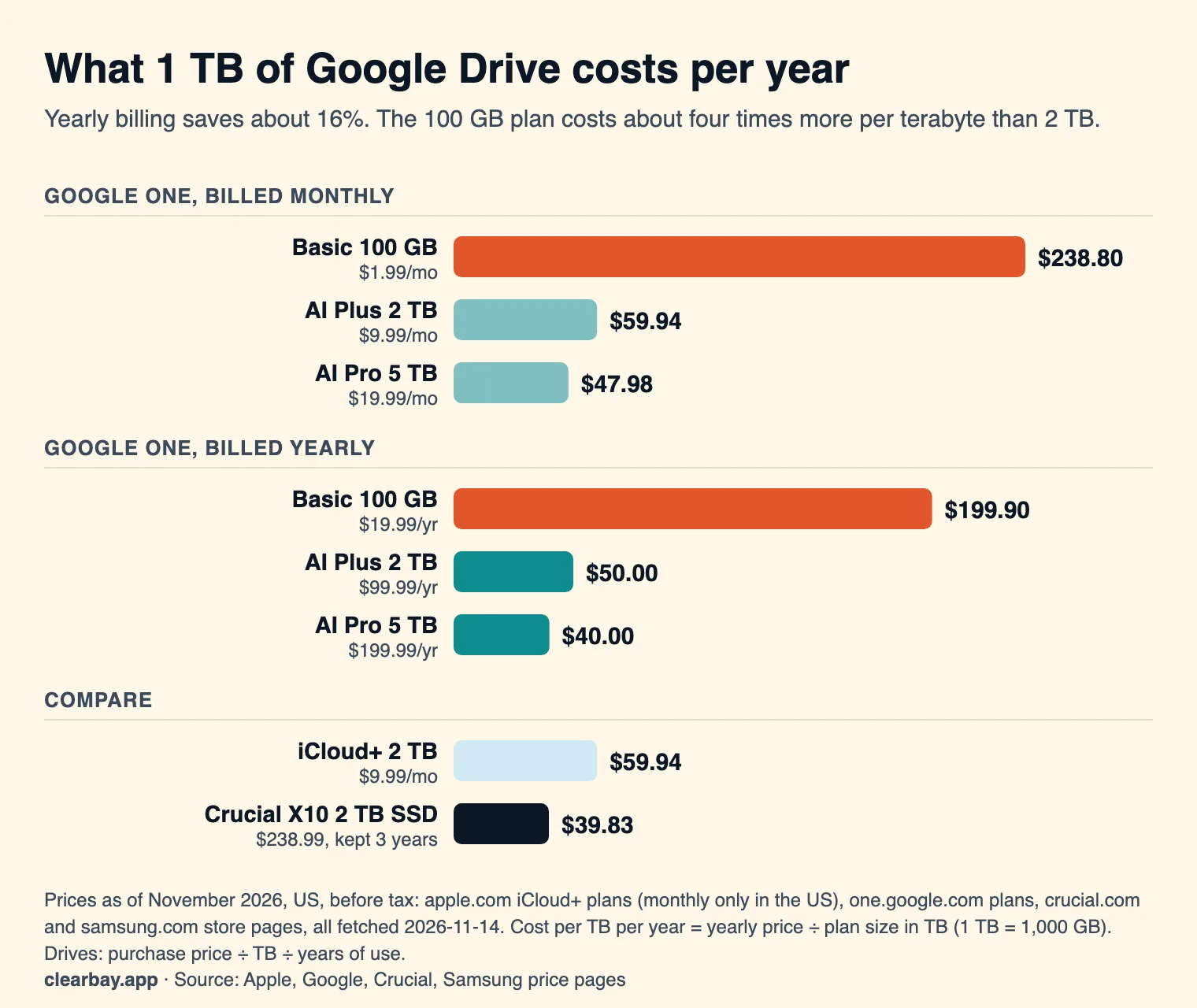
We took US prices from Google One's plans page on 14 November 2026, with both monthly and yearly billing. We divided each by the plan size to get a cost per terabyte per year, then added iCloud+ and a portable SSD for comparison.
| Google One plan | Monthly | Yearly | Per TB per year (yearly billing) |
|---|---|---|---|
| Free | $0 | $0 | — (15 GB) |
| Basic, 100 GB | $1.99 | $19.99 | $199.90 |
| Google AI Plus, 2 TB | $9.99 | $99.99 | $50.00 |
| Google AI Pro, 5 TB | $19.99 | $199.99 | $40.00 |
Yearly billing saves about 16%, which matches the "save up to 16%" Google shows on the page. The 100 GB plan costs about four times more per terabyte than 2 TB. If 100 GB isn't enough, the next tier is 2 TB, with nothing in between. For comparison, iCloud+ 2 TB is $9.99 a month, or $59.94 per TB per year, and the US only offers it monthly. A $238.99 Crucial X10 2 TB SSD works out at $39.83 per TB per year if you keep it three years, but it's a single copy you have to carry.
Google Drive vs iCloud Drive vs an external drive
| Google Drive (Stream) | iCloud Drive | External SSD | |
|---|---|---|---|
| 2 TB, per year (Nov 2026) | $99.99 billed yearly | $119.88 | $238.99 once (Crucial X10) |
| Free tier | 15 GB | 5 GB | — |
| Needs extra software on the Mac | Yes, Drive for desktop | No | No |
| Frees space after you move files in | Only in Stream mode, after upload | After Remove Download, or under Optimize Mac Storage | Once you delete the originals |
| Off-site copy | Yes | Yes | No |
| Works with Windows and Android | Yes | Partly (iCloud for Windows) | exFAT drives only |
For the other two routes, see our guides to offloading to iCloud Drive and offloading to an external drive. The external drive guide includes our test of which drive formats keep tags and permissions.
Troubleshooting
I moved files into Google Drive but my free space didn't change
Check three things. Is My Drive set to Mirror? Switch to Stream. Are the items marked Available offline? Untick it. Have they finished uploading? Until they have, they have to stay local. Then use Remove Download, or wait for macOS to clear the cache when space gets low.
Google Drive isn't in Finder's sidebar
Open Finder → Settings → Sidebar and make sure cloud storage locations are shown. If Drive for desktop says "Folder location is controlled by macOS", you're on File Provider. Look under Locations, or go straight to ~/Library/CloudStorage with Go → Go to Folder.
Uploads are stuck
Open the Drive for desktop menu bar window to see which file is waiting and why. Common causes are a full Google storage quota, a paused sync (Google notes you can't download while syncing is paused), a Mac that went to sleep, and on Workspace accounts the 750 GB daily upload limit.
Drive for desktop's cache is huge
With File Provider, macOS manages that cache, and Google says you can't cap it or move it to an external drive. Remove Download on large files you've finished with is the reliable way to shrink it. Clearbay's Cloud files on this Mac list (below) shows which downloaded files are biggest.
I want to sign out of Drive for desktop
Let every upload finish first. Google's advanced guide notes that once you've signed out, you can't access your cached files. A file that hasn't uploaded yet has no copy in the cloud, so don't sign out while uploads are pending.
How Clearbay offloads to Google Drive
Clearbay doesn't sign in to Google and doesn't use the Drive API. It copies into the folder Drive for desktop keeps on your Mac, and Google's app does the upload. Clearbay finds Google Drive automatically in ~/Library/CloudStorage. Open Harbor → Cloud folders, click Use this folder next to Google Drive, then set items to Offload and run the plan.
- Clearbay copies each item into
My Drive/Clearbay Offload, keeping its original path, and checks the copy. - It shows Waiting for Google Drive to upload until macOS reports the upload is done. Waiting items carry on at the next launch.
- Only then does it delete the original from your Mac and ask macOS to drop the local copy, which leaves the file online-only.
- If the provider doesn't report upload status, Clearbay keeps the original until you've checked the upload and clicked Confirm.
- Your Mac needs room for the item plus about 2 GB while it uploads. Live caches such as Gradle, Hugging Face and uv are refused, because they need a local drive. Our developer caches guide covers those.
- Harbor → Cloud files on this Mac lists big downloaded files (50 MB and up) in Google Drive and your other cloud folders, with Free local copy next to each. Nothing is deleted from Google Drive.
Offloading to cloud folders and Free local copy are part of Pro, a one-time purchase, and Restore is always free. Download Clearbay for macOS 14 or later. For more ways to reclaim space, read how to free up space on a Mac without deleting files.
FAQ
Does moving files to Google Drive free up space on my Mac?
Only if Drive for desktop is set to Stream files. Then, once a file has uploaded and isn't marked Available offline, macOS can drop the local copy, and Remove Download does it right away. With Mirror files, Google keeps a full copy of My Drive on your Mac, so moving files in frees nothing.
Should I choose Stream or Mirror in Google Drive for desktop?
Choose Stream if you want to save space on your Mac. Files live mainly in the cloud and download when you open them. Choose Mirror only if you need every file offline all the time and have the disk space for a full copy. You can switch later in Settings → Preferences → Folders from Drive.
How do I make Google Drive files online-only on a Mac?
Use Stream mode. In Finder, Control-click the file or folder, untick Offline access → Available offline if it's set, and choose Remove Download if it's offered. The file stays in Finder and downloads again when you open it. Google Docs, Sheets and Slides handle offline access from Drive on the web.
Where is the Google Drive folder on a Mac?
On macOS 12.1 and later with streaming, it's at ~/Library/CloudStorage/GoogleDrive-your-account, with My Drive inside it. Google says you can't change this location. Finder shows it under Locations in the sidebar. In Mirror mode, My Drive is a normal folder in a location you choose.
Why is Google Drive taking up so much space on my Mac?
Usually because My Drive is set to Mirror, which keeps a full copy. Other causes are folders marked Available offline, or a large cache of recently opened files that macOS hasn't cleared yet. Switch to Stream, untick offline access on what you don't need, and use Remove Download on big files.
Can I put Google Drive's cache on an external drive?
Not with the current macOS version of Drive for desktop. Google states that you can't change the cache location for streamed files to an external drive, because macOS manages where those temporary files go. If you want big files on a drive instead of your Mac, offload them to the drive directly.
Is there a file size limit for Google Drive uploads?
Google says you can upload and sync files up to 5 TB each. Google Workspace accounts also have a limit of 750 GB of uploads and copies per user every 24 hours. Your storage plan is the practical limit. The free tier is 15 GB, shared with Gmail and Google Photos.
Sources
- Google Drive Help: Stream & mirror files with Drive for desktop
- Google Drive Help: Use Drive for desktop on macOS
- Google Drive Help: Manage Google Drive for desktop, advanced guide
- Google Drive Help: Files you can store in Google Drive
- Google Workspace Admin Help: Storage and upload limits
- Google One plans
- Apple: iCloud+ plans and pricing
- Crucial X10 2TB Portable SSD (crucial.com)