Automatically Move Downloads to an External Drive on Mac
Move new downloads, AirDrop files and screenshots to an external drive automatically on a Mac without breaking AirDrop, with measured screenshot sizes.
 By Clearbay TeamGuides from the people building Clearbay

macOS has no setting that automatically moves downloads to an external drive. You can point your browser and your screenshots at a drive, but AirDrop always saves to ~/Downloads, and replacing the Downloads folder with a symlink to a drive is known to break AirDrop. The reliable way is to leave Downloads where it is and have something move new files to the drive after they arrive: a Shortcuts folder automation on macOS 26, an Automator Folder Action, or Clearbay's Auto-Dock, which also waits for unfinished downloads, verifies each copy and queues files while the drive is unplugged. This guide covers all of them, step by step.
Along the way we measured how big screenshots really are on each current Mac display, and what macOS stores on every downloaded file (the com.apple.quarantine and "Where from" attributes), because both decide how a downloads-to-drive setup should work.
Your options at a glance
| Method | Browser downloads | AirDrop | Screenshots | Drive unplugged | Verifies copy |
|---|---|---|---|---|---|
| Browser download location | Yes | No | No | Download fails or asks again | n/a |
| Screenshot "Save to" location | No | No | Yes | Not saved where you expect | n/a |
Symlink ~/Downloads to the drive | Yes | Breaks | No | Downloads folder disappears | No |
| Shortcuts folder automation (macOS 26) | Yes | Yes, can't tell them apart | If you watch that folder | Move fails | No |
| Automator Folder Action | Yes | Yes, can't tell them apart | If you watch that folder | Move fails | No |
| Clearbay Auto-Dock | Yes | Yes, separately | Yes | Queued until the drive is back | Yes |
Why you shouldn't move or symlink the Downloads folder
The tempting fix is to move ~/Downloads to the drive and leave a symlink behind. Apple's Mac User Guide says received AirDrop items are saved to the Downloads folder, and there is no setting to change that. Users who symlinked Downloads have reported in Apple's community forums that AirDrop then stops saving there and files end up in /private/tmp instead. Even when it works, every app that saves to Downloads breaks the moment the drive is unplugged, because the folder simply vanishes. Keep ~/Downloads a real folder on your Mac and move files out of it.
How a Mac knows where a file came from
When Safari, Chrome, Mail, Messages or AirDrop saves a file, macOS attaches extended attributes to it. Two matter here. We wrote both onto a test file in a temporary folder exactly as macOS stores them and read them back with xattr.
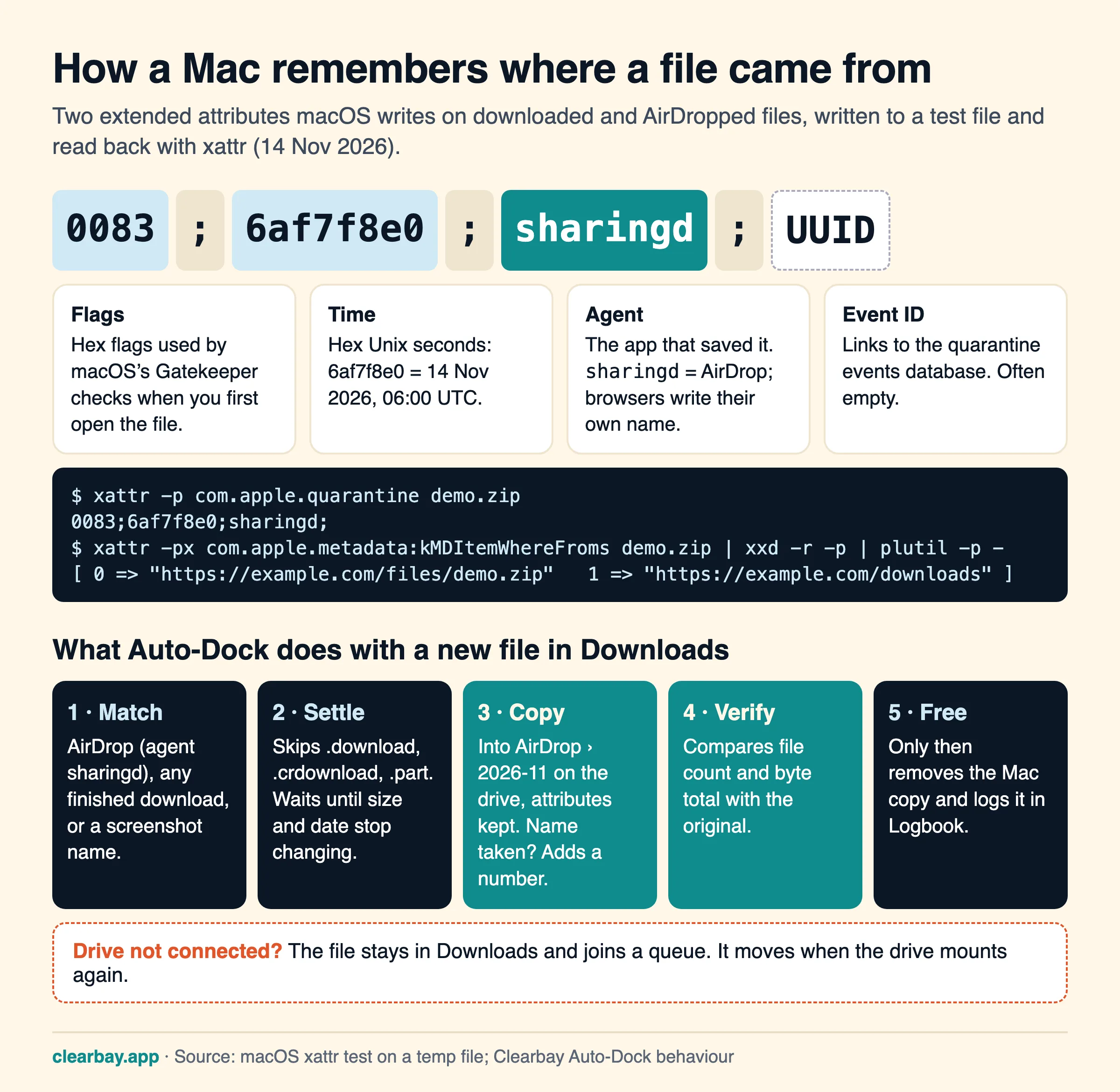
com.apple.quarantineis a short text value like0083;6af7f8e0;sharingd;: flags, the time in hexadecimal Unix seconds (6af7f8e0 is 14 November 2026, 06:00 UTC), the name of the app that saved the file, and an optional event ID. Gatekeeper uses it to show "downloaded from the internet" warnings. For AirDrop the agent issharingd, the macOS sharing service; browsers write their own name.com.apple.metadata:kMDItemWhereFromsis a small binary property list with the download URL and usually the page it came from. Finder shows it as "Where from" in Get Info.
Check any of your own files:
xattr -p com.apple.quarantine ~/Downloads/file.zip
mdls -name kMDItemWhereFroms ~/Downloads/file.zip
Two findings from our test matter for a drive archive:
- Both attributes travel with the file. A plain
cpto another folder kept them, and so does Finder. That's good: a file moved to the drive still opens with the right Gatekeeper check and keeps its "Where from". - exFAT drives store them in "._" files. We created a small exFAT disk image and an APFS disk image and copied the same file to each. On APFS the attributes were stored natively. On exFAT, macOS created a hidden 4 KB
._demo.zipcompanion file next to it. That's harmless on a Mac but clutters the drive when you open it on Windows. If the drive is only used with Macs, format it as APFS.
Screenshots: how much space they take
Screenshots save to the Desktop by default, as PNG, at your display's full pixel resolution. We rendered three kinds of synthetic test screen (a flat app window, a code editor full of text, and a photo-like noise texture as a worst case) at the native resolution of each current Mac display, and saved each with macOS's own image encoder through sips as PNG, HEIC and JPEG.
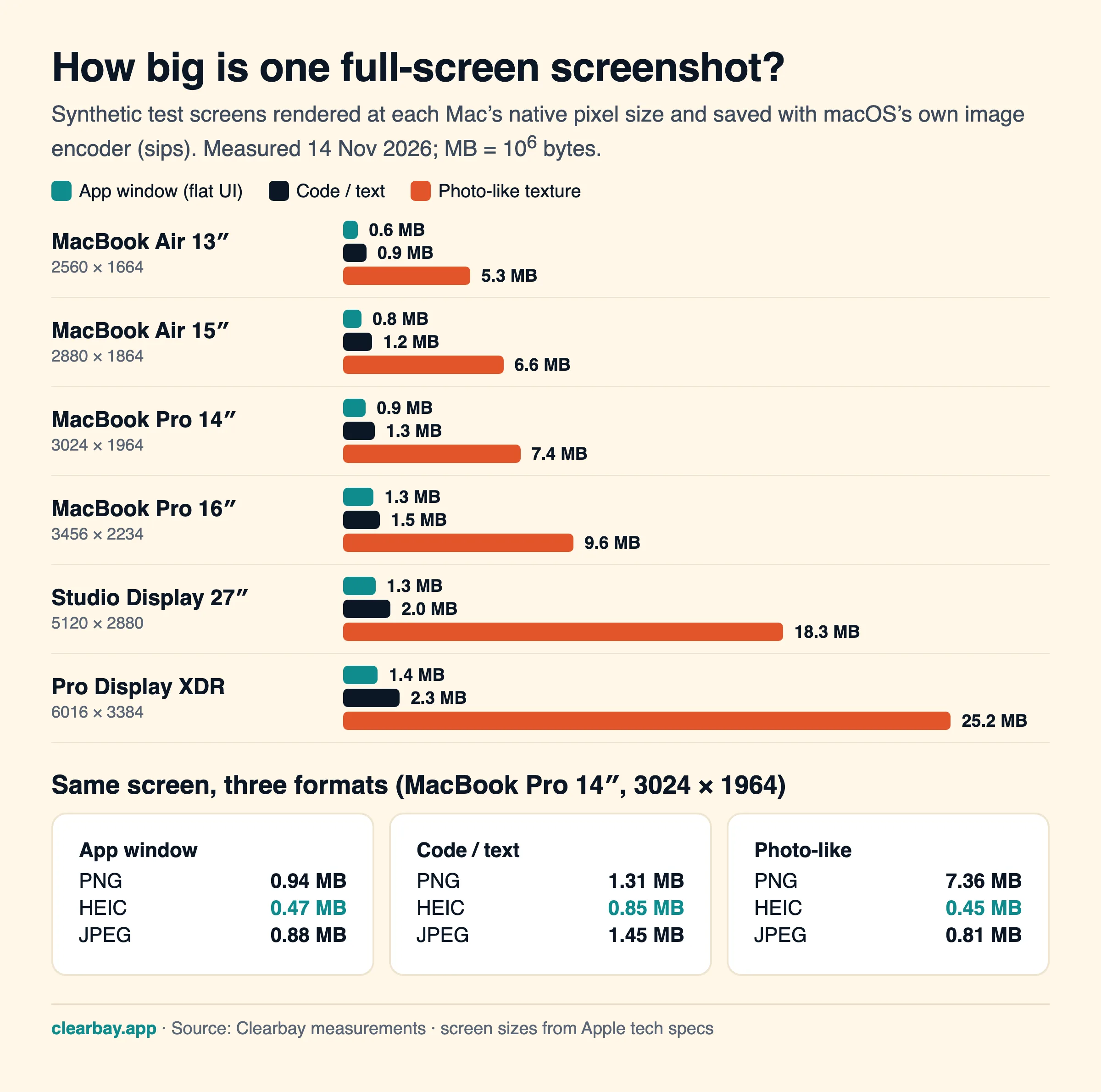
| Display (native pixels) | App window PNG | Code/text PNG | Photo-like PNG | App window HEIC |
|---|---|---|---|---|
| MacBook Air 13″ (2560 × 1664) | 0.62 MB | 0.95 MB | 5.27 MB | 0.31 MB |
| MacBook Air 15″ (2880 × 1864) | 0.76 MB | 1.21 MB | 6.65 MB | 0.39 MB |
| MacBook Pro 14″ (3024 × 1964) | 0.94 MB | 1.31 MB | 7.36 MB | 0.47 MB |
| MacBook Pro 16″ (3456 × 2234) | 1.25 MB | 1.50 MB | 9.56 MB | 0.63 MB |
| Studio Display (5120 × 2880) | 1.34 MB | 1.95 MB | 18.25 MB | 0.60 MB |
| Pro Display XDR (6016 × 3384) | 1.43 MB | 2.34 MB | 25.20 MB | 0.60 MB |
What this means in practice:
- Content matters more than resolution. A screenshot of photos, video frames or a wallpaper was 8 to 18 times larger than a screenshot of an app window at the same size.
- It adds up quietly. 20 app-window screenshots a day on a 14-inch MacBook Pro is 20 × 0.94 MB × 365 ≈ 6.9 GB a year. Ten photo-heavy screenshots a day on a 16-inch is about 35 GB a year.
- HEIC halves typical screenshots, and JPEG is not smaller than PNG for text: our code screen was 1.45 MB as JPEG against 1.31 MB as PNG. HEIC and JPEG are lossy, so keep PNG if you need pixel-exact images.
Screen recordings are far larger again (video, not still images), which makes them the first thing worth sending to a drive.
Step by step: send new files to your drive with built-in tools
1. Change your browser's download location
- Safari: Safari → Settings → General → File download location → Other… → choose a folder on the drive.
- Chrome: Chrome → Settings → Downloads → Location → Change. Or turn on "Ask where to save each file before downloading".
- Firefox: Firefox → Settings → General → Files and Applications → Save files to → Browse.
- Edge: Edge → Settings → Downloads → Location → Change.
The catch: when the drive isn't connected, the browser has nowhere to save. Depending on the browser, the download fails or you're asked for a new location, and you have to remember to switch it back. It also does nothing for AirDrop, Mail or Messages attachments.
2. Change where screenshots are saved
- Press ⇧⌘5 to open the Screenshot toolbar.
- Click Options → under Save to, choose Other Location… and pick a folder on the drive.
Or in Terminal: defaults write com.apple.screencapture location /Volumes/MyDrive/Screenshots, then killall SystemUIServer. To make screenshots smaller, defaults write com.apple.screencapture type jpg switches the format; guides also list heic, though they note newer macOS versions may ignore this preference. Undo with defaults delete com.apple.screencapture type. If the drive is missing, screenshots won't land where you expect, so a screenshots folder on the internal disk plus a mover is more dependable.
3. Shortcuts folder automation (macOS 26 Tahoe)
macOS 26 added personal automations to Shortcuts on the Mac, including a Folder trigger.
- Open Shortcuts and click Automation in the sidebar, then the + button.
- Choose Folder, select your Downloads folder, tick Added, and choose Run Immediately (turn off Notify When Run if you prefer).
- Create a new shortcut. It starts with Receive Folder Change Summary as input.
- Add Repeat with Each over the summary's Added Files, and inside it add Move File to a folder on your drive. Add a Filter Files action first if you only want certain types, such as videos or
.dmgfiles.
Limits to know: the automation fires as soon as a file appears, so a browser's partial .crdownload or .download file can be moved mid-download unless you filter those out; it can't tell an AirDrop file from a browser download; nothing checks that the copy is complete; and if the drive isn't mounted the move simply fails and the file stays in Downloads with no retry.
4. Automator Folder Action (macOS 14 and 15)
- Open Automator → New Document → Folder Action.
- At the top, set "Folder Action receives files and folders added to" → Downloads.
- Add Move Finder Items and set "To" to a folder on your drive. Save.
- Right-click Downloads in Finder → Services → Folder Actions Setup… and make sure it's enabled.
It has the same limits as the Shortcuts version.
Auto-Dock: move downloads to an external drive automatically
Auto-Dock is the part of Clearbay built for exactly this job. It watches Downloads (and the Desktop for screenshots), moves new files to your drive, and leaves the Downloads folder itself alone, so AirDrop and Safari keep working.
Set it up
- Connect your drive and choose it in Harbor (see offload to an external drive). Auto-Dock can use the same drive as Offload or a different one.
- Open Auto-Dock and turn on the switches you want: AirDrop files (photos and files people send you), All downloads (anything your browser saves to Downloads) and Screenshots (screenshots and screen recordings from the Desktop).
- macOS may ask once whether Clearbay can access Downloads or the Desktop. Clearbay never opens your files; it only moves new ones.
- Optionally tick Also move matching files that are already there to clear the backlog too.
Write your own rules
Under Describe a rule, type what you want in plain words, such as "videos older than 7 days from Downloads". Click Read rule and check the preview that starts "Clearbay will move:" before adding it. On Macs with Apple Intelligence the sentence is read on the device; otherwise built-in rules read it. Rules can filter by file type and age and can watch another folder. A rule that would take every file from the Desktop with no type or age filter is refused, because it would grab whatever you're working on.
What happens to each file
- Match. AirDrop files are recognised by their quarantine agent (
sharingd), screenshots by their name, downloads by arriving in Downloads. - Settle. Partial downloads (
.download,.crdownload,.part) are skipped. A file must be left alone for at least 15 seconds and keep the same size between two checks; files in other watched folders must be untouched for a minute. - Copy. The file goes to
AirDrop,DownloadsorScreenshotson the drive, inside a folder for the month (for example2026-11), with its attributes. If the name is taken, it gets a number. - Verify. File count and byte total of the copy must match the original.
- Free. Only then is the copy on your Mac removed (straight away rather than to the Trash, since a Trash copy wouldn't free any space), and the move is recorded in Logbook. If any step fails, the original stays exactly where it was.
When the drive isn't connected, or is too full, files wait in Downloads in a queue and move as soon as the drive mounts. Recently moved files are listed in Auto-Dock with a Show in Finder button. Auto-Dock is part of Clearbay Pro; download Clearbay to try the rest free.
Troubleshooting
AirDrop files are going to /private/tmp
Your Downloads folder is probably a symlink, or a sync app (for example a cloud "back up Downloads" option) has replaced it. Restore ~/Downloads as a real folder in your home folder, turn off the sync app's Downloads backup, and restart the Mac.
Files aren't moving
Check that a drive is chosen and connected, that the switch is on, and that Clearbay has access: System Settings → Privacy & Security → Files and Folders → Clearbay → Downloads Folder (and Desktop Folder for screenshots). Files that are still downloading or still being written wait until they settle.
The drive fills up
Auto-Dock queues files when the drive lacks room for them instead of half-copying. Free space on the drive, or point Auto-Dock at a bigger one.
Hidden "._" files appear on the drive
The drive is formatted exFAT or FAT32, which can't store macOS extended attributes, so macOS writes them to ._ companion files. They're harmless. Format a Mac-only drive as APFS to avoid them (Disk Utility → Erase erases everything on it).
A downloaded app won't open from the drive
The quarantine attribute moved with it, so Gatekeeper still asks for confirmation the first time. Right-click the app and choose Open, or install apps to /Applications rather than running them from an archive drive.
Once new files stop piling up, deal with what's already there: see how to free up space on a Mac without deleting and what System Data is.
FAQ
Can I change where AirDrop files are saved on a Mac?
No. macOS saves received AirDrop files to your Downloads folder and has no setting to change it; some items, like photos, can be opened straight into an app instead. Don't replace Downloads with a symlink to another drive, which users report breaks AirDrop. Move the files after they arrive with a folder automation or Clearbay's Auto-Dock.
Can I make my Mac download files directly to an external drive?
For browser downloads, yes: set the download location in Safari, Chrome, Firefox or Edge to a folder on the drive. It fails or asks again when the drive is unplugged, and it doesn't cover AirDrop, Mail or Messages. Moving files out of Downloads after they finish is more reliable.
Is it safe to move the Downloads folder to an external drive?
Not the folder itself. Apps and AirDrop expect ~/Downloads to exist on your Mac, and a symlink to a drive breaks AirDrop and disappears when the drive is ejected. Keep the folder and move its contents instead, either by hand, with a Shortcuts or Automator automation, or automatically with Auto-Dock.
How do I change where screenshots are saved on a Mac?
Press ⇧⌘5, click Options, and under Save to choose Desktop, Documents, another app, or Other Location… for any folder, including one on an external drive. You can also run defaults write com.apple.screencapture location /path/to/folder followed by killall SystemUIServer in Terminal.
How big is a screenshot on a Mac?
It depends mostly on what's on screen. In our tests a full-screen PNG of an app window was 0.6 MB on a 13-inch MacBook Air and 0.9 MB on a 14-inch MacBook Pro, a code editor 0.9 to 1.3 MB, and a photo-heavy screen 5.3 to 7.4 MB. On a 5K Studio Display the photo-like screen reached 18 MB.
What is com.apple.quarantine on a Mac?
It's an extended attribute macOS adds to files downloaded or received by apps such as Safari, Chrome, Mail and AirDrop. It records flags, the time, the app that saved the file (sharingd for AirDrop) and an event ID. Gatekeeper reads it to warn you before opening something from the internet. You can view it with xattr -p com.apple.quarantine <file>.
What happens to downloads if my external drive is disconnected?
With a browser pointed at the drive, the download fails or asks for a location. With a Shortcuts or Automator automation, the move fails and the file stays in Downloads. With Auto-Dock, files wait in Downloads in a queue and move automatically once the drive is connected again.
Sources
- Apple Mac User Guide: Use AirDrop on your Mac
- Apple Mac User Guide: Take screenshots or screen recordings
- Apple Developer: LSFileQuarantineEnabled
- Apple: MacBook Air tech specs, MacBook Pro tech specs, Studio Display tech specs
- Six Colors: Get started with folder automation in macOS Tahoe
- Apple Community: AirDrop files go to /private/tmp instead of ~/Downloads
- MacRumors: Change the save location and format of macOS screenshots