Full Disk Access on Mac: What It Is and When to Allow It
What Full Disk Access unlocks, what apps can read without it, how to grant or revoke it on macOS 14 to 27, and what Apple's October 2026 change means.
 By Clearbay TeamGuides from the people building Clearbay
Full Disk Access on Mac is a privacy permission that lets an app read data macOS otherwise keeps from it. In Apple's words it covers "all files on your computer, including data from other apps (for example, Mail, Messages, Safari, and Home), data from Time Machine backups, and certain administrative settings for all users on this Mac." Only you can grant it, in System Settings → Privacy & Security → Full Disk Access, and you can take it back at any time. Backup apps and disk analyzers need it to see the whole disk. Most other apps don't.
This guide explains what Full Disk Access really unlocks, what an app can and can't read without it (in a matrix we built from Apple's documentation and release notes), how to grant and revoke it on macOS 14 Sonoma, 15 Sequoia, 26 Tahoe and 27 Golden Gate, and what Apple's October 2026 announcement means for the future of the permission.
What is Full Disk Access on Mac?
Since macOS 10.14 Mojave, a part of macOS called TCC (Transparency, Consent and Control) stands between apps and your private data. When an app tries to list a protected folder or open a protected file, macOS checks whether you've allowed it. If you haven't, the app either sees a consent prompt or simply gets an "Operation not permitted" error.
TCC has many separate permissions: Camera, Microphone, Contacts, Photos, Files & Folders and others. Full Disk Access is the broadest one. In Apple's device-management reference it's the SystemPolicyAllFiles service, defined as "access to all protected files, including system administration files." If an app has it, macOS skips the per-folder questions for that app.
Three things Full Disk Access does not do:
- It doesn't make an app an administrator. Ordinary Unix permissions still apply. Files owned by root or by another user stay closed, and changing them still needs your administrator password.
- It doesn't unlock the system. System Integrity Protection and the signed, read-only system volume still stop any app from modifying macOS itself.
- It isn't about writing. Apple's privacy controls over folders are mostly about reading their contents. Whether an app can change a file is still decided by normal permissions.
What apps can and can't see without Full Disk Access
Apple doesn't publish one complete list of protected locations. We compiled this matrix from Apple's Mac User Guide, Apple's Privacy Preferences Policy Control (PPPC) payload reference, the macOS 27 release notes and Eclectic Light Co.'s testing of TCC. It describes a regular app downloaded from its developer's website, such as a disk cleaner.
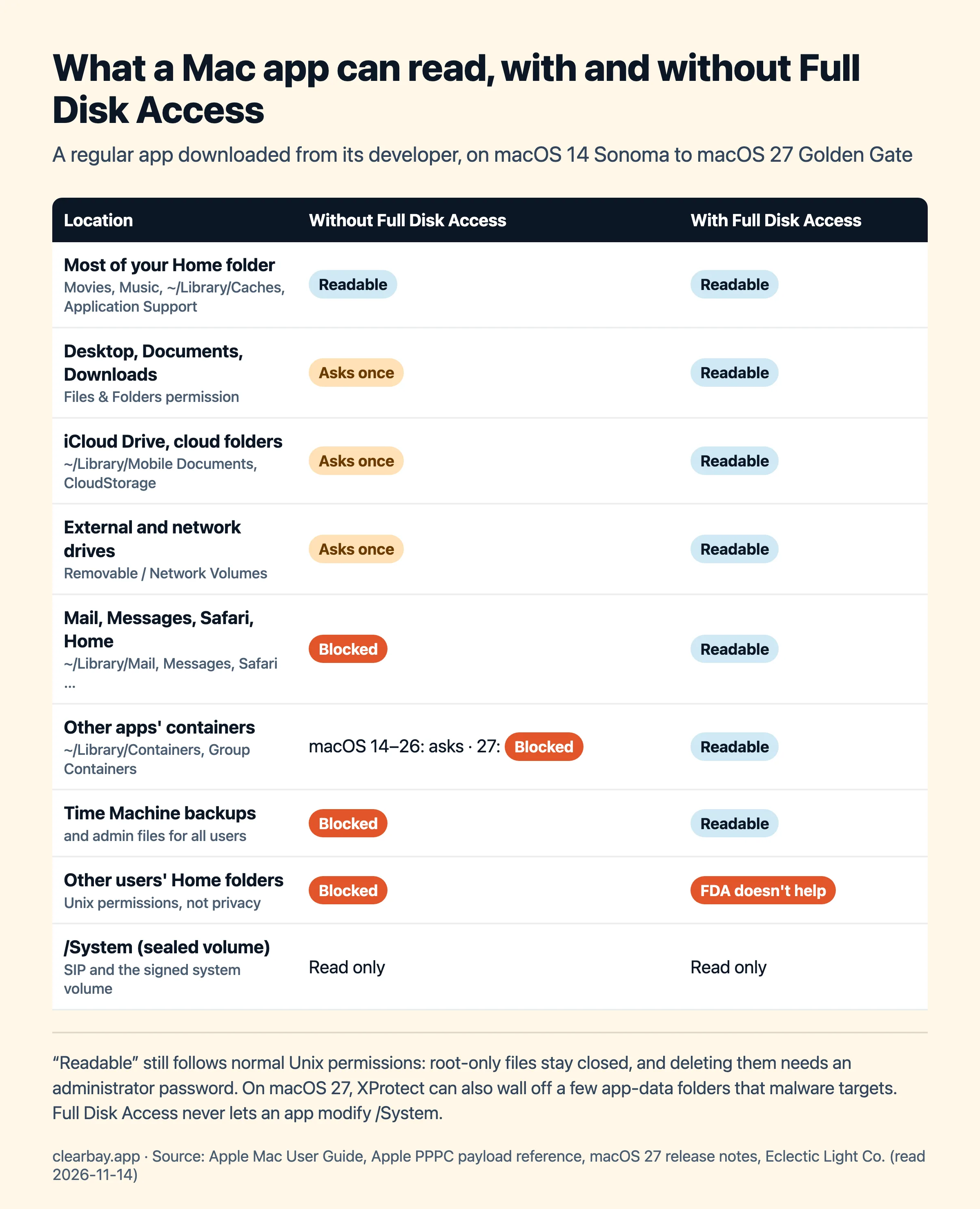
| Location | Without Full Disk Access | With Full Disk Access | Basis |
|---|---|---|---|
Most of your Home folder (Movies, Music, ~/Library/Caches, most of Application Support) | Readable | Readable | Not a protected location |
| Desktop, Documents, Downloads | Asks once, then listed under Files & Folders | Readable, no prompt | PPPC keys SystemPolicyDesktopFolder, DocumentsFolder, DownloadsFolder (macOS 10.15+) |
iCloud Drive and third-party cloud folders (~/Library/Mobile Documents, ~/Library/CloudStorage) | Asks for consent | Readable | File Provider protection (Eclectic Light) |
| External (removable) drives and network volumes | Asks once | Readable | PPPC SystemPolicyRemovableVolumes, NetworkVolumes |
| Mail, Messages, Safari, Home data | Blocked, no prompt | Readable | Apple Mac User Guide |
Other developers' app containers (~/Library/Containers, Group Containers) | macOS 14–26: asks ("would like to access data from other apps"). macOS 27: denied by default, no prompt | Readable; Apple's own suggested workaround in the macOS 27 release notes | PPPC SystemPolicyAppData (macOS 14+); macOS 27 release notes |
| Time Machine backups, admin settings for all users | Blocked | Readable | Apple Mac User Guide; PPPC SystemPolicySysAdminFiles |
| Other users' Home folders | Blocked | Still blocked (Unix permissions, not privacy) | Full Disk Access doesn't override permissions or ACLs |
/System and the sealed system volume | Read only | Read only | System Integrity Protection |
| The TCC privacy database itself | Blocked | On macOS 27, apps can no longer access it directly | macOS 27 release notes |
Two footnotes. On macOS 27, Apple also says XProtect "may now restrict access to app data that is commonly targeted by malicious software", so a few specific app-data folders can be off-limits even in places that used to be readable. And "Readable" never means "removable": a file owned by root still needs your password to move.
Which apps actually need Full Disk Access
Very few. As a rule of thumb:
- Backup apps (including Time Machine alternatives and cloning tools) need it, or they'll silently skip your mail, messages and app data.
- Disk analyzers and cleaners need it to measure the whole disk: other apps' containers, system caches, logs and Time Machine data. Without it, they see only part of your storage.
- Security and endpoint tools usually need it to inspect files across the system.
- Terminal and other shells sometimes need it for admin work. Granting it to Terminal grants it to every command and script you run there, so turn it off again when you're done.
- Everything else, including editors, chat apps, browsers and AI assistants, should get the narrower Files & Folders permission when it asks, or nothing at all.
How to give an app Full Disk Access
The steps are the same on macOS 14 Sonoma, 15 Sequoia, 26 Tahoe and 27 Golden Gate. Older versions of macOS (12 and earlier) use System Preferences → Security & Privacy → Privacy instead.
- Choose Apple menu → System Settings.
- Click Privacy & Security in the sidebar. You may need to scroll the sidebar down.
- On the right, click Full Disk Access.
- Find the app and turn on its switch. macOS asks for your administrator password or Touch ID.
- If the app isn't in the list, click the Add button (+) below the list, select the app in Applications and click Open. Then turn on its switch.
- If macOS offers Quit & Reopen, accept it. Many apps only pick up the new permission after a restart.
Shortcut: you can open the Full Disk Access pane directly from Terminal with open "x-apple.systempreferences:com.apple.preference.security?Privacy_AllFiles". Apps that ask for Full Disk Access use the same link for their "Open System Settings" button. No app can turn the switch on by itself; it always takes your click and your password.
How to check and revoke Full Disk Access
- Turn it off: go to System Settings → Privacy & Security → Full Disk Access and turn off the app's switch. The app loses access the next time it tries to read a protected location (quit and reopen it to be sure).
- Remove the app from the list: select it and click the Remove button (−) below the list.
- Reset from Terminal:
tccutil reset SystemPolicyAllFiles com.example.appresets the decision for one app (replace the bundle identifier).tccutil reset All com.example.appresets every privacy decision for that app, so it asks again from scratch. - Review the list every few months. Uninstalled apps, old helper tools and terminals you granted access once tend to pile up there.
Privacy implications: what you're really agreeing to
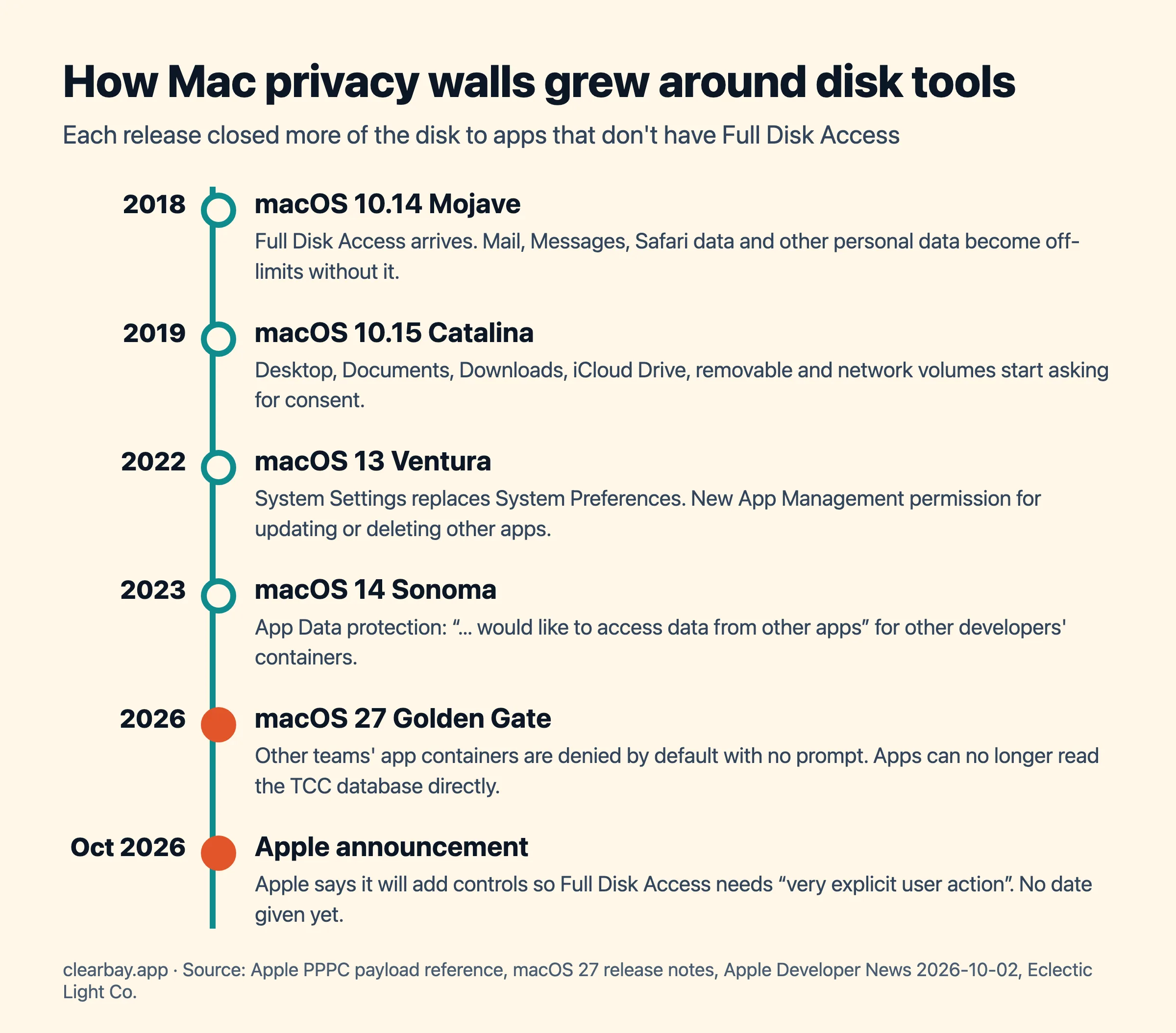
Full Disk Access is a lot of trust. An app with it could read your email, your message history, your Safari history and the data of almost every other app. Apple said so plainly in a developer announcement on 2 October 2026: Full Disk Access "largely sidesteps these controls in order to allow backup apps to function properly on the Mac," and some developers are using it "in ways that could put users at risk, exposing everything on their systems—including files, mail, messages, and even browsing history—without users' full knowledge and understanding." Apple added that it will introduce controls so that people "who genuinely wish to grant an app this extraordinary level of access can only do so with very explicit user action," citing AI agents as a growing risk. As of November 2026, Apple hasn't said when or how that will change.
Before you grant it, ask four questions:
- Does the app's job need the whole disk? Backup and disk-space tools do. A note-taking app doesn't.
- Is it signed and notarized by a developer you can identify? macOS shows a warning when an app isn't notarized. Download from the developer's own site or a store you trust.
- What does it send off your Mac? Read the privacy policy. A disk tool needs file names, sizes and dates, not your file contents, and it has no reason to upload any of them.
- Can you use it without the permission? Good apps work in a reduced mode and tell you what's missing, rather than refusing to start.
Troubleshooting
I turned it on, but the app still says it doesn't have access
Quit the app completely and open it again. If that doesn't help, select the app in the Full Disk Access list, click Remove (−), then add it again with the Add (+) button. This fixes most cases after an app update, because macOS ties the permission to the app's code signature.
The app isn't in the Full Disk Access list
Apps only appear after they've tried to read a protected location, and some never do. Use the Add (+) button and pick the app from Applications. For command-line tools, add the terminal app you run them from.
The switch is greyed out
Your Mac is probably managed by an organization, and a configuration profile controls the setting. Check System Settings → General → Device Management and ask your IT team.
An app worked on macOS 26 but can't read another app's data on macOS 27
That's the new default in macOS 27: access to other developer teams' containers is denied without a prompt. Grant the app access to that data in Privacy & Security, or, if it's a tool whose job is the whole disk, grant Full Disk Access.
The permission disappeared after a macOS upgrade
Major upgrades and app updates can reset the decision for an app. Turn the switch on again; your files are unaffected.
How Clearbay uses Full Disk Access
Clearbay is a Mac disk-space app you download from clearbay.app, signed with Apple's Developer ID and notarized. Full Disk Access is optional. During setup Clearbay explains why it asks, with a button that opens the right pane in System Settings and a "Skip for now" button that always works. You can allow it later in Settings.
- Without it, Clearbay scans your Home folder, Downloads, caches, developer files and apps, and every place that needs more access is marked "Needs Full Disk Access", so you know what you're not seeing.
- With it, the scan covers the whole startup disk. Clearbay adds system caches (not Apple's own), system logs and diagnostic reports, rotated logs older than seven days, your per-user caches and temporary files, leftover macOS update files, Xcode simulator caches and images, and "Install macOS" apps. Forgotten Giants also looks in /Users/Shared, /Library/Application Support and /opt, and Vital Signs shows "Where your space goes" across the whole disk, each part opening in Space Atlas. Clearbay rescans by itself as soon as you turn the permission on. Big items it finds can be offloaded instead of deleted, as in our guide to freeing up space without deleting.
- Some things are only measured, never offered for removal: simulator volumes, swap and the sleep image, macOS assets, Photos, Messages, the Mail store, other users' folders, Homebrew, snapshots and purgeable space. Keychains and iCloud Drive are never cleaned.
- Root-owned items are collected into one administrator password prompt per run and moved to your Trash, never deleted with
rm. Cancel, and nothing changes.
Clearbay reads file names, sizes and dates, not your documents. To check whether it has the permission, it only tries to open Safari's bookmarks file (or list the Stocks app's folder) and closes it again without reading the contents. Its AI explanations run on-device, and nothing about your files leaves your Mac. For what that whole-disk view reveals, see What is System Data on Mac and which developer caches are safe to clear. Or download Clearbay free for macOS 14 or later, on Apple silicon and Intel.
FAQ
Is it safe to give an app Full Disk Access on a Mac?
It's safe for a trustworthy app whose job needs it, such as a backup tool or a disk analyzer from a developer you can identify. It's risky for anything else, because the app could read your mail, messages and browsing history. Apple itself calls it "this extraordinary level of access". Grant it sparingly and review the list regularly.
What does Full Disk Access do on a Mac?
It lets an app read data macOS normally protects: Mail, Messages, Safari and Home data, other apps' data, Time Machine backups, admin settings for all users, and folders like Desktop, Documents and Downloads without asking. It doesn't give the app administrator rights or let it change macOS itself.
Why does a disk cleaner need Full Disk Access?
To measure the whole disk. Without it, a cleaner can't see other apps' containers on macOS 27, Time Machine data or some system caches and logs, so its totals won't match Storage settings. A well-built cleaner still works without the permission and tells you which places it couldn't check.
How do I turn off Full Disk Access for an app?
Open System Settings → Privacy & Security → Full Disk Access and turn off the app's switch, or select it and click the Remove (−) button. To reset it from Terminal, run tccutil reset SystemPolicyAllFiles followed by the app's bundle identifier. Quit and reopen the app afterwards.
Why is my app not showing in Full Disk Access?
Apps only appear in the list after they try to read a protected location. Click the Add (+) button below the list, choose the app in your Applications folder and click Open, then turn on its switch. For command-line tools, add the terminal app you run them from instead.
Is Full Disk Access the same as Files & Folders?
No. Files & Folders grants access to specific places, such as Desktop, Documents, Downloads, removable or network volumes, one at a time, usually after a prompt. Full Disk Access covers all protected locations at once, including Mail, Messages, Safari and Time Machine data, which Files & Folders never covers.
Does Full Disk Access let an app delete system files?
No. System Integrity Protection and the read-only system volume still block changes to macOS, and root-owned files still need your administrator password. Full Disk Access is mainly about reading protected data, not about deleting or modifying it.
Is Apple changing Full Disk Access?
Yes, but no date has been announced. On 2 October 2026 Apple said it will add controls so apps can get Full Disk Access only through "very explicit user action", pointing to the risk from increasingly autonomous AI agents. Existing grants still work as of November 2026.
Sources
- Apple Mac User Guide: Change Privacy & Security settings on Mac
- Apple Mac User Guide: Control access to files and folders on Mac
- Apple Developer: PrivacyPreferencesPolicyControl.Services (PPPC service keys)
- Apple Developer: macOS 27 Golden Gate release notes
- Apple Developer News: Updates to Full Disk Access in macOS (2 October 2026)
- TidBITS: Apple plans to tighten Full Disk Access controls
- Eclectic Light Co.: Privacy: how locations are protected
- Eclectic Light Co.: Privacy: protected folders
- Eclectic Light Co.: A guide to Catalina's privacy protection
- macOS man page: tccutil(1)